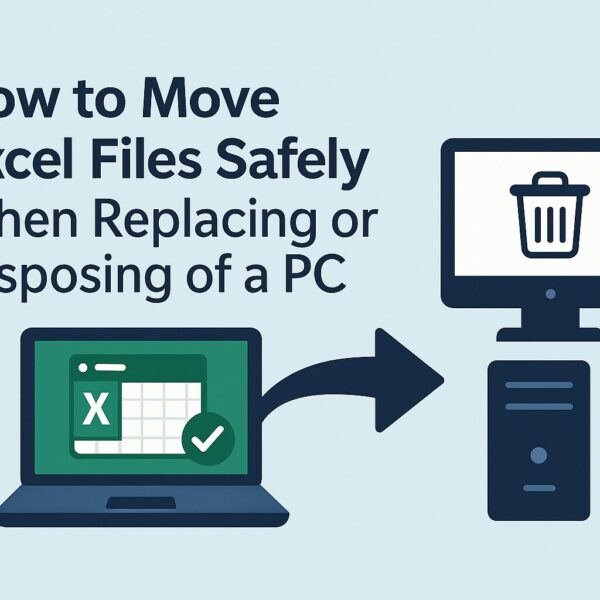
A step-by-step guide to avoid “can’t open,” broken formatting, and macro failures when moving Excel files to a new PC.
- 1 Who this is for
- 2 TL;DR — Quick checklist (do these on the old PC first)
- 2.1 1) Inventory first: make the invisible visible
- 2.2 2) On the old PC — pre-migration work (detailed steps)
- 2.2.1 2.0 Back up first
- 2.2.2 2.1 Convert legacy formats (.xls → .xlsx / .xlsm)
- 2.2.3 Batch conversion (optional, for many files)
- 2.2.4 2.2 Macros & add-ins (VBA) and 32/64-bit differences
- 2.2.5 2.3 Passwords & encryption
- 2.2.6 2.4 CSV: encoding, delimiter, and decimal symbol
- 2.2.7 2.5 External links, Power Query, ODBC/ACE
- 2.2.8 2.6 Fonts & layout
- 3 3) On the new PC — prepare the environment
- 4 4) If it still won’t open or work
- 5 5) Suggested “Migration Rules” for small teams
- 6 6) Data protection when disposing of the old PC
- 7 7) Quick reference tables
- 8 8) Wrap-up
Who this is for
- Individuals and small teams replacing an old Windows PC
- Admins preparing several PCs for disposal, trade-in, or hand-over
- Anyone who has run into “old Excel files won’t open in the new Excel” or “macros suddenly stopped working”
TL;DR — Quick checklist (do these on the old PC first)
- Convert .xls → .xlsx / .xlsm to remove Compatibility Mode
- Migrate macros/add-ins (.xla → .xlam), and note VBA References and Office bitness (32-bit / 64-bit)
- Re-save password-protected files with modern encryption
- Fix CSV issues: re-save as CSV UTF-8, confirm delimiter (comma/semicolon) and decimal symbol
- Note external links, Power Query sources, ODBC/ACE drivers, and fonts in use
- Do a pilot test with a few “representative” files on the new PC before you retire the old one
1) Inventory first: make the invisible visible
On the old PC, start by listing what you actually rely on:
- Excel version (2010 / 2013 / 2016 / 2019 / 2021 / Microsoft 365) and 32-bit or 64-bit
- File types in use: .xls, .xlsx, .xlsm, .xla, .xlam, .csv
- Macros (VBA) and References (ADO/ODBC, COM libraries, external DLLs)
- Files that use passwords or encryption
- External links (shared folders, network paths), Power Query data sources
- Fonts used in templates, reports, and invoices
Tip: In File Explorer, search for *.xls or *.xla to quickly surface older formats that are more likely to cause trouble later.
2) On the old PC — pre-migration work (detailed steps)
2.0 Back up first
Before touching anything:
- Copy your working folders to an external SSD/HDD or a cloud drive.
- Open a few copied files to confirm they’re readable.
If something goes wrong later, this is your safety net.
2.1 Convert legacy formats (.xls → .xlsx / .xlsm)
Why: Old .xls files are much more likely to fail on modern Excel (especially with macros, complex formatting, or external links).
How:
- Open the workbook in Excel.
- Go to File → Save As.
- Choose Excel Workbook (.xlsx).
If the file contains macros:
- Save as Excel Macro-Enabled Workbook (.xlsm) instead.
Do this before moving files to the new PC. Converting early removes Compatibility Mode and avoids a lot of “mystery” issues later.
Batch conversion (optional, for many files)
If you have a whole folder full of .xls files, you can use this VBA macro on the old PC to batch-convert them.
(Back up the folder first.)
Sub BatchConvertXlsToXlsx()
Dim fso As Object, folder As Object, file As Object
Dim inPath As String, wb As Workbook
inPath = InputBox(“Folder path to convert:”)
If inPath = “” Then Exit Sub
Set fso = CreateObject(“Scripting.FileSystemObject”)
Set folder = fso.GetFolder(inPath)
Application.ScreenUpdating = False
Application.DisplayAlerts = False
For Each file In folder.Files
If LCase(fso.GetExtensionName(file.Name)) = “xls” Then
Set wb = Workbooks.Open(file.Path, ReadOnly:=False)
If wb.HasVBProject Then
wb.SaveAs Replace(file.Path, “.xls”, “.xlsm”), _
FileFormat:=xlOpenXMLWorkbookMacroEnabled
Else
wb.SaveAs Replace(file.Path, “.xls”, “.xlsx”), _
FileFormat:=xlOpenXMLWorkbook
End If
wb.Close SaveChanges:=False
End If
Next
Application.DisplayAlerts = True
Application.ScreenUpdating = True
MsgBox “Done”
End Sub
2.2 Macros & add-ins (VBA) and 32/64-bit differences
On the old PC:
- In the VBA Editor, go to Tools → References and take screenshots of all checked libraries.
- If you are moving from 32-bit Office to 64-bit Office, any
Declarestatements that call Windows APIs might need:PtrSafeadded- Long pointers changed to
LongPtr
- Convert old add-ins:
- .xla → .xlam
- Plan to store them in a Trusted Location on the new PC (see 3.2).
This makes it much easier to fix “Compile error: Can’t find project or library” problems later.
2.3 Passwords & encryption
Older encryption methods can cause “can’t open” or “invalid password” errors on modern Excel.
On the old PC:
- Open the protected workbook.
- Remove the password and save it in a modern format (.xlsx or .xlsm).
- After migration, re-apply password protection in the new Excel if needed.
This upgrades the protection scheme and avoids compatibility headaches.
2.4 CSV: encoding, delimiter, and decimal symbol
CSV problems are very common when changing PCs or regions.
- Re-save important CSVs as CSV UTF-8 to avoid mojibake (garbled characters).
- Remember that regional settings affect:
- Delimiter (comma vs semicolon)
- Decimal symbol (dot vs comma)
- If the file keeps importing incorrectly, use:
- Data → Get Data → From Text/CSV
- Explicitly choose encoding, delimiter, and decimal symbol.
2.5 External links, Power Query, ODBC/ACE
For workbooks that pull data from outside Excel:
- In Data → Queries & Connections, note each data source path/server.
- If shared folder paths will change, plan the new UNC path (
\\server\share\...). - List required drivers (ODBC providers, Access Database Engine) and their bitness (32-bit / 64-bit).
This prevents “connection failed” surprises on the new machine.
2.6 Fonts & layout
If your reports depend on non-standard fonts:
- Make a note of them and install the same fonts on the new PC (if licensing allows),
or choose tested substitutes.
This reduces layout shifts, changed line breaks, and “ugly” printed reports after migration.
3) On the new PC — prepare the environment
3.1 Install the right stack
On the new PC, make sure the basics match what your files expect:
- Office version and bitness:
- 32-bit: better add-in compatibility
- 64-bit: better for very large models
- Required ODBC drivers / Access Database Engine (same bitness as Office)
- Any fonts you identified in section 2.6
3.2 Trust Center, macro security, and “files from the internet”
Modern Office is strict about macro security, especially for files downloaded from the internet.
Options:
- Right-click the file in Explorer → Properties → turn on Unblock → OK → open again
- Or place files in a Trusted Location:
- Excel → File → Options → Trust Center → Trust Center Settings → Trusted Locations
Doing this for shared macro workbooks and add-ins can dramatically cut down on “macros are disabled” complaints.
3.3 Pilot test before shutting down the old PC
Before you say goodbye to the old machine:
- Pick 5–10 “representative” workbooks (complex formulas, Power Query, macros, CSV imports, etc.).
- On the new PC, for each file:
- Open it
- Recalculate
- Run key macros
- Check print preview
Fix any issues now, while you can still open the file on the old PC and compare behavior.
4) If it still won’t open or work
Open & Repair
- File → Open
- Select the workbook → click the arrow next to Open → choose Open and Repair…
Try Repair first; if that fails, you can try Extract Data.
Rescue with another engine
Sometimes LibreOffice Calc can open stubborn or partially damaged legacy files and export them to .xlsx.
- Use this only as a last resort.
- Expect some formatting or macro logic to break; treat the exported file as something you’ll clean up afterward.
Kill broken external links
If files are slow or keep prompting for missing sources:
- Data → Edit Links (or Queries & Connections)
- Update links to the new path or break them if they’re no longer needed.
CSV imports still messy?
Use:
- Data → Get Data → From Text/CSV, then explicitly set:
- Encoding
- Delimiter
- Decimal symbol
This is much more reliable than double-clicking a CSV file and hoping Excel guesses correctly.
5) Suggested “Migration Rules” for small teams
To avoid case-by-case chaos, small teams can agree on some simple rules:
- Save formats: use .xlsx / .xlsm only. No new .xls files going forward.
- CSV: default to UTF-8 and document exceptions when partners require another encoding or delimiter.
- Paths: prefer UNC paths (
\\server\share\...) instead of PC names or mapped drive letters. - Acceptance test: every new PC must successfully open and run 2–3 “golden” files per department before go-live.
- Ownership: appoint a macro/add-in maintainer who communicates changes.
Agreeing on these rules up front makes future migrations faster, more predictable, and less stressful.
6) Data protection when disposing of the old PC
When the new PC is fully validated, handle the old machine’s data safely:
- Windows Reset:
- Settings → System → Recovery → Reset this PC → Remove everything
- Choose the option that also cleans the drive
- SSD secure wipe (advanced):
- Some SSD vendors provide utilities for Sanitize / Secure Erase / PSID Revert
- Use carefully and only if you understand the impact (this is permanent)
- HDD physical destruction (for high-sensitivity data):
- Use a certified recycler who can degauss or shred drives
- Request a Certificate of Destruction if your policies require it
7) Quick reference tables
7.1 Migration task list (printable)
Excel Migration Task List
| Step | What to do | Why it matters |
|---|---|---|
| Backup | Copy folders to external/cloud and spot-check | Prevents data loss |
| Convert .xls | Save as .xlsx / .xlsm (remove Compatibility Mode) | Avoids “can’t open” and broken formatting |
| Macros/Add-ins | Record References; convert .xla → .xlam; plan bitness | Keeps VBA and add-ins working |
| CSV | Re-save as CSV UTF-8; confirm delimiter/decimal | Prevents mojibake and wrong column splits |
| External links | Note PQ sources, ODBC drivers, UNC paths | Reduces broken links and failed refreshes |
| Fonts/layout | Install needed fonts or pick substitutes | Preserves layout and print output |
| Pilot test | Open/calc/macro/print on the new PC | Finds issues while rollback is still possible |
7.2 Which conversion method should I use?
Choosing a Conversion Method
| Method | Best for | Pros | Cons |
|---|---|---|---|
| Manual “Save As” | A small number of important files | Precise; you can review each one | Slow for large volumes |
| VBA batch (macro above) | Many .xls files and limited time | Fast; consistent | Requires a backup and later review |
| LibreOffice → export to .xlsx | Rescuing stubborn or partly damaged files | Can open what Excel rejects | Formatting/macros may degrade |
Start manually for your most critical workbooks, then use batch or LibreOffice methods for the long tail.
8) Wrap-up
Most “the new PC can’t open my old Excel files” problems are avoidable.
- Do the conversions on the old machine.
- Document dependencies (macros, drivers, paths, fonts).
- Pilot test on the new PC while the old one is still available.
Handle CSV and macro security deliberately, and when everything is confirmed working, perform a proper wipe of the old PC before disposal.
That way, your Excel migration becomes a planned transition, not a week-long emergency.
✔️You might also find these helpful:
▶︎How to Fix “A Required File Is Missing or Corrupt” Error in Windows
▶︎What Is a Windows Installation Media? A Complete Beginner’s Guide to Creating and Using It