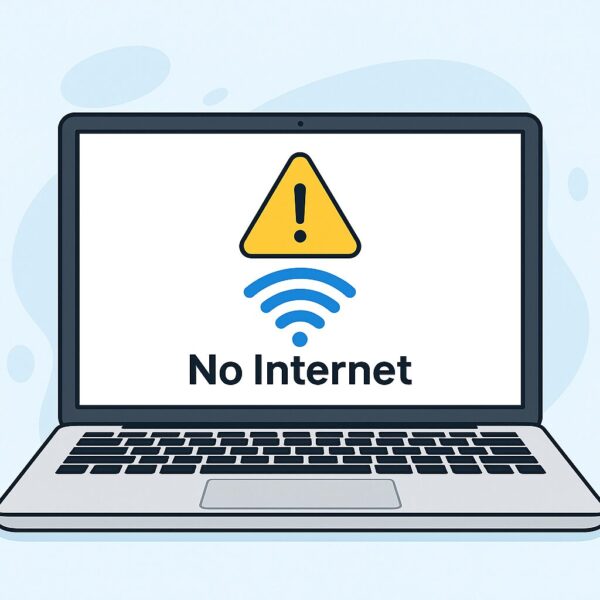
Have you ever seen the Wi-Fi icon showing full signal, but web pages still won’t load? You’re not alone. This is a very common problem and can be especially frustrating when everything looks connected but the internet simply doesn’t work.
In this guide, we’ll walk you through simple ways to find the cause and easy, practical fixes (including a few “hidden tricks”) that anyone can try — even if you’re not tech-savvy.
Common Causes of the “Wi-Fi Connected but No Internet” Problem
- Your computer didn’t get a proper IP address: If your device ends up with a strange address starting with
169.(for example,169.254.x.x), it usually means it couldn’t talk to the router correctly. - DNS server issues: DNS is like the address book of the internet. When it fails, your browser can’t find websites — even though the basic connection is there.
- Public Wi-Fi login page didn’t appear: Airports, cafés, hotels, and trains often require you to accept terms or sign in first. If that page doesn’t show up, you won’t actually get online.
- The router is working, but the internet isn’t: Your device might connect to the Wi-Fi signal just fine, but if the router itself lost its internet connection, nothing will load.
Start Here: Basic Fixes to Try First
- Turn Wi-Fi off and back on: Disable Wi-Fi on your PC, wait a few seconds, then enable it again. This forces a fresh connection to the router.
- Restart your computer: It’s simple, but it clears temporary glitches and often resolves connection issues.
- Test another device: Try a phone or tablet on the same Wi-Fi. – If they also can’t connect, the issue is likely with the router or your internet provider. – If only your PC has trouble, the problem is probably device-side.
- Restart your Wi-Fi router: Unplug the router (and modem, if separate), wait at least 30 seconds, then plug them back in. Many connectivity issues disappear after a clean restart.
Hidden Trick 1: Change Your DNS Server
DNS servers translate website names (like example.com) into the numeric IP addresses computers use. If your DNS server is down or slow, your connection can appear “broken” even when Wi-Fi itself is fine.
Switching to a reliable public DNS server such as Google DNS (8.8.8.8) or Cloudflare DNS (1.1.1.1) can instantly fix name-resolution problems.
How to change DNS on Windows:
- Open Settings → Network & Internet → Change adapter options.
- Right-click your active Wi-Fi adapter and select Properties.
- Double-click Internet Protocol Version 4 (TCP/IPv4).
- Select Use the following DNS server addresses and enter:
Preferred DNS server:8.8.8.8
Alternate DNS server:1.1.1.1 - Click OK, close the windows, and reconnect to Wi-Fi.
Hidden Trick 2: Force the Public Wi-Fi Login Page
On public Wi-Fi networks, the login/accept-terms page doesn’t always appear automatically. If it’s stuck, try this:
Open your browser and type one of these into the address bar:
http://1.1.1.1http://neverssl.com
These often trigger the captive portal (login page) to appear. Important: Make sure you use http:// — not https:// — because some login pages only redirect on plain HTTP.
Hidden Trick 3: Renew Your IP Address
If your device struggled to get a valid IP address from the router, renewing it can help.
- Open Command Prompt as Administrator (search for “cmd”, then right-click and choose Run as administrator).
- Type the following commands, pressing Enter after each line:
ipconfig /releaseipconfig /renew
This forces your PC to drop its current IP address and ask the router for a new one.
Hidden Trick 4: Reset Your Network Adapter
Over time, network settings can become corrupted or misconfigured. Resetting the adapter clears these issues and restores default settings.
How to reset network settings on Windows:
Go to Settings → Network & Internet → Status → Network reset, then follow the instructions and restart your PC. (Names may differ slightly depending on your Windows version, but the option is usually under Network & Internet.)
Hidden Trick 5: Winsock Reset (Advanced)
This is like giving your network stack a fresh start. Use it if you’ve tried other steps and still can’t get online.
- Open Command Prompt as Administrator.
- Type:
netsh winsock reset
and press Enter. - Restart your PC.
After rebooting, test your connection again.
Optional Tip: Temporarily Disable IPv6
IPv6 is the newer internet addressing system, but some older routers and networks still don’t handle it well. In certain cases, disabling IPv6 (just as a test) can stabilize your connection.
Open your Wi-Fi adapter’s Properties and uncheck Internet Protocol Version 6 (TCP/IPv6), then click OK and reconnect. If it doesn’t help, you can re-enable it later.
Before You Panic: Go Step by Step
It’s easy to feel anxious when the internet suddenly stops working, but in most cases it doesn’t mean your PC or router is “broken.” Usually, it’s just a temporary glitch or configuration issue.
Work through these steps in order:
- Restart your devices (PC, router, modem).
- Check whether other devices are affected.
- Try changing DNS, renewing your IP, or resetting the adapter.
These simple actions fix the majority of “Wi-Fi connected but no internet” problems at home, in cafés, and on public Wi-Fi.
Bonus Tip:
Remember: the Wi-Fi icon only confirms that your device is connected to the router — not to the wider internet. It’s like having a phone with a dial tone but no connection to the outside line. Everything looks ready, but nothing can get through.