Have you opened Windows Update recently and seen a message like:
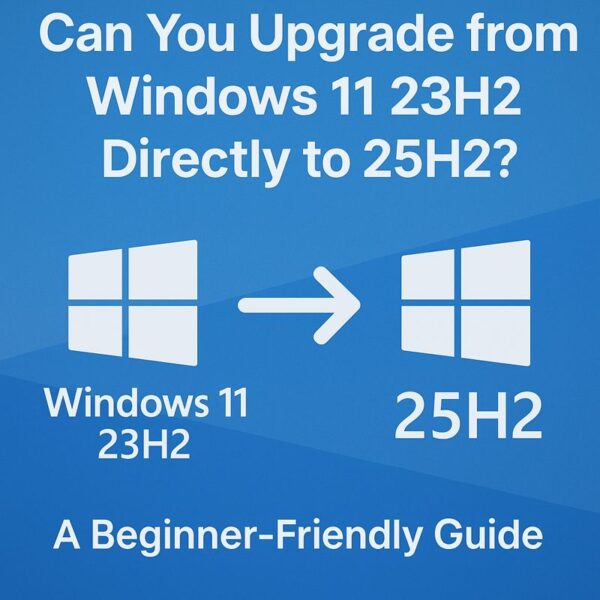
“Windows 11, version 25H2 is ready to install”
…even though your PC is currently on Windows 11 version 23H2?
If so, you’re not alone. Many users are asking:
- “What happened to 24H2?”
- “Is it safe to jump straight from 23H2 to 25H2?”
- “Will my files or work software break if I install this update?”
In this guide, we’ll walk through the situation in plain English, so even if you’re not very confident with PCs, you’ll understand:
- What 23H2, 24H2, and 25H2 actually mean
- Why your PC might offer a direct upgrade to 25H2
- When it’s generally safe to update — and when you should wait
- What to do before you install the update
- Simple troubleshooting steps if something goes wrong
- 1 1. Quick Answer: Is a Direct 23H2 → 25H2 Upgrade Safe?
- 2 2. What Do 23H2, 24H2, and 25H2 Actually Mean?
- 3 3. Why Is 25H2 Offered Directly Instead of 24H2?
- 4 4. Who Should Upgrade Now — and Who Should Wait?
- 5 5. Essential Preparation Before Installing 25H2
- 6 6. How to Upgrade from 23H2 to 25H2 via Windows Update
- 7 7. What If 25H2 Is Not Showing Up?
- 8 8. After the Upgrade: “Something Feels Off…”
- 9 9. Frequently Asked Questions (FAQ)
- 10 10. Final Thoughts: You Don’t Have to Be Afraid of 25H2
1. Quick Answer: Is a Direct 23H2 → 25H2 Upgrade Safe?
Let’s start with the short, honest answer:
Yes, in most cases it’s safe to upgrade directly from Windows 11 23H2 to 25H2 — as long as your PC is compatible and you prepare properly.
Microsoft is gradually rolling out Windows 11 version 25H2 to eligible devices via Windows Update. If you see the offer, that usually means:
- Your PC meets the hardware requirements (TPM 2.0, Secure Boot, supported CPU, etc.).
- Microsoft’s rollout system has decided that your device is ready for the update.
However, there are some important “but…” conditions:
- If you use your PC for business-critical work (accounting, payroll, specialized software), you should be more cautious and take extra steps before updating.
- No major upgrade is 100% risk-free — so a good backup is essential.
- Early in the rollout, some bugs and driver issues may still be discovered and fixed over time.
Think of it like this:
Home PC:
Reasonably safe to update once you’ve backed up and checked a few basics.
Work PC:
Safer to move more slowly, verify compatibility, and maybe wait until 25H2 feels “mature”.
2. What Do 23H2, 24H2, and 25H2 Actually Mean?
The names like “23H2” can be confusing, so let’s decode them:
- 23H2 → “Second half of 2023”
- 24H2 → “Second half of 2024”
- 25H2 → “Second half of 2025”
Each one is a feature update (sometimes called a “version” of Windows 11). They bring:
- Security and reliability improvements
- New or changed features
- Under-the-hood changes that prepare Windows for future updates
2.1 Why staying on 23H2 forever isn’t a good idea
Windows 11 version 23H2 (Home/Pro editions) has limited support. After its end-of-support date, it will no longer receive new security updates. That means:
- Your PC will still run
- But it will become less secure over time
- Newer apps and drivers may expect a newer version of Windows
So, sooner or later, you will need to move to a newer version such as 24H2 or 25H2. Upgrading is not just about new features — it’s about staying safe and compatible.
3. Why Is 25H2 Offered Directly Instead of 24H2?
At first glance, it might look like you’re skipping a version:
“Shouldn’t I go from 23H2 → 24H2 → 25H2 in order?”
In practice, what happens under the hood is more flexible.
3.1 Shared platform between 24H2 and 25H2
Recent releases of Windows 11 use a shared underlying platform.
In simple terms:
- Your PC gets a base platform update (similar for 24H2 and 25H2)
- Then feature enablement packages switch certain functions on or off
This means:
- Your PC isn’t really skipping 24H2 in a dangerous way
- Instead, Windows installs the necessary platform changes and then enables the 25H2 feature set
From the user’s point of view, it looks like a direct jump.
From the system’s point of view, it’s more of an “upgrade plus configuration” process.
3.2 Staged rollout and “readiness”
Microsoft doesn’t release major updates to everyone at once. Instead, it uses a phased rollout:
- Devices that are more likely to have a smooth upgrade get the offer earlier
- Devices with potential hardware or driver issues may get the update later
- Enterprise/managed devices may have the update delayed by IT administrators
So if your PC shows:
“Windows 11, version 25H2 is available”
that means it has passed certain compatibility checks and has been included in the current rollout wave.
4. Who Should Upgrade Now — and Who Should Wait?
Upgrading is not a one-size-fits-all decision. Let’s split users into two broad groups.
4.1 Good candidates to upgrade soon
You can usually upgrade without too much worry if:
- You mostly use your PC for:
- Web browsing
- Streaming videos
- Office work (Word, Excel, etc.)
- You don’t use any highly specialized business software or old hardware
- Your PC already runs Windows 11 comfortably
- You’re willing to spend a little time if something small needs fixing (like reinstalling a printer driver)
For these users, moving to 25H2:
- Keeps your system supported and secure
- Gives you access to new features and interface improvements
- Reduces the chance of big “version jumps” in the future
4.2 People who should be more cautious
You should slow down and plan carefully if:
- Your PC is used for critical work:
- Accounting / bookkeeping
- Payroll
- Point-of-sale (POS)
- Industry-specific tools
- You rely on special drivers:
- Thermal printers
- Label printers
- Legacy scanners
- Custom business hardware
- Your company’s IT department usually controls updates
If any of this describes your situation, consider:
- Checking with your software vendors
- Look for “Windows 11 25H2 compatibility” on their website
- Or contact support and ask specifically about 25H2
- Testing on a non-critical PC first, if possible
- Planning the update for a time when you can afford a little downtime
(for example, not right before a big deadline or tax filing)
5. Essential Preparation Before Installing 25H2
No matter how “safe” an update is meant to be, things can go wrong.
A little preparation can turn a potential disaster into a minor inconvenience.
5.1 Make a proper backup of your important data
At minimum, back up:
- Documents, spreadsheets, invoices
- Photos and personal files
- Any data produced by accounting or business software
- Things stored on the Desktop (people forget this!)
Where to back up:
- An external SSD or HDD
- A USB flash drive (for smaller data sets)
- A cloud storage service (OneDrive, Google Drive, Dropbox, etc.)
The goal is simple:
If the update fails or Windows becomes unbootable,
you can still recover your important data.
Even if you never need the backup, it’s worth the peace of mind.
5.2 Check power and free space
Before you click any “Install” button:
- Plug in your laptop to AC power
- On a desktop, avoid doing the update during storms or times when the power is unstable
- Check your C: drive
- Aim for at least 20 GB of free space
- More is better
Low disk space can:
- Slow down the update
- Cause errors
- Make it harder for Windows to keep a copy of the old version for rollback
5.3 Disconnect non-essential USB devices
To minimize weird issues during the upgrade:
- Safely eject and unplug:
- External drives (once backups are done)
- Unnecessary USB devices
- Extra printers or dongles
- Leave only what you truly need:
- Keyboard
- Mouse
- Monitor
You can reconnect everything after the upgrade is complete.
6. How to Upgrade from 23H2 to 25H2 via Windows Update
Here is the simplest way to install the update.
- Click the Start button.
- Open Settings (the gear icon, or search for “Settings”).
- In the left-hand menu, click Windows Update.
- At the top, look for a message like:
- “Windows 11, version 25H2 is available”
- Or “Feature update to Windows 11, version 25H2”
- Click Download and install (or similar wording).
- Wait while:
- Updates download
- Updates install
- Your PC restarts one or more times
During the process you might see:
- A blue or black screen with messages like
“Working on updates, X% complete” - The message “This might take a while”
Do not turn off your PC while updates are being installed.
It’s normal for the progress bar to seem stuck for several minutes.
Once everything is done, Windows should log in as usual and you’ll be on 25H2.
7. What If 25H2 Is Not Showing Up?
Sometimes, even if you’re on 23H2, the 25H2 offer might not appear.
7.1 Things to try
- Open Settings → Windows Update.
- Turn on any option like:
- “Get the latest updates as soon as they’re available.”
- Click Check for updates.
- Restart your PC and check Windows Update again.
If it still does not appear:
- Your PC might not yet be in the current rollout wave.
- There may be a known compatibility issue with your hardware or drivers.
- On a work device, your IT admin may be blocking the update for now.
In that case, you have two choices:
- Wait until Windows Update offers it naturally (safest for non-experts).
- Or, if you are experienced and understand the risks, use tools like the Installation Assistant or ISO from Microsoft’s website — but this is not recommended for beginners.
8. After the Upgrade: “Something Feels Off…”
Even if the upgrade succeeds, you might notice:
- The Start menu feels slow or unresponsive
- A certain app won’t open
- Printing fails or a device stops working
These problems can be frustrating, but they’re often fixable.
8.1 Basic post-upgrade troubleshooting
Try these steps in order:
- Restart your PC once or twice after the upgrade.
- Check Settings → Windows Update for additional updates:
- Sometimes, new drivers or cumulative updates are offered after the main upgrade.
- Update problem apps:
- Reinstall the application
- Or download the latest version from the vendor’s site
- For printer or scanner issues:
- Reinstall the printer driver
- Or run the Windows troubleshooting tools in Settings
8.2 Rolling back to the previous version (if necessary)
For a limited time after a major update (usually around 10 days, depending on your settings and disk space), Windows keeps the old version so that you can go back.
To check:
- Open Settings → System → Recovery.
- Look for “Go back” or “Go back to the previous version of Windows 11”.
- If available, follow the prompts.
Important:
- This option is time-limited
- It may not be available if Windows has already cleaned up the old version to save space
Even if the “Go back” option is not available, a good file backup means you can perform a clean install later if needed.
9. Frequently Asked Questions (FAQ)
Q1. Is it risky to “skip” 24H2 and go straight to 25H2?
From a technical point of view, you’re not really skipping the important parts.
The update process:
- Installs the necessary platform components
- Then enables the 25H2 feature set
So there’s no extra risk just because you didn’t see “24H2” on the screen first.
Q2. Can I stay on 23H2 if I’m happy with it?
You can, for now. But keep in mind:
- Once 23H2 reaches its end of support, your PC will stop receiving regular security updates.
- Over time, this makes your system more vulnerable to attacks and may cause compatibility issues with newer software.
So even if you decide to wait a bit for 25H2 to mature, it’s a good idea to plan for an upgrade eventually.
Q3. Will the user interface change a lot after upgrading?
You’re not moving to a completely different operating system.
Windows 11 will still look and feel like Windows 11.
However, you might notice:
- Slight design tweaks to the Start menu or taskbar
- New or reorganized settings pages
- Additional security and AI-related features appearing over time
Most people adapt quickly after a few days of daily use.
Q4. Will my personal files be deleted?
Normally, no.
Feature updates are designed to keep:
- Your documents
- Pictures
- Desktop files
- Installed apps
However, accidents can happen (power loss, disk errors, unexpected bugs).
That’s why we strongly recommend backing up your important files before installing a major update.
10. Final Thoughts: You Don’t Have to Be Afraid of 25H2
Windows feature updates have a reputation for being scary — and sometimes they deserve it. Seeing a message like:
“Upgrade to Windows 11, version 25H2”
when you’re still on 23H2 can definitely make you nervous, especially if you rely on your PC for work.
But as you’ve seen in this guide:
- A direct 23H2 → 25H2 upgrade is a normal part of Microsoft’s rollout strategy.
- If your PC is offered the update, it usually means it passed important compatibility checks.
- The real key is preparation:
- Make a proper backup
- Choose a good time (not right before a deadline)
- Be ready for minor tweaks afterwards
If you’re using your PC mainly at home for daily tasks, updating to 25H2 is generally a good step toward staying secure and enjoying new features.
If your PC is a business lifeline, take it slower: check with software vendors, test on a non-critical machine, and make sure you have a solid rollback plan.
Either way, you don’t have to face the update alone.
Use this guide as a checklist, move at your own pace, and your transition from 23H2 to 25H2 can be smooth — and much less stressful than it first appears.
Recommended Articles
・Windows 11 25H2 for IT: WSUS Timeline, Pilot Plan, and the Enablement Package Model
・Windows 11 25H2 — Known Issues & Workarounds
・tiny11 25H2: What It Is, Who Should Try It, and Why It’s Not for Everyone