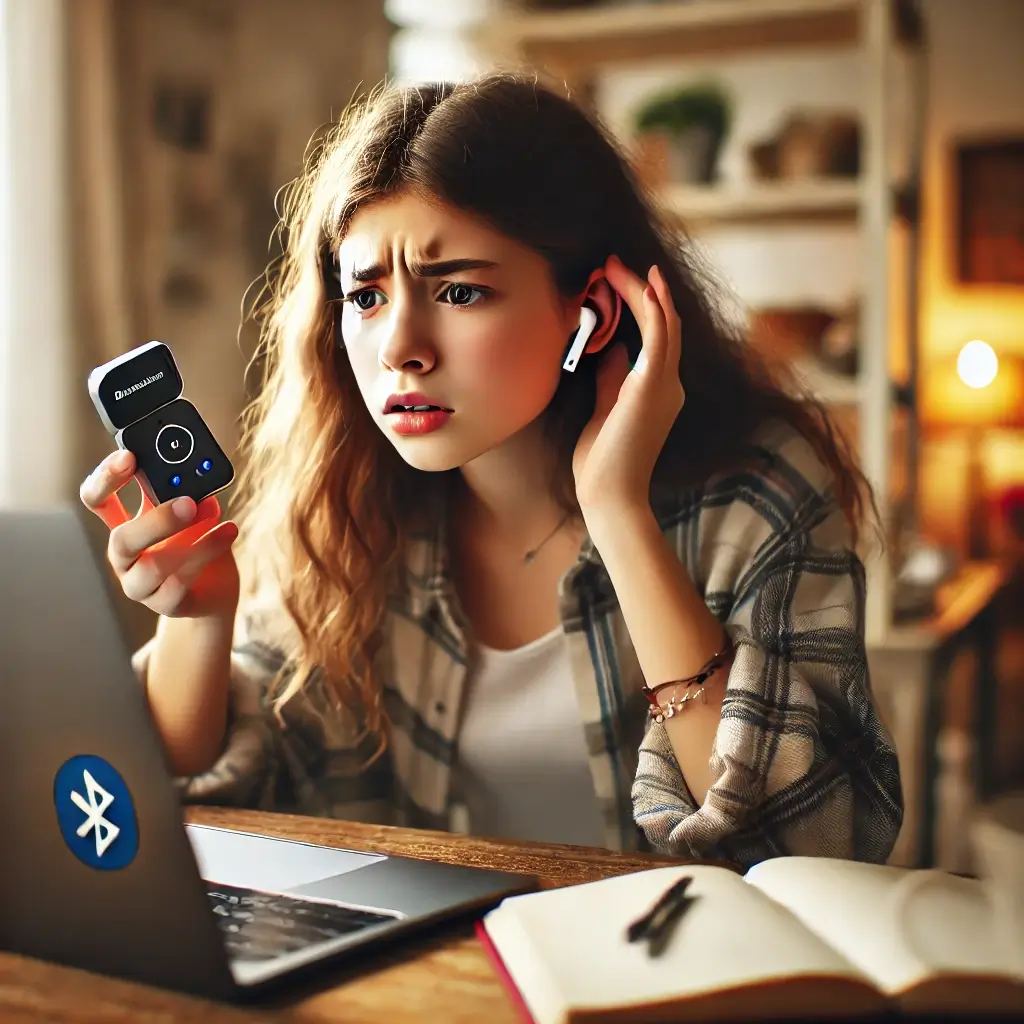
Having trouble connecting your wireless earphones to your Windows PC?
You’re definitely not alone. Many Windows 10 and Windows 11 users run into problems where Bluetooth earphones:
- Don’t show up in the device list
- Say “Connected” but produce no sound
- Disconnect frequently or only one side works
- Stop working properly after a Windows update
This updated 2025 guide walks you through step-by-step fixes that work on the latest versions of Windows 10 and Windows 11. Even if you’re a beginner, you’ll find clear instructions, common mistakes to avoid, and some practical workarounds when your built-in Bluetooth just refuses to cooperate.
- 1 1. Start with the Simple Checks
- 2 2. Adjust Bluetooth Settings in Windows
- 3 3. Check Sound Output and App Settings
- 4 4. Update and Reset Your Bluetooth Driver
- 5 5. Advanced Checks: Fast Startup, BIOS, and Interference
- 6 6. When the Built-In Bluetooth Is Just Too Old…
- 7 7. Summary Table – Quick Diagnosis
- 8 Conclusion
1. Start with the Simple Checks
Is Your Earphone Turned On?
It sounds obvious, but it’s easy to miss. Make sure your wireless earphones are actually powered on and have enough battery.
- Check for LED indicators (blinking or steady light)
- If there’s no light, put the earbuds back in the case and make sure the case has power
- Try charging for at least 10–15 minutes before pairing again
Are They in Pairing Mode?
For a first-time connection, the earphones must be in pairing mode. Every brand is slightly different, so check your manual, but in many cases:
- Press and hold the button on the case or earbud until the LED flashes (often white or blue)
- Some earbuds require holding for several seconds even after they power on
- If they are already paired with your phone, disconnect/forget them on the phone first
Is Bluetooth Enabled on Your PC?
Your PC can’t see any devices if Bluetooth itself is off.
Windows 11 / Windows 10 (latest builds):
- Go to Start → Settings → Bluetooth & devices
- Make sure the Bluetooth switch is ON
- Also check Start → Settings → Network & Internet → Airplane mode and confirm it is OFF
If you don’t see Bluetooth at all in Settings, scroll down to the “Advanced checks” section later in this article.
2. Adjust Bluetooth Settings in Windows
Remove Old Connections and Re-Pair
If your PC has paired with the earphones before but they suddenly stopped working, the pairing data may be corrupted. Removing and re-pairing often fixes this.
Steps (Windows 11 / 10):
- Open Settings → Bluetooth & devices
- Look for your earphones in the list (for example, “WF-1000XM5” or “AirPods Pro”)
- Click the device name → choose [Remove device] or [Remove]
- Turn your earphones off, then put them back into pairing mode
- Click [Add device] → [Bluetooth] and select them again
Temporarily Turn Bluetooth Off and On
Sometimes Bluetooth just needs a quick reset.
- In Settings → Bluetooth & devices, switch Bluetooth → Off
- Wait about 30 seconds
- Turn Bluetooth → On again
- Try pairing your earphones once more
Restart Windows (Don’t Skip This)
A normal Restart (not just closing the lid) clears many temporary glitches that affect Bluetooth and audio. If you’ve changed any settings or drivers, restart before you test again.
3. Check Sound Output and App Settings
One of the most common problems is: “It says Connected, but there’s no sound.” In many cases, Windows is still sending audio to your speakers or monitor instead of your earphones.
Set Your Earphones as the Default Output
Quick method from the taskbar:
- Click the speaker icon on the taskbar
- Click the small arrow (or device name) next to the volume slider
- Select your Bluetooth earphones (e.g., “Headphones (WF-1000XM5)”)
Check Per-App Volume and Output
Windows 11 and recent Windows 10 versions allow each app to use a different output device.
To check per-app audio:
- Right-click the speaker icon → choose Open volume mixer
- Confirm your earphones are selected under Output device
- For each app (browser, music player, Zoom, Teams, etc.), make sure:
- Volume is not muted
- Output device is set to your earphones
If only one specific app has no sound, it’s often just an app output setting — not a Bluetooth problem.
4. Update and Reset Your Bluetooth Driver
After major Windows updates, Bluetooth drivers may become unstable or outdated. Updating or reinstalling the driver is one of the most effective fixes.
Update the Bluetooth Driver
Steps:
- Right-click Start → select Device Manager
- Expand the Bluetooth section
- Right-click your Bluetooth adapter (for example, “Intel Wireless Bluetooth” or “Realtek Bluetooth Adapter”)
- Choose [Update driver]
- Click [Search automatically for drivers]
If Windows says you already have the best driver, it may still be worth checking your laptop or motherboard manufacturer’s support site for a newer version specific to your model.
Reinstall (Reset) the Bluetooth Adapter
If updating doesn’t help, a clean reinstall can fix corrupted driver settings.
- Open Device Manager
- Right-click your Bluetooth adapter → choose [Uninstall device]
- If there is a checkbox saying “Delete the driver software for this device”, usually leave it unchecked first (so Windows can reuse it)
- Click [Uninstall]
- Restart your PC → Windows will automatically reinstall the Bluetooth adapter
After the restart, turn Bluetooth on again and try pairing your earphones.
5. Advanced Checks: Fast Startup, BIOS, and Interference
⚠️ Disable “Fast Startup” if Connections Are Unstable
Windows’ Fast Startup feature can sometimes cause Bluetooth problems after shutdown, because the system doesn’t fully reset drivers.
How to turn Fast Startup off (Windows 10 / 11):
- Open Control Panel → Power Options
- Click “Choose what the power buttons do”
- Click “Change settings that are currently unavailable”
- Under “Shutdown settings”, uncheck “Turn on fast startup (recommended)”
- Click [Save changes] and restart your PC
If your earphones started disconnecting frequently after a recent update, this single change can sometimes make a big difference.
If Bluetooth Is Missing from Settings or Device Manager
If you don’t see Bluetooth in Settings or Device Manager at all, it may be turned off at the hardware level.
- Check if your laptop has a physical wireless switch (or a function key like Fn + F5) that toggles Wi-Fi/Bluetooth
- In Device Manager, check under Network adapters for any Bluetooth-related devices
Check Bluetooth in BIOS / UEFI
On some models, Bluetooth can be disabled in BIOS/UEFI.
- Restart your PC and press F2, Del, or the key shown on screen to enter BIOS/UEFI
- Look for menus like Advanced, Onboard Devices, or Integrated Peripherals
- Make sure any Wireless or Bluetooth options are Enabled
- Save and exit BIOS, then boot into Windows again
Beware of Wireless Interference (Especially USB 3.0)
Bluetooth uses the 2.4 GHz band, which is easily disturbed by:
- Busy Wi-Fi networks (2.4 GHz)
- USB 3.0 devices and hubs placed close to the Bluetooth receiver
- Microwave ovens or cordless phones
If your audio cuts in and out, try these tips:
- Move your laptop or earphones away from USB 3.0 drives and hubs
- Plug wireless receivers or Bluetooth dongles into a front USB port or a short extension cable
- If possible, switch your Wi-Fi to the 5 GHz band to reduce interference
6. When the Built-In Bluetooth Is Just Too Old…
If you’ve tried all the software fixes and your connection is still unstable, your built-in Bluetooth adapter might simply be outdated or failing.
One of the easiest solutions: use a small USB Bluetooth adapter that supports modern Bluetooth versions and codecs. Many users find that an external adapter instantly improves range and stability, especially on older laptops.
When you plug it in, Windows usually installs drivers automatically. After that, pair your earphones again — this time they’ll connect through the new adapter.
7. Summary Table – Quick Diagnosis
| Issue | Likely Cause | Solution | Notes |
|---|---|---|---|
| Earphones not detected at all | Bluetooth off, not in pairing mode, or driver missing | Turn Bluetooth on, enable pairing mode, check Device Manager | Try removing old pairings and re-adding |
| Connected but no sound | Wrong output device or app is muted | Select earphones as output, check Volume Mixer | Very common after updates |
| Pairing fails repeatedly | Already paired with another device (phone, tablet) | Forget/turn off on other devices, then re-pair with PC | Earphones often auto-connect to the last device |
| Frequent disconnects or stuttering | Interference, weak radio, driver problems | Update driver, move away from USB 3.0, consider USB adapter | Check Fast Startup setting too |
| Bluetooth option missing | Adapter disabled, driver failure, BIOS setting | Check Device Manager, BIOS/UEFI, reinstall driver | Hardware defect is also possible |
| Only one earbud works | Low battery or earbuds out of sync | Put both earbuds in the case, reset according to manual | Each brand has its own reset method |
| Stopped working after Windows update | Driver or settings changed during update | Update/reinstall driver, re-pair, review sound settings | Use “Pause updates” if you need stability |
Conclusion
If your Bluetooth earphones won’t connect or won’t play sound on your Windows PC, it’s usually not a sign that “everything is broken.” In most cases, the cause is a small setting, a confused driver, or a forgotten pairing with another device.
Work through this guide step by step:
- Check power, pairing mode, and Bluetooth status
- Remove old connections and confirm the correct audio output
- Update or reinstall Bluetooth drivers
- Review Fast Startup, BIOS, and interference sources
- Consider a USB Bluetooth adapter if your built-in hardware is old
If none of these solutions help, you may be dealing with a physical hardware fault in the earphones or the PC. In that case, testing the earphones with another device (phone, tablet, another PC) and consulting the manufacturer’s support is the safest next step.
🔎 Want to troubleshoot more Windows issues? Check out our full guide below:
![[2025 Guide] Install Windows 11 24H2 on Unsupported PCs (Bypass Compatibility Check)](https://kimiyoya.com/wp-content/uploads/2025/06/8BEB1D13-F504-4370-BB04-204C42714A8A-375x375.jpg)