How to Diagnose and Fix It via Event Viewer
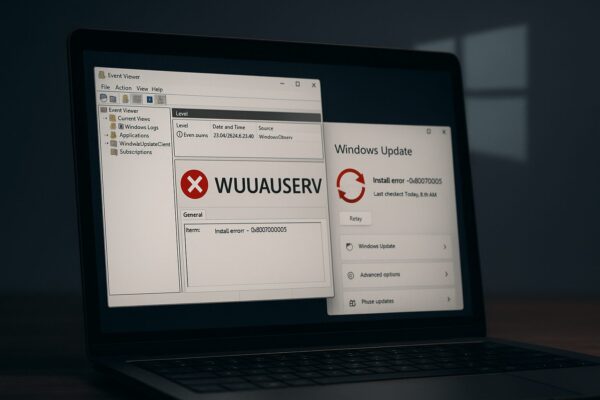
If Windows Update seems to hang or fail without showing any clear error message, and you spot “WUUAUSERV” in your Event Viewer logs, you’re in the right place. This section explains what that service does and walks you through practical, step-by-step fixes—even if you’re not a Windows expert.
Windows Update doesn’t always show a friendly error code like 0x80070002 or 0x800f0988. Sometimes updates just sit at “Installing” or “Pending install” forever. When this happens, Event Viewer often reveals background issues related to components like WUUAUSERV.
In this article, we’ll look at what WUUAUSERV is, how it ties into the Windows Update engine, and how to troubleshoot update failures using Event Viewer logs—without relying on visible error codes. This guide is especially helpful for intermediate users who want to understand why each fix works, not just follow random commands.
What Is WUUAUSERV?
WUUAUSERV refers to the Windows Update Automatic Updates Service. Internally, it is closely related to the wuauserv service (Windows Update). Together, these components handle:
- Checking for updates from Microsoft or WSUS
- Downloading update packages in the background
- Scheduling and installing updates
If this service becomes unstable, can’t start, or is misconfigured, the update process may fail silently in the background. That’s why WUUAUSERV-related entries in Event Viewer are such an important clue.
How to Spot WUUAUSERV Issues in Event Viewer
To investigate a stuck or failing update when no error code appears on screen, you can dig into Event Viewer:
- Open the Start menu and search for Event Viewer, then run it.
- In the left pane, go to:
Applications and Services Logs → Microsoft → Windows → WindowsUpdateClient → Operational - Look for recent entries that mention WUUAUSERV or Windows Update failures around the time your update got stuck.
Common keywords and phrases to watch for include:
- Service timeout (the service didn’t respond in time)
- WUUAUSERV failed to start
- Access denied or permission-related messages
- Failed to connect or download related errors
You don’t have to understand every line of the log, but seeing repeated WUUAUSERV errors is a strong hint that the Windows Update service stack needs to be reset or repaired.
Why WUUAUSERV Can Block Windows Updates
WUUAUSERV-related failures usually point to one or more of the following underlying issues:
- The Windows Update service is stopped or set to Manual/Disabled
- Corruption in the
SoftwareDistributionupdate cache - Dependencies like BITS or Cryptographic Services are misconfigured
- Security software or network filtering is blocking update traffic
- System files related to Windows Update are damaged
In other words, WUUAUSERV itself is often a symptom, not the root cause. Windows Update depends on several services working together, including wuauserv, BITS, CryptSvc, and sometimes MSI (Windows Installer). If any of these fail, Event Viewer may show WUUAUSERV as the component that “failed silently” while the Settings app simply shows a stuck progress bar.
How to Fix WUUAUSERV-Related Update Failures
The good news is that most of these problems can be fixed with built-in tools. The following methods are safe on Windows 10 and Windows 11, but make sure to run them with administrator rights (right-click → Run as administrator).
1. Restart the Core Windows Update Services
First, try restarting the main services that handle downloads and installation:
net stop wuauserv
net stop bits
net start wuauserv
net start bits
This clears temporary glitches where the service was stuck in a bad state or timed out.
2. Reset the Windows Update Cache
If the cached update files are corrupted, Windows may keep retrying the same broken data. Renaming the SoftwareDistribution folder forces Windows to recreate a fresh cache.
net stop wuauserv
net stop bits
ren C:\Windows\SoftwareDistribution SoftwareDistribution.old
net start wuauserv
net start bits
After this, try checking for updates again from Settings → Windows Update. Windows will rebuild the folder and re-download what it needs.
3. Repair System Files with SFC and DISM
Next, scan your system for damaged files that might affect Windows Update components:
sfc /scannow
DISM /Online /Cleanup-Image /RestoreHealth
Let each command finish (this may take a while), then restart your PC and test Windows Update again.
Why These Steps Help
They target the most common underlying causes:
- Restarting services fixes temporary timeouts and crashes.
- Resetting
SoftwareDistributionremoves corrupted or incomplete update files. SFCandDISMrepair core system components that WUUAUSERV depends on.
These are not just “turn it off and on again” tricks—they directly address the parts of Windows Update that most often break.
4. Use the Windows Update Troubleshooter
If the manual steps above don’t fully resolve the issue, try the built-in troubleshooter:
- Open Settings → System → Troubleshoot.
- Click Other troubleshooters (or similar wording in your Windows build).
- Find Windows Update and click Run.
The troubleshooter checks for misconfigured services, incorrect permissions, and known issues with the update engine. It isn’t perfect, but it often fixes basic problems automatically.
Tip: Close other apps and plug in your laptop before running the troubleshooter to avoid interruptions.
How to Stop WUUAUSERV Errors from Coming Back
Once you’ve fixed the immediate issue, a few habits can reduce the chance of WUUAUSERV errors returning:
- Make sure Windows Update (wuauserv) is set to Automatic startup in the Services console.
- Check that your antivirus or firewall is not blocking Microsoft update servers.
- Avoid “optimizer” or “registry cleaner” tools that disable services to save resources.
- Shut down or restart your PC regularly instead of leaving it in an unstable state for weeks.
Many recurring WUUAUSERV issues are caused by third-party tuning tools or overly aggressive security settings. Keeping Windows close to its default configuration is usually the most stable option for reliable updating.
If the Problem Keeps Coming Back
If you still see WUUAUSERV-related errors in Event Viewer even after resetting services, clearing the cache, and repairing system files, consider these deeper options:
- Perform an in-place repair install of Windows
Use the official Windows 10/11 installation media to run setup from within Windows and choose the option to keep your apps and files. This refreshes system components without wiping your data. - Create a new local user profile
Sign in with the new account and test Windows Update. If it works there but not on your old account, the issue is likely profile-specific. - Backup and do a clean install
If no accounts can update successfully, a clean install may be the most reliable long-term fix for deep, persistent corruption.
It’s a good idea to try the repair install and new profile before you jump to a full clean install, especially on production machines.
Summary
WUUAUSERV errors are easy to miss because they rarely show up as friendly pop-ups. Instead, they hide in Event Viewer while Windows Update appears to be “stuck” with no obvious explanation.
By checking Event Viewer, restarting Windows Update services, resetting the update cache, and repairing system files, you can often restore normal update behavior without reinstalling Windows.
If problems persist even after these steps, move on to repair installs or profile tests. And remember: avoiding aggressive “clean-up” utilities and leaving critical services enabled is the best way to prevent WUUAUSERV errors from returning.