Introduction
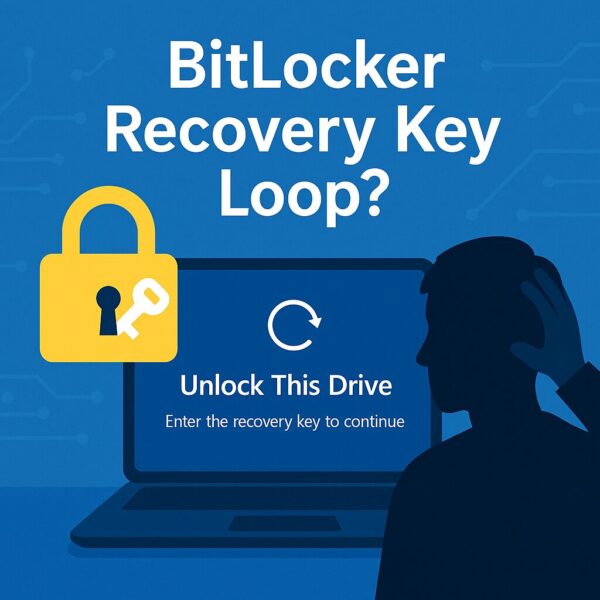
If your PC suddenly asks for a BitLocker recovery key after a Windows update, you’re not alone.
This issue has been reported by many users, and it often appears without warning—making it feel like something is seriously wrong.
In this guide, you’ll learn:
- Why this happens after a Windows update
- Whether your data is at risk
- What to do immediately to regain access
Quick Answer (Read This First)
👉 Your data is NOT deleted.
This screen is a security feature designed to protect your device.
However:
👉 You cannot access your system without the recovery key.
Why BitLocker Appears After a Windows Update
BitLocker may trigger after changes to your system’s security environment.
| Cause | Explanation |
|---|---|
| Windows Update | Security changes can trigger recovery mode |
| TPM / BIOS changes | Hardware or firmware modifications detected |
| Secure Boot changes | Boot configuration altered |
| Known bugs | Some updates have caused this issue unexpectedly |
👉 In recent cases, Windows updates have triggered BitLocker recovery screens on certain devices.
What To Do Right Now
1. Find Your Recovery Key
Check your Microsoft account here:
👉 https://account.microsoft.com/devices/recoverykey
This is where most users will find their key.
2. Enter the 48-Digit Key
- Carefully input the recovery key
- Your PC should unlock immediately
3. After You Regain Access (Important)
To prevent this from happening again:
- Open BitLocker settings
- Temporarily Suspend protection
- Then Resume protection
👉 This can reset the security state and reduce recurrence
Common Misunderstandings
❌ “Is this a virus or hack?”
👉 No. This is a built-in Windows security feature.
❌ “Did Windows encrypt my files suddenly?”
👉 BitLocker may already have been enabled automatically (especially on Windows 11 devices).
What If You Don’t Have the Recovery Key?
If you cannot find your recovery key:
- Not in Microsoft account
- Not saved to USB or printed
👉 Data recovery is extremely difficult or impossible
How to Prevent This Issue
- Save your BitLocker recovery key in multiple places
- Suspend BitLocker before BIOS or major updates
- Regularly check BitLocker status
Who This Guide Is For
✅ Best for:
- Users locked out after a Windows update
- Anyone seeing a BitLocker recovery screen unexpectedly
- Beginners who need step-by-step guidance
❌ Not for:
- Users who already have advanced BitLocker management knowledge
- Enterprise-managed devices (contact your IT admin instead)
Conclusion
A BitLocker recovery screen after a Windows update can be alarming—but it’s usually not a sign of data loss.
👉 The key point is simple:
Find your recovery key and regain access safely.
Then take a few minutes to secure your setup and prevent it from happening again.
FAQ – BitLocker Recovery Key After Windows Update
Q1. Why is BitLocker asking for a recovery key after a Windows update?
BitLocker may require a recovery key when it detects changes to your system’s security environment.
This can happen after Windows updates, BIOS changes, TPM updates, or boot configuration changes.
Q2. Did the Windows update cause this problem?
In some cases, yes.
Certain Windows updates have triggered BitLocker recovery screens due to security changes or bugs.
However, this behavior is also part of normal security protection.
Q3. Is my data lost or deleted?
No.
Your data is still محفوظ (encrypted and protected).
You simply need the recovery key to unlock access.
Q4. Where can I find my BitLocker recovery key?
The most common place is your Microsoft account:
👉 https://account.microsoft.com/devices/recoverykey
You may also find it:
- On a USB drive
- Printed or saved as a file
- In your organization’s IT system (for work devices)
Q5. What happens if I don’t have the recovery key?
If you cannot find the recovery key, you will not be able to access your system.
In most cases, the only option is to reset Windows and lose existing data.
Q6. Can I bypass the BitLocker recovery screen?
No.
BitLocker is designed to prevent unauthorized access, so bypassing it is not possible.
Q7. Why did this happen suddenly?
BitLocker can trigger without warning when it detects changes to system integrity.
Even routine updates can sometimes cause this behavior.
Related
▶ What Is a Windows Installation Media? A Complete Beginner’s Guide to Creating and Using It
▶ How to Fix Windows Error Code 0x80070057 on Windows 11