Are random Windows pop-ups interrupting your work?
Do you keep seeing tips, recommendations, app notifications, or Microsoft suggestions when you are trying to focus?
You are not alone.
Windows can be helpful, but too many pop-ups quickly become distracting.
The good news is that most of these alerts can be turned off safely in just a few minutes.
In this guide, I’ll show you simple step-by-step ways to stop annoying Windows notifications, ads, and recommendations.
- 1 1) Turn off Windows tips & suggestions (toast pop-ups)
- 2 2) Remove ads from the Lock screen (Windows Spotlight)
- 3 3) Hide app recommendations in Start
- 4 4) Stop pop-ups from Microsoft Store and individual apps
- 5 5) Use Focus (Focus Assist) to silence temporarily
- 6 6) Admin corner: enforce via Registry or Group Policy
- 7 Reverting the changes
- 8 Summary
1) Turn off Windows tips & suggestions (toast pop-ups)
Windows 11 & 10
- Open Settings (Win + I).
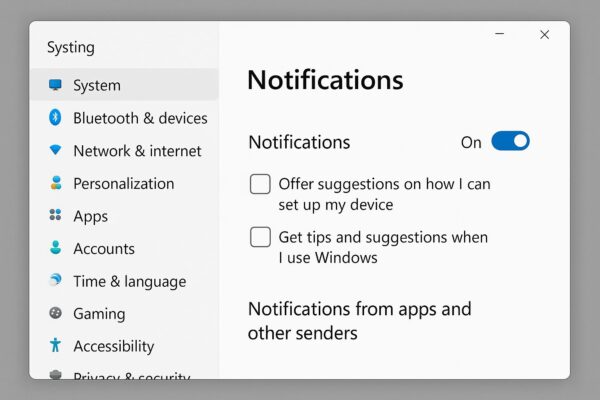
- Go to System > Notifications (Win10: System > Notifications & actions).
- Scroll down and clear:
- Get tips and suggestions when I use Windows
- Show me the Windows welcome experience after updates (or similar wording)
This alone removes most “helpful” pop-ups that appear while you work.
2) Remove ads from the Lock screen (Windows Spotlight)
Windows Spotlight rotates backgrounds and may show promoted content.
Windows 11
- Settings > Personalization > Lock screen.
- Change Background from Windows Spotlight to Picture or Slideshow.
Windows 10
- Settings > Personalization > Lock screen.
- Switch Background away from Windows Spotlight.
- Turn off any toggle like Get fun facts, tips, and more on the lock screen.
3) Hide app recommendations in Start
Windows 11
- Settings > Personalization > Start → turn off Show recommendations (and any “tips” toggles that appear after feature updates).
Windows 10
- Settings > Personalization > Start → turn off Occasionally show suggestions in Start.
4) Stop pop-ups from Microsoft Store and individual apps
Some apps send their own notifications.
Windows 11 & 10
- Settings > System > Notifications.
- Under Notifications from apps and other senders, toggle off the apps you don’t want.
- Keep security software, backup tools, and mission-critical apps on so you don’t miss urgent alerts.
Managing per-app notifications lets you keep only what matters. Just avoid turning off critical update/security alerts.
5) Use Focus (Focus Assist) to silence temporarily
Perfect for meetings, recording, or deep work.
Windows 11: Settings > System > Focus (or System > Notifications > Focus in some builds).
Choose a session or automatic rules (during specific hours, when duplicating your display, or in full-screen apps).
Windows 10: Settings > System > Focus assist.
Pick Alarms only or Priority only, and set automatic rules.
Great when you just need quiet “for now”—without permanently changing your notification choices.
6) Admin corner: enforce via Registry or Group Policy
If you want changes to stick across updates or multiple users/devices.
A) Registry (per user)
Turn off Windows tips (Content Delivery)
Key: HKEY_CURRENT_USER\Software\Microsoft\Windows\CurrentVersion\ContentDeliveryManager
Value: SubscribedContent-338389Enabled (DWORD) = 0
Optional: lock Spotlight off on the Lock screen
Key: HKEY_CURRENT_USER\Software\Microsoft\Windows\CurrentVersion\ContentDeliveryManager
Value: RotatingLockScreenEnabled (DWORD) = 0
Value: RotatingLockScreenOverlayEnabled (DWORD) = 0
Command (run in Admin PowerShell / CMD):
reg add “HKCU\Software\Microsoft\Windows\CurrentVersion\ContentDeliveryManager” /v RotatingLockScreenEnabled /t REG_DWORD /d 0 /f
reg add “HKCU\Software\Microsoft\Windows\CurrentVersion\ContentDeliveryManager” /v RotatingLockScreenOverlayEnabled /t REG_DWORD /d 0 /f
Sign out/in or restart Windows Explorer to apply.
B) Group Policy (Pro/Enterprise/Education)
User Configuration → Administrative Templates → Windows Components → Cloud Content
• Do not show Windows Tips → Enabled
• Turn off all Windows spotlight features → Enabled
• (Optional) Do not suggest third-party content in Windows spotlight → Enabled
Computer Configuration has similar settings if you prefer device-wide enforcement.
Using GPO lets you apply and lock settings for many PCs at once—ideal for organizations and classrooms.
Reverting the changes
• Settings UI: Toggle options back On in the same places.
• Registry: Set the values back to 1 or delete the entries you added.
• GPO: Set policies to Not Configured (or Disabled) and run gpupdate /force.
It’s easy to undo. If any change feels too restrictive, just switch it back—no harm done.
Extra tips & good practices
• Balance, don’t nuke: Keep security/backup alerts on; silence low-value pop-ups.
• Presenting or streaming? Use Focus rules tied to screen sharing/full-screen apps.
• Battery life: Fewer network-fetched cards and toast animations can mildly extend battery runtime on laptops.
• After feature updates: Re-check these toggles; major releases sometimes reset defaults.
Summary
• Turn off Tips/Suggestions in Settings > System > Notifications.
• Disable Windows Spotlight on the lock screen to avoid promos.
• Hide Start recommendations and prune per-app notification senders.
• Use Focus/Focus Assist for temporary silence.
• For persistence or scale, enforce via Registry or Group Policy.
Even small adjustments like these can make your Windows experience cleaner, quieter, and more focused. Take a few minutes to customize your settings, and enjoy a distraction-free workspace every day.
✔️You might also find these helpful:
▶︎How to Create a New Folder in Windows 11
▶︎Fix Windows 11 24H2 Search Bar Not Working – Causes and Solutions
▶︎Search Indexing Troubleshooting Guide for Windows 11
💡 Looking for more tips? Check out our full list of Windows Help Guides.