External hard drives remain essential tools in 2026. They are widely used for backups, file transfers, media storage, and professional workflows. Although cloud storage and SSDs are becoming more popular, external HDDs continue to be a reliable and cost-effective solution for large-capacity storage.
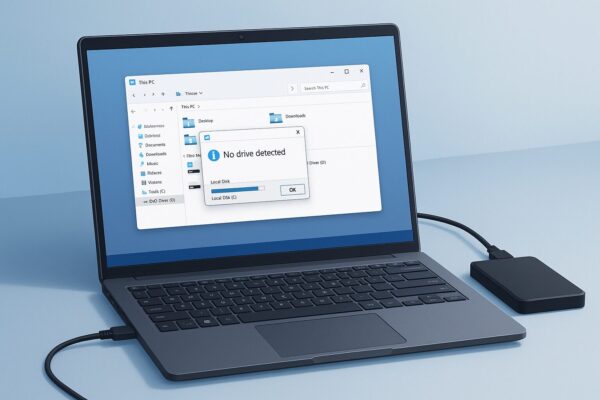
But what if your external HDD is not recognized by Windows 11?
If your computer fails to detect the drive—or it doesn’t appear in File Explorer—don’t worry. This is a common issue, and in most cases, it can be resolved quickly with simple troubleshooting steps.
This comprehensive guide explains the symptoms, causes, and proven fixes. It also includes expert tips, preventive strategies, and insights based on the latest Windows 11 updates.
Common Symptoms
When an external HDD is not recognized, users typically experience one or more of the following issues:
- The drive does not appear in File Explorer.
- Windows makes a connection sound, but nothing happens.
- The drive appears in Device Manager with an error icon.
- The disk is visible in Disk Management but has no drive letter.
- The system requests formatting when the drive is connected.
- The device disconnects during file transfers.
- The drive shows as Unknown, Not Initialized, or Unallocated.
These problems can occur with popular brands such as Western Digital, Seagate, and Toshiba, as well as generic external enclosures.
Quick Fix: Try These First
Before diving into advanced solutions, try these simple steps:
- Restart your PC.
- Reconnect the external HDD.
- Try a different USB port.
- Use a different USB cable.
- Connect the drive to another computer.
In many cases, these quick fixes resolve the issue immediately.
Why Is Your External HDD Not Recognized?
1. Outdated or Corrupted Drivers
Driver conflicts after Windows Updates can prevent the system from recognizing external storage devices.
2. Missing Drive Letter
If Windows detects the drive but does not assign a letter, it will not appear in File Explorer.
3. USB Power Management Restrictions
Windows 11 may disable USB ports to conserve power, especially on laptops.
4. Faulty USB Cable or Port
A damaged cable or unstable USB hub can interrupt communication between the PC and the drive.
5. Disk Partition Issues
The drive may be uninitialized, unallocated, or formatted with an incompatible file system.
6. Windows Update Conflicts
Some cumulative updates temporarily affect hardware compatibility.
7. File System Corruption
Improper removal or power failure can damage the file system.
8. Hardware Failure or Aging
Mechanical components in HDDs degrade over time, leading to recognition failures.
Step-by-Step Solutions
Fix 1: Check Disk Management
- Press Windows + X and select Disk Management.
- Locate your external drive.
- If it appears without a drive letter:
- Right-click the drive.
- Select Change Drive Letter and Paths.
- Click Add and assign a letter.
Fix 2: Update or Reinstall Device Drivers
- Open Device Manager.
- Expand Disk drives and Universal Serial Bus controllers.
- Right-click the external HDD.
- Select Update driver.
- If the issue persists, choose Uninstall device, then reconnect the drive.
Fix 3: Disable USB Power Management
- Open Device Manager.
- Expand Universal Serial Bus controllers.
- Right-click USB Root Hub.
- Click Properties → Power Management.
- Uncheck:
Allow the computer to turn off this device to save power.
Fix 4: Run the Hardware Troubleshooter
- Press Windows + R.
- Type: msdt.exe -id DeviceDiagnostic
- Follow the on-screen instructions.
Fix 5: Initialize the Disk
If the disk appears as Not Initialized:
- Open Disk Management.
- Right-click the disk.
- Select Initialize Disk.
- Choose GPT for modern systems.
⚠ Warning: This may erase data.
Fix 6: Repair the Drive Using CHKDSK
- Open Command Prompt as Administrator.
- Enter: chkdsk X: /f /r
- Replace X with the drive letter.
Fix 7: Check for Windows Updates
- Open Settings → Windows Update.
- Click Check for updates.
- Install the latest patches.
If the issue began after an update, consider uninstalling the problematic update temporarily.
How to Check the Health of Your External HDD
To determine whether the drive is failing, use diagnostic tools:
| Tool | Purpose |
|---|---|
| CrystalDiskInfo | Checks SMART health status |
| Seagate SeaTools | Official diagnostic tool |
| WD Data Lifeguard | Western Digital drives |
| Toshiba Storage Diagnostic Tool | Toshiba drives |
Warning Signs of Failure
- Clicking or grinding noises
- Frequent disconnections
- Extremely slow performance
- SMART warnings
- Bad sectors detected
Back up your data immediately if you notice these symptoms.
Windows 11 Compatibility Tips (2026)
To ensure smooth performance:
- Use USB 3.0 or USB-C ports whenever possible.
- Keep Windows and drivers up to date.
- Avoid low-quality USB hubs.
- Use GPT instead of MBR for large drives.
- Enable Write Caching for better performance.
- Always use Safely Remove Hardware before unplugging.
HDD vs. SSD: Should You Upgrade?
| Feature | HDD | SSD |
|---|---|---|
| Speed | Slow | Very Fast |
| Durability | Mechanical parts | Shock-resistant |
| Noise | Audible | Silent |
| Lifespan | Shorter | Longer |
| Portability | Heavier | Lightweight |
If you frequently encounter recognition issues, upgrading to an external SSD is a worthwhile investment.
Frequently Asked Questions (FAQ)
Why is my external HDD detected but not accessible?
It may lack a drive letter or contain file system corruption.
Can Windows Updates cause this issue?
Yes. Driver conflicts after updates can prevent detection.
Will initializing the disk delete my data?
Yes. Always attempt data recovery before initializing.
How do I recover data from an unrecognized HDD?
Use recovery tools such as Recuva or EaseUS Data Recovery.
Does this issue affect external SSDs as well?
Yes, although less frequently.
Preventive Measures
- Regularly back up important files.
- Avoid sudden disconnection.
- Store drives in a cool, dry environment.
- Use surge protectors.
- Update drivers periodically.
Conclusion
An external HDD not being recognized on Windows 11 can be frustrating, but it is usually fixable. By checking physical connections, updating drivers, assigning drive letters, and adjusting power settings, most users can resolve the issue quickly.
If the problem persists, the drive itself may be failing. In such cases, backing up your data and upgrading to a modern external SSD is the safest solution.
Looking for more troubleshooting tips? Check out these guides:
・How to Replace Your PC’s SSD by Yourself
・Fix Microsoft IME Candidate Window Issues: Misaligned, Stuck, or Hidden (Windows 10/11)
・External HDD/SSD Not Recognized (or Asking to Format): A Beginner-Friendly Fix Guide