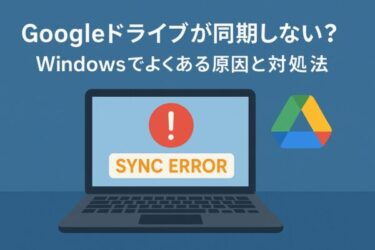
If you’ve ever wondered “Why isn’t Google Drive syncing?” while staring at a stuck icon or waiting for files that never upload — you’re not alone.
Even on Windows 11/10 PCs that seem perfectly fine, Google Drive for desktop can suddenly stop syncing without showing any clear error.
This guide breaks down the most common reasons Google Drive fails to sync on Windows and shows practical step-by-step fixes you can try right now.
Let’s get those files syncing again!
Common Causes and Quick Fixes
Here are the issues most users encounter, along with the simplest solutions:
| Cause | Solution |
|---|---|
| Outdated Google Drive app | Update Drive for desktop to the latest version |
| Windows security blocking the app | Allow Drive through Windows Defender or the firewall |
| Changed sync folder location | Reconfigure your sync folder inside Google Drive settings |
| Signed out of your Google account | Sign in again to refresh authentication |
| Invalid characters in file names | Remove emojis, symbols, or extremely long path names |
| Corrupted Drive cache | Reinstall Drive or reset cache folders |
| Antivirus/firewall conflict | Add Google Drive to antivirus exceptions |
💡 Tip:
Start with easy steps like restarting the app or signing back in. Many sync failures come from temporary token issues or outdated settings.
🔍 Pre-Sync Checklist for Windows Users
Before troubleshooting, confirm these basics:
- Is Windows fully updated?
- Are you running the latest version of Google Drive for desktop?
- Is your Google account signed in correctly?
- Are you on a school/company network with restrictions?
Managed networks often block background sync services.
If you’re on a corporate Wi-Fi, you may need IT approval for Drive syncing.
Top 3 Fixes That Actually Work (High Success Rate)
1. Reinstall Google Drive for Desktop
This clears corrupted cache files and resets internal components.
- Uninstall Drive
- Restart your PC
- Download the newest version from Google
This fix solves a surprisingly large number of sync problems.
2. Sign Out and Sign Back In
Authentication tokens can expire silently.
- Open Google Drive for desktop
- Go to Settings → Disconnect account
- Sign in again
Your files will re-sync, but nothing will be deleted.
3. Add Drive to Antivirus Exceptions
Security software (Norton, McAfee, Kaspersky, etc.) may block:
- background sync requests
- file system hooks
- encrypted connections
Add these folders to your exception list:
C:\Program Files\Google\Drive File Stream\
C:\Users\YourUsername\AppData\Local\Google\DriveFS\
🧰 Advanced Fixes and “Hidden” Troubleshooting Tricks
These methods often solve deeper or unusual sync issues.
🛠 1. Manually Clear Google Drive Log Files
- Exit the Google Drive app from the system tray
- Open this folder:
C:\Users\YourUsername\AppData\Local\Google\DriveFS- Rename or delete the logs folder
- Restart the Drive app
This resets internal operations without affecting your synced files.
🗂 2. Reset the Google Drive Cache Folder
Useful when Drive behaves unpredictably.
- Exit Google Drive
- Delete this folder:
C:\Users\YourUsername\AppData\Local\Google\DriveFS- Restart your PC
- Reinstall the Drive app
You’ll need to sign in again afterward.
🌐 3. Temporarily Use Google Drive on the Web
If syncing is completely stuck, upload files directly:
This prevents work interruption while you troubleshoot the desktop app.
🛡 4. Run Google Drive as Administrator
For managed office/school devices:
- Right-click Google Drive
- Select Run as administrator
This bypasses some restrictive system policies.
📌 Why These Hidden Fixes Work
Google Drive may look simple on the surface, but the desktop app relies on:
- background services
- encrypted file system mounts
- OS-level permissions
- local caching systems
Corruption in any of these areas can silently stop syncing.
Many advanced fixes above are commonly used by power users and tech forums — even though they aren’t listed in Google’s official help pages.
🧾 Summary
Google Drive is a powerful tool, but when syncing breaks, it can stall your entire workflow.
By following the steps in this guide — from simple restarts to advanced cache resets — most Windows users can restore normal sync operation without losing data.
To minimize future issues:
- keep Drive for desktop updated
- ensure Windows Defender/firewall settings allow Drive
- avoid unusual characters or very long file paths
If all else fails, reconnect your account or contact Google support for account-level issues.
If you’re facing other Windows update issues, you might find these articles helpful:
▶︎Fixing Windows 11 Update KB5058411: Common Errors and Solutions
▶︎Fix Error 0x800f0825: Windows Update Failed to Install
▶︎Is your Windows screen black, flickering, or just not working? Your ultimate guide to fixing it.