Sometimes it starts with a black screen. Sometimes it’s an endless “Automatic Repair” loop. And sometimes it’s a blue screen that restarts too quickly to read.
What would you do if your Windows PC suddenly refused to boot?
In moments like that, one small USB stick can save hours (or days) of panic:
a Windows Recovery Drive.
But the name “Recovery Drive” is confusing. Many people assume it’s a full backup or a magic “restore everything” button—then get disappointed when they learn what it actually does.
- Does it reinstall Windows?
- Does it save your personal files?
- Is it the same as a Windows installation USB?
- Should every PC have one in 2026?
This guide explains what a Recovery Drive is, what it can do, what it cannot do, and how to use it safely—without scary jargon, but without skipping the important details.
- 1 2. What a Recovery Drive Can Do
- 2 3. What a Recovery Drive Cannot Do (Don’t Skip This)
- 3 4. Recovery Drive vs Other Tools (Quick Comparison)
- 4 5. Should You Create a Recovery Drive in 2026?
- 5 6. Recommended USB Specs (What Actually Works Well)
- 6 7. How to Create a Recovery Drive (Step-by-Step)
- 7 8. How to Boot From the Recovery Drive (When Windows Won’t Start)
- 8 9. FAQ (Common Questions)
- 9 10. Summary: Powerful Tool, Not a Magic Backup
1. What Is a Recovery Drive?
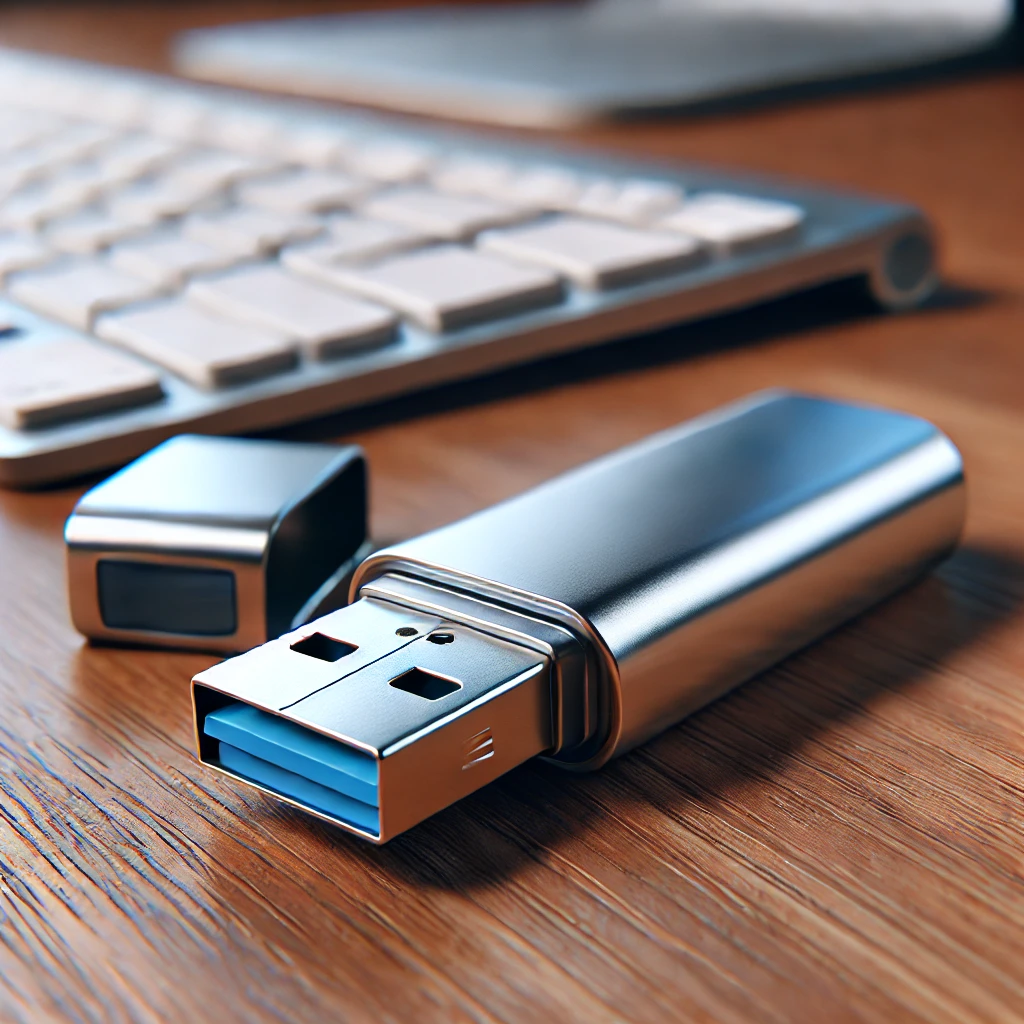
A Recovery Drive is a USB drive that lets you boot into Windows Recovery Environment (WinRE) when Windows can’t start normally.
Simple definition: A Recovery Drive is a “bootable repair toolkit” for Windows.
When you start your PC from the Recovery Drive, you can reach repair options like:
- Startup Repair (fixes common boot problems)
- System Restore (roll back to a restore point)
- Uninstall updates (remove a recent quality update if it broke things)
- Startup Settings / Safe Mode
- Command Prompt (advanced repair commands)
- Reset this PC (options vary by system)
It’s especially helpful when the recovery tools stored on your internal drive are missing or damaged.
2. What a Recovery Drive Can Do
2.1 Boot into WinRE (Windows Repair Menu)
This is the main purpose. Even if Windows won’t boot, the Recovery Drive can still load the Troubleshoot menu.
From there you can try the most common “first aid” tools:
- Startup Repair for boot issues
- System Restore if you have restore points
- Uninstall latest update if a patch caused boot failure
- Safe Mode to remove drivers/apps that broke startup
2.2 Reinstall or Reset Windows (Sometimes)
When you create a Recovery Drive, Windows may offer an option like:
“Back up system files to the recovery drive”
If you include system files, the USB may support a deeper recovery option such as Recover from a drive (wording can vary). On some OEM laptops (Dell/HP/Lenovo/ASUS), it may also integrate with factory recovery methods.
Important: this is not guaranteed on every PC. And even when it exists, it can still require additional steps (or fail) if your storage layout changed.
2.3 Run Advanced Repair Commands
From Command Prompt inside WinRE, technicians often use commands to repair Windows components or boot configuration.
Examples you might see in guides:
sfc /scannow
DISM /Online /Cleanup-Image /RestoreHealth
And boot-related tools (use carefully):
bootrec /scanos
bootrec /rebuildbcd
You don’t need to memorize these to benefit from a Recovery Drive—but it’s good to know that the USB gives you access to this “repair toolbox” when Windows won’t start.
2.4 Help You Copy Files in an Emergency (Limited)
A Recovery Drive is not a backup solution. However, in some cases you can use WinRE tools (especially Command Prompt) to copy important files to an external drive before doing a reset.
BitLocker note (very important in 2026): If your Windows drive is BitLocker-encrypted, you may need the BitLocker Recovery Key to access files from recovery tools.
3. What a Recovery Drive Cannot Do (Don’t Skip This)
3.1 It Cannot Fix Hardware Failure
If your SSD/HDD is physically failing, not detected, or badly corrupted, a Recovery Drive may not help.
- Drive not detected in BIOS/UEFI
- Severe SSD failure (I/O errors, disappearing drive)
- Bad RAM or motherboard issues
In those cases, recovery becomes a hardware repair / data recovery situation.
3.2 It Does NOT Back Up Your Personal Files
A Recovery Drive does not automatically protect your:
- Documents / Desktop files
- Photos and videos
- Installed apps and app settings
You still need a real backup (external drive and/or cloud) even if you have a Recovery Drive.
3.3 It’s Not the Same as a Windows Installation USB
This is the #1 misunderstanding.
A Recovery Drive is mainly for repairing. A Windows installation USB is for installing Windows from scratch.
If your goal is “I want to clean install Windows on any PC,” you want Windows Installation Media (created with Microsoft’s Media Creation Tool), not a Recovery Drive.
3.4 It May Not Restore Factory Apps/Drivers
Depending on how your PC was set up, a Recovery Drive might contain only the recovery tools—not the original factory image, OEM apps, or specific drivers.
Also, if you replaced your internal SSD/HDD, OEM “factory restore” options may stop working because some systems expect the original partition layout.
3.5 “Can I Use It on Another PC?” (The Accurate Answer)
You’ll see conflicting advice online, so here’s the practical truth:
- For basic WinRE tools: a Recovery Drive may boot and show repair options on another PC, but results vary (drivers, storage, BitLocker, and recovery options may not match).
- For “Recover from a drive” / reinstall-from-USB options: those are much more likely to be tied to the original system and may fail or be unavailable on a different PC.
Best practice: if you own multiple PCs, create a Recovery Drive for each one (and label it clearly).
4. Recovery Drive vs Other Tools (Quick Comparison)
| Tool | What it’s for | Best use case |
|---|---|---|
| Recovery Drive | Boot into WinRE repair tools | Windows won’t boot / stuck in repair |
| Recovery Partition | WinRE stored on internal drive | Quick repair if the internal drive is healthy |
| Windows Installation Media | Fresh Windows install | Clean install on any compatible PC |
| System Image Backup | Full snapshot (apps + settings + files) | Restore the PC to a specific past state |
| File Backup | Protect personal data | Recover files after reset/failure |
Many power users keep two USBs:
- Recovery Drive (repair tools)
- Windows Installation USB (clean install)
5. Should You Create a Recovery Drive in 2026?
Yes—if you have a spare USB drive, it’s one of the easiest “just in case” safety tools you can make.
- It helps when Windows won’t boot.
- It can reach repair tools even if the internal recovery system is damaged.
- It can save time (and stress) when an update or driver breaks startup.
Just remember the rule:
Recovery Drive = repair Windows.
Backup = protect your files.
Use a dedicated USB (16–32GB or larger). Keep it only for recovery, and store it somewhere safe.
- Browse USB flash drives on Amazon (U.S.)
- Browse USB flash drives on Amazon (Japan)
- Browse USB flash drives on Amazon (Germany)
*Affiliate links may be included. Please confirm capacity and USB type before purchase.
6. Recommended USB Specs (What Actually Works Well)
- Capacity: 16GB minimum (32GB is a comfortable choice)
- USB type: USB 3.0/3.1 is recommended (faster creation + faster boot)
- Dedicated drive: don’t store personal data on it long-term
- Label it: “Recovery Drive – PC name – date”
Note: Creating a Recovery Drive wipes the USB drive. Back up anything important first.
7. How to Create a Recovery Drive (Step-by-Step)
- Plug in your USB drive.
- Open Start and search for Recovery Drive.
- Open Create a recovery drive (approve UAC if asked).
- If you see “Back up system files to the recovery drive”, enable it (recommended when available).
- Select your USB drive → start creation.
When it’s done, safely eject the USB and store it somewhere you can actually find in an emergency.
8. How to Boot From the Recovery Drive (When Windows Won’t Start)
There are two common ways:
Method A: Use the Boot Menu Key (fastest)
- Shut down the PC.
- Plug in the Recovery Drive.
- Power on and repeatedly tap the boot menu key (common keys: F12, F11, Esc—varies by brand).
- Select the USB drive (often shown as “UEFI: USB…”).
Method B: From Windows (if it still boots sometimes)
- Settings → System → Recovery → Advanced startup → Restart now
- Choose “Use a device” → select the USB drive
Once WinRE loads, go to Troubleshoot → Advanced options and start with the safest tools first (Startup Repair, System Restore, Uninstall updates).
9. FAQ (Common Questions)
Q1. Can I delete the recovery partition after creating a recovery drive?
Technically yes, but it’s usually not recommended. The internal recovery partition gives you another path into WinRE, and removing it can reduce recovery options. Only consider this if you fully understand what you’re trading away and you have reliable backups.
Q2. Can I use a Windows 10 recovery drive on a Windows 11 PC?
Sometimes it may boot basic recovery tools, but it’s not a good plan. WinRE and drivers change over time, and options can differ. Best practice: create a new Recovery Drive after major OS upgrades (Windows 10 → 11) or major feature updates.
Q3. Does a Recovery Drive keep my files safe?
No. It’s for repairing Windows, not backing up data. Keep separate backups (external drive and/or cloud).
Q4. Should I keep the USB plugged in all the time?
No. Store it safely and plug it in only when needed. Leaving it plugged in increases the chance of losing it, damaging it, or accidentally wiping it.
Q5. How often should I recreate it?
A good habit is to recreate it after major Windows version changes (for example, after a big feature update) or after you replace your internal drive. At minimum, refresh it once in a while so it matches your current system.
10. Summary: Powerful Tool, Not a Magic Backup
A Recovery Drive is one of the best “small effort, big payoff” safety tools for Windows users.
It’s great for:
- Boot failures (black screen, repair loops)
- Accessing WinRE tools when the internal recovery environment is broken
- System repair, uninstalling updates, safe mode access
It’s not for:
- Protecting your documents/photos automatically
- Fixing dead hardware
- Replacing a Windows installation USB in every scenario
The safest setup:
Recovery Drive + Windows Installation USB + Regular Backups
Related Articles
・How to Back Up Your Entire C Drive in Windows 10 and 11
・C: drive Space Disappearing on Windows 11? 10 Real Causes and Fixes
・How to Fix the Red Bar on the C Drive in Windows 11: Causes and Solutions