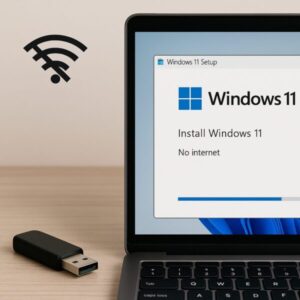
Short answer: You can complete an in-place upgrade to Windows 11 without being online during the install itself—as long as you downloaded the ISO beforehand. But a clean install will normally force internet + Microsoft account (MSA) at the Out-of-Box Experience (OOBE), and Microsoft keeps closing old bypass tricks.
- 1 What’s changed in 2025 (before you start)
- 2 Path A (Recommended): Offline In-Place Upgrade from Windows 10/11
- 3 Path B: Clean Install While Offline (Know the Limits)
- 4 Step-by-Step: Download the ISO (Do this when you have internet)
- 5 Post-Install: What to expect after an offline upgrade
- 6 Advanced (Unsupported) Tools & Notes
- 7 Summary
What’s changed in 2025 (before you start)
- Home & Pro now expect internet + MSA during first-time setup. This is Microsoft’s official stance for current Windows 11. That requirement applies to OOBE (first boot/clean install). It doesn’t block in-place upgrades started from a running Windows 10/11 session with “Keep personal files and apps.”
- Old bypasses are unreliable. The well-known
OOBE\BYPASSNROtrick has been removed from newer builds/Insider streams and may vanish from future public releases; registry workarounds exist but are unstable and can break unexpectedly. Use them only for labs, not production.
What you’ll need (prepare while online)
| Item | Why it matters |
|---|---|
| Windows 11 ISO | Download the official multi-edition ISO from Microsoft. Microsoft |
| USB flash drive (≥8 GB) | To carry the ISO or make boot media. |
| A compatible PC | Windows 11 requires UEFI, Secure Boot capability, and TPM 2.0 (plus supported CPU/RAM/Storage). |
| Full backup | Major upgrades can fail—protect your files first. |
Tip: Microsoft’s download page also documents mounting the ISO directly (no USB) if you’re doing an in-place upgrade from Windows 10/11.
Path A (Recommended): Offline In-Place Upgrade from Windows 10/11
This avoids OOBE and therefore avoids the internet/MSA enforcement.
- While online (any PC):
- Download the official Windows 11 ISO. Copy it to a USB drive if needed. Microsoft
- On the target PC (can be offline):
- Mount the ISO (right-click → Mount) or open it from your USB.
- Run
setup.exe. - When asked to “Check for updates”, choose Not right now to stay offline during setup.
- Choose Keep personal files and apps (or Keep personal files only) to avoid OOBE.
- Proceed with the upgrade and reboot until complete.
- After installation (when you’re ready to go online):
- Windows may finish activation and pull drivers/updates once it sees the internet.
Path B: Clean Install While Offline (Know the Limits)
- You can boot from a USB installer and complete most of Setup offline, but at OOBE Windows 11 normally requires internet + MSA on Home & Pro. Expect to connect, or be prepared for enterprise-style deployment tools.
Safer alternatives if you must clean-install without internet:
- Use in-place upgrade first, then Reset this PC → Remove everything from within Windows; this still avoids OOBE on some scenarios and lets you provision later.
- For test labs only, some users try workarounds (registry keys or older media). These are unsupported and increasingly blocked—use at your own risk.
Step-by-Step: Download the ISO (Do this when you have internet)
- Go to Microsoft’s official page: Windows 11 Download
- Select “Download Windows 11 Disk Image (ISO)”, pick edition & language, and download.
- (Optional) Create bootable USB if you plan Path B.
Post-Install: What to expect after an offline upgrade
- Activation may be pending until you go online; it usually completes automatically.
- Drivers may be basic (Microsoft inbox). Plan to install vendor drivers from a second USB or after reconnecting.
- Windows Update will queue quality/cumulative updates once connected.
Advanced (Unsupported) Tools & Notes
- Rufus can create Windows 11 media with options to bypass TPM/Secure Boot/CPU checks and MSA requirements. Useful for labs or legacy hardware, but not Microsoft-endorsed—use cautiously, especially for business machines. Tech Community+1
- Hardware requirements still apply for official support: UEFI + Secure Boot capable, TPM 2.0, supported CPU. If these are missing/disabled, see Microsoft’s guidance on enabling TPM/Secure Boot or converting MBR→GPT as needed.
Troubleshooting quick table
| Symptom | Likely cause | Fix |
|---|---|---|
| Setup insists on internet during clean install | OOBE enforcement (Home/Pro) | Use Path A (in-place), or connect temporarily; avoid relying on old BYPASSNRO. |
| “This PC can’t run Windows 11” | TPM/Secure Boot/CPU check failing | Enable TPM 2.0 and Secure Boot in firmware, ensure UEFI/GPT; consider vendor BIOS updates. |
| Activation “Not available” | No internet | Connect later; activation typically completes automatically. |
| No Wi-Fi/Bluetooth after upgrade | Missing OEM drivers | Install vendor drivers from USB, then run Windows Update when online. |
FAQ
Q1. Can I finish the entire upgrade without ever connecting to the internet?
A. For a clean install, not realistically on current Home/Pro—OOBE expects internet + MSA. For an in-place upgrade, you can stay offline during Setup and connect later to activate and update.
Q2. Is the OOBE\BYPASSNRO command still working?
A. Microsoft has removed/disabled that script in newer builds and test channels; remaining workarounds may stop at any time. Don’t rely on them for production.
Q3. Where is the official ISO?
A. Microsoft’s Windows 11 download page (multi-edition ISO).
Q4. Minimum requirements?
A. See Microsoft’s official Windows 11 requirements (UEFI/Secure Boot capable, TPM 2.0, etc.).
Summary
- Best practice in 2025: Do an offline in-place upgrade from Windows 10/11 using an ISO you downloaded earlier. This avoids OOBE and its internet/MSA requirement. Later, connect once to finish activation, drivers, and updates.
- Clean installs increasingly require internet + MSA; bypass tricks are unreliable and unsupported.
✔️ Related Guides
▶︎Windows 11 Update Multiple Errors Occurring on Some Devices: Full Troubleshooting Guide