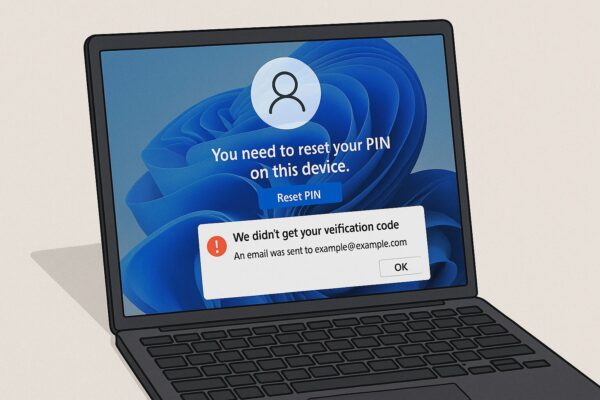
If Windows 11 suddenly displays the message “You need to reset your PIN on this device,” you may find yourself unable to sign in—even though you know your PIN.
In some cases, Windows asks you to verify your identity but never sends the verification code. Others may see the PIN reset screen repeatedly without being able to complete the process.
The good news is that this problem is usually related to Windows Hello or Microsoft account verification, not to your personal files or the Windows installation itself.
This guide explains why this message appears, how to fix the most common causes, and what to do if Windows won’t let you complete the PIN reset.
- 1 Quick Navigation
- 2 Why Does Windows Say “You Need to Reset Your PIN on This Device”?
- 3 Fix 1 – Check Your Microsoft Account
- 4 Fix 2 – Try Another Sign-in Method
- 5 Fix 3 – Start Windows in Safe Mode
- 6 Advanced Recovery Methods
- 7 When Should You Reset Windows?
- 8 How to Prevent This Problem in the Future
- 9 Frequently Asked Questions
- 10 Final Thoughts
Quick Navigation
| If this is your problem… | Go to |
|---|---|
| Windows suddenly asks me to reset my PIN | Why this happens |
| I never receive the verification code | Fix 1 – Check your Microsoft account |
| My PIN reset keeps failing | Fix 2 – Try another sign-in method |
| I can’t sign in at all | Fix 3 – Start Windows in Safe Mode |
| I’ve tried everything | Advanced Recovery Methods |
Why Does Windows Say “You Need to Reset Your PIN on This Device”?
This message usually appears when Windows Hello can no longer verify your identity or trust the existing PIN stored on your device.
Common causes include:
- A recent Windows update
- Changes to your Microsoft account
- Corrupted Windows Hello credentials
- Temporary synchronization problems
- TPM (Trusted Platform Module) issues
- Network problems during account verification
Although the message can be alarming, it doesn’t usually mean your PC is damaged or that your files have been lost.
In many cases, Windows simply needs you to verify your identity before creating a new Windows Hello PIN.
Fix 1 – Check Your Microsoft Account
Before trying more advanced solutions, make sure your Microsoft account is working properly.
Many PIN reset problems occur because Windows cannot verify your identity—not because your PIN itself is broken.
Check your account
- On another device, visit account.microsoft.com.
- Sign in with the Microsoft account you use on your PC.
- Confirm that you can access your account without errors.
If you can’t sign in, reset your Microsoft account password first. Once your account is working again, return to your PC and try the PIN reset process.
If the verification code doesn’t arrive
If Windows asks you to verify your identity but no code is delivered:
- Check your Spam or Junk folder.
- Confirm that your recovery email address and phone number are still correct.
- Wait a few minutes before requesting another code.
- Make sure your internet connection is stable.
In many cases, the problem is caused by account verification rather than Windows Hello itself.
Fix 2 – Try Another Sign-in Method
If Windows won’t let you complete the PIN reset, you may still be able to sign in using another authentication method.
On the sign-in screen, select Sign-in options.
Depending on your account configuration, you may see options such as:
- Microsoft account password
- Security key
- Fingerprint recognition
- Facial recognition
If your password works, sign in normally and then open:
Settings → Accounts → Sign-in options
From there, remove your current Windows Hello PIN and create a new one.
Many users assume the PIN is the only way to sign in, but your Microsoft account password often continues to work even when Windows Hello is experiencing problems.
Fix 3 – Start Windows in Safe Mode
If you can’t sign in normally, Safe Mode may allow you to access Windows using your account password instead of your PIN.
To start Safe Mode
- Hold Shift while selecting Restart on the sign-in screen.
- Choose Troubleshoot.
- Select Advanced options.
- Open Startup Settings.
- Restart your PC.
- Press 5 or F5 to start Safe Mode with Networking.
After signing in, open:
Settings → Accounts → Sign-in options
Then remove your existing PIN and create a new one.
If Windows accepts the new PIN, restart your computer normally and test the sign-in process again.
Advanced Recovery Methods
If Windows still won’t let you reset your PIN after trying the previous solutions, the issue may involve damaged Windows Hello data or system components.
Before considering a complete Windows reset, try these recovery options.
Repair Windows Startup
Sometimes Windows cannot complete the PIN reset because important system files were damaged during a Windows update or an unexpected shutdown.
Startup Repair can automatically detect and repair many of these problems.
To run Startup Repair
- Hold Shift while selecting Restart.
- Choose Troubleshoot.
- Select Advanced options.
- Choose Startup Repair.
- Follow the on-screen instructions.
After Startup Repair finishes, restart your PC and try signing in again.
This process doesn’t delete your personal files.
Rebuild Your Windows Hello PIN
If your Microsoft account works normally but Windows continues asking you to reset your PIN, your Windows Hello credentials may have become corrupted.
After signing in with your account password, open:
Settings → Accounts → Sign-in options
Then:
- Remove your existing Windows Hello PIN.
- Restart your computer.
- Create a new PIN.
Creating a fresh PIN rebuilds the Windows Hello credentials stored on your device and often resolves persistent sign-in problems.
When Should You Reset Windows?
If every recovery method has failed and Windows still refuses to complete the PIN reset, reinstalling Windows may be your final option.
Fortunately, Windows allows you to reinstall the operating system while keeping your personal files in many cases.
Before resetting Windows:
- Try Startup Repair first.
- Make sure you know your Microsoft account password.
- Back up important files if possible.
- Keep your BitLocker recovery key available if BitLocker is enabled.
When prompted, choose Keep my files if you want to preserve your personal documents while reinstalling Windows.
Resetting Windows should only be considered after all other recovery methods have been exhausted.
How to Prevent This Problem in the Future
Although this issue cannot always be avoided, a few simple precautions can make future PIN resets much easier.
Keep your Microsoft account information updated
Make sure your recovery email address and phone number are always current so you can receive verification codes without delay.
Add multiple verification methods
Using Microsoft Authenticator in addition to email or SMS provides an extra way to verify your identity if one method becomes unavailable.
Remember your Microsoft account password
Even if you normally use a PIN every day, your password is often the quickest way to regain access when Windows Hello stops working.
Keep Windows updated
Installing the latest Windows updates helps improve the reliability of Windows Hello and Microsoft account authentication.
Back up important files regularly
Regular backups protect your data if Windows ever needs to be repaired or reset.
Frequently Asked Questions
Why does Windows keep asking me to reset my PIN?
This usually happens when Windows Hello can no longer verify the PIN stored on your device. A Windows update, TPM issue, Microsoft account synchronization problem, or corrupted Windows Hello data may trigger the message.
Why don’t I receive the verification code?
Verification codes may be delayed because of email filtering, temporary Microsoft service issues, an incorrect recovery email address, or network problems.
Check your Spam or Junk folder, confirm your recovery information, and wait a few minutes before requesting another code.
Can I skip the PIN reset?
Usually not.
If Windows requires you to reset your PIN, you’ll need to verify your identity before creating a new one. However, you may still be able to sign in using your Microsoft account password if that option is available.
Will resetting my PIN delete my files?
No.
Resetting your Windows Hello PIN only replaces the sign-in credentials stored on your device. Your personal files, documents, and installed applications aren’t affected.
Can I use my password instead of a PIN?
Yes.
Many users can select Sign-in options on the Windows sign-in screen and choose their Microsoft account password instead of the PIN.
If the password works, you can sign in normally and create a new Windows Hello PIN afterward.
Final Thoughts
Seeing the message “You need to reset your PIN on this device” can be frustrating, especially if Windows won’t send the verification code or keeps asking you to repeat the same process.
Fortunately, this issue is usually caused by Windows Hello verification or Microsoft account authentication—not by damaged hardware or lost personal files.
In many cases, confirming your Microsoft account, signing in with your password, or creating a new PIN is enough to restore access. If those methods don’t work, Safe Mode and Windows recovery tools provide additional ways to resolve the problem before considering a full Windows reset.
By following the steps in this guide, most users can regain access to their PC safely without losing important data.
Related Guides
If you’re experiencing other Windows sign-in problems, these guides may also help: