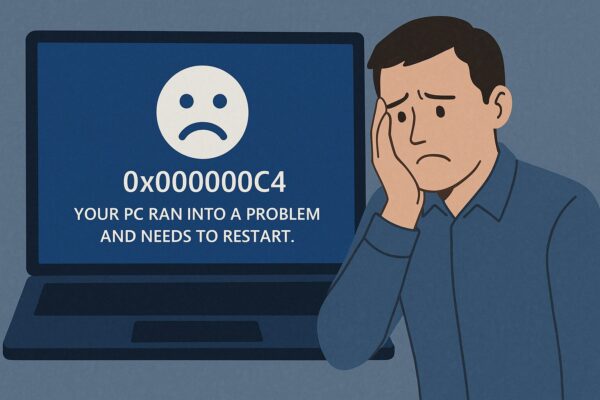
Have you suddenly been hit with a Blue Screen of Death (BSOD) showing error code 0x000000C4?
It’s scary when your screen turns blue and your PC restarts out of nowhere—but the good news is that this particular error is often a protective measure, not a sign your PC is dying.
Error 0x000000C4 is usually linked to driver compatibility problems or memory protection violations. In this guide, we’ll walk through:
- What
0x000000C4actually means - The most common causes
- Easy and advanced solutions you can try
- Special cases (virtual machines, Insider builds, modern security features)
Even if you’re not an advanced user, you can follow these steps one by one.
- 1 🔍 What is Error Code 0x000000C4?
- 2 🧠 Common Causes of 0x000000C4
- 3 🛡️ Before You Start: Helpful Preparations
- 4 ✅ Solution 1: Disable Driver Verifier (if you enabled it)
- 5 ✅ Solution 2: Identify and update faulty drivers
- 6 ✅ Solution 3: Check your RAM with Windows Memory Diagnostic
- 7 ✅ Solution 4: Check BIOS settings and overclocking
- 8 💡 Advanced techniques & extra tips
- 9 🖥️ Special case: Virtual machines (VMs)
- 10 🧪 Special case: Windows Insider Preview builds
- 11 🔐 Recent trend: Security features and stricter drivers
- 12 ✅ Summary: How to handle BSOD 0x000000C4 calmly
🔍 What is Error Code 0x000000C4?
The error 0x000000C4 corresponds to:
DRIVER_VERIFIER_DETECTED_VIOLATION
Windows includes a built-in tool called Driver Verifier. Its job is to:
- Watch drivers for unsafe or suspicious behavior
- Stress-test them to find bugs
- Force a crash (BSOD) if a driver violates the rules
When Driver Verifier finds a serious problem, Windows stops the system on purpose instead of allowing a faulty driver to run and corrupt your data.
So in a way, this error is:
Windows saying: “I found a dangerous driver. I’m stopping everything before something worse happens.”
🧠 Common Causes of 0x000000C4
Here are the most common reasons behind this BSOD:
| Cause | Description |
|---|---|
| Driver issues | Outdated, buggy, or incompatible drivers breaking the rules |
| Driver Verifier enabled | Driver Verifier actively stressing drivers and finding faults |
| Hardware failures | Defective RAM or failing storage devices |
| Excessive overclocking | Unstable CPU or memory overclocking settings |
| BIOS settings problems | Incompatible options such as certain Secure Boot/UEFI tweaks |
You can think of this as a combination of “strict checking” (Driver Verifier) and “weak links” (old drivers, unstable hardware, etc.).
🛡️ Before You Start: Helpful Preparations
If possible, prepare the following before deep troubleshooting:
| Preparation | Why It’s Helpful |
|---|---|
| Recovery USB | Lets you access Safe Mode or repair tools if Windows won’t boot normally |
| Latest drivers downloaded | Makes it easier to reinstall graphics, chipset, or network drivers |
| BIOS update manual | Ensures you can safely update or reset BIOS settings |
You don’t need all of these to begin, but they can save you time later.
✅ Solution 1: Disable Driver Verifier (if you enabled it)
If you manually turned on Driver Verifier for testing (for example, while debugging a driver issue) and started seeing 0x000000C4, simply turning it off may be enough.
Steps
- Boot into Safe Mode (if normal boot is unstable)
- From the sign-in screen or while holding Shift, choose:
Power → Restart → Troubleshoot → Advanced options → Startup Settings → Restart,
then select Safe Mode. - On some older systems, pressing F8 during startup may still work.
- From the sign-in screen or while holding Shift, choose:
- Open Command Prompt as Administrator
- In Safe Mode, press Start, type
cmd, right-click Command Prompt, and choose Run as administrator.
- In Safe Mode, press Start, type
- Reset Driver Verifier
verifier /reset - Restart your PC and check if the BSOD stops appearing.
🔎 Note:
If you can’t reach Safe Mode at all, you may need to boot from a Windows installation or recovery USB and use its repair tools to access Command Prompt.
✅ Solution 2: Identify and update faulty drivers
If disabling Driver Verifier doesn’t solve the issue, then a specific driver is likely misbehaving—Driver Verifier just helped expose it.
Steps
- Open Device Manager
- Press Win + X → choose Device Manager.
- Look for problem devices
- Check for:
- Devices with a yellow warning icon
- Drivers you recently installed or updated (graphics, storage, network, USB, etc.)
- Check for:
- Update or roll back drivers
- Right-click the suspected device:
- Choose Update driver to get a newer version, or
- Choose Properties → Driver → Roll Back Driver if the problem started after an update.
- Right-click the suspected device:
- Download drivers from the manufacturer
- For graphics, chipset, and storage drivers especially, it’s best to download the latest version from the official website:
- NVIDIA / AMD / Intel for graphics
- Your motherboard or laptop vendor for chipset & storage
- For graphics, chipset, and storage drivers especially, it’s best to download the latest version from the official website:
After updating, restart your PC and see if the BSOD disappears.
✅ Solution 3: Check your RAM with Windows Memory Diagnostic
Faulty or unstable RAM can easily trigger driver- or memory-related BSODs, including 0x000000C4.
Steps
- Open the Start menu and type “Windows Memory Diagnostic”.
- Click Windows Memory Diagnostic.
- Choose “Restart now and check for problems (recommended)”.
- Your PC will reboot and run a memory test.
- After Windows loads again, it will show the test results.
If memory errors are detected, you may need to:
- Reseat the RAM sticks
- Test one module at a time
- Replace the faulty RAM
✅ Solution 4: Check BIOS settings and overclocking
Over-aggressive settings in BIOS or overclocking tools can cause Driver Verifier to expose instability.
What to check
- Overclocking
- If you’re overclocking CPU or RAM (XMP profiles, manual voltage changes, etc.), switch everything back to default/auto and see if the BSOD stops.
- BIOS updates
- Check your motherboard or laptop vendor’s website for a BIOS/UEFI update.
- Newer CPUs or GPUs often require the latest BIOS for full stability.
- Security features
- Features like Secure Boot or virtualization options rarely cause this alone, but if you changed them recently, consider reverting to previous settings temporarily.
⚠ If you’re not comfortable with BIOS changes, take photos of current settings before modifying anything so you can restore them later.
💡 Advanced techniques & extra tips
Once the system is stable enough to boot, you can dig deeper using some advanced—but still approachable—tools.
Tip 1: Use Driver Verifier only on specific drivers
By default, Driver Verifier can monitor many drivers at once, which sometimes creates unnecessary BSODs. You can narrow the focus:
- Open Command Prompt as Administrator.
- Run:
verifier /driver <DriverName> - To find driver file names:
- In Device Manager, open Properties → Driver → Driver Details.
This way you can stress-test only the suspected driver instead of everything, making it easier to pinpoint the true cause.
Tip 2: Use Event Viewer for more detail
After a BSOD, Windows logs useful information in Event Viewer.
- Press Win + S, type Event Viewer, and open it.
- In the left pane, go to: Windows Logs → System.
- Look for entries around the time of the crash mentioning:
- BugCheck
- DRIVER_VERIFIER_DETECTED_VIOLATION
- Specific driver file names (e.g.
nvlddmkm.sysfor NVIDIA, etc.)
You can then search the driver name online together with “0x000000C4” to find more targeted fixes.
Tip 3: Use System Restore if the problem just started
If the BSOD started right after:
- A driver update
- A major Windows update
- Installing certain software
…then System Restore can roll back your system configuration to a previous, stable point.
- Search for “Create a restore point” in the Start menu.
- Click System Restore.
- Choose a restore point dated before the first BSOD.
- Follow the wizard to complete the process.
Your personal files stay intact, but system settings and drivers return to their earlier state.
Tip 4: Analyze MiniDump files with simple tools
Every BSOD generates a MiniDump file stored in:
C:\Windows\Minidump
You don’t need to be a programmer to read them—there are user-friendly tools:
- WhoCrashed – gives plain-language summaries of crashes
- BlueScreenView – shows which drivers were active during the crash
These tools often highlight the exact driver that pushed Driver Verifier over the edge.
🖥️ Special case: Virtual machines (VMs)
Error 0x000000C4 can appear more often inside virtual machines such as Hyper-V, VMware, or VirtualBox.
Common causes:
- Old or experimental virtual drivers
- Hardware virtualization (Intel VT-x / AMD-V) disabled in BIOS/UEFI
- Guest additions / integration services not properly installed
What you can try:
- Update the VM software and guest tools (VMware Tools, VirtualBox Guest Additions, Hyper-V integration services).
- Make sure virtualization support is turned on in BIOS/UEFI.
- Avoid aggressive resource over-allocation (too little RAM for the host, too many vCPUs, etc.).
🧪 Special case: Windows Insider Preview builds
If you’re on a Windows Insider (preview) build, you’re effectively running “beta” or “dev” versions of Windows. These can:
- Be stricter with driver rules
- Expose driver bugs that never appeared on stable builds
In this situation:
- Check the Insider forums to see if others report the same BSOD.
- Ensure you’re using the latest drivers from vendors, not just Windows Update.
- If the crashes are too frequent, consider rolling back to the stable channel.
🔐 Recent trend: Security features and stricter drivers
Modern Windows versions (especially Windows 11) have stepped up security with features such as:
- Memory Integrity (Core Isolation)
- Virtualization-Based Security (VBS)
- Smart App Control
These make Windows safer—but also less tolerant of old or poorly written drivers. A driver that “worked fine on Windows 7” may now trigger 0x000000C4 on Windows 11 under these stricter rules.
If you suspect this:
- Update the driver to a version explicitly supporting Windows 10/11.
- If no such version exists, consider replacing the device or software that depends on it.
✅ Summary: How to handle BSOD 0x000000C4 calmly
Error 0x000000C4 (DRIVER_VERIFIER_DETECTED_VIOLATION) is Windows trying to protect itself from unsafe drivers, not necessarily a sign your PC is doomed.
Work through the steps in this order:
- Disable Driver Verifier (if you turned it on)
- Update or roll back drivers, especially graphics, storage, and network
- Run Windows Memory Diagnostic to check RAM
- Reset overclocking and review BIOS settings
- Use Event Viewer, System Restore, and MiniDump analysis tools for deeper insights
- For VMs and Insider builds, adjust settings or switch back to stable environments
If the error appeared suddenly after a Windows Update or driver change, checking update history and temporarily reverting recent changes can also help.
🔗 You might also find these guides useful
▶︎ How to Upgrade an Unsupported PC to Windows 11 24H2
▶︎ Chrome Won’t Launch and Remains “Paused” — Causes and Fixes
▶︎ Solved: 5 Practical Ways to Open Large CSV Files Faster in Excel (Without Crashes)