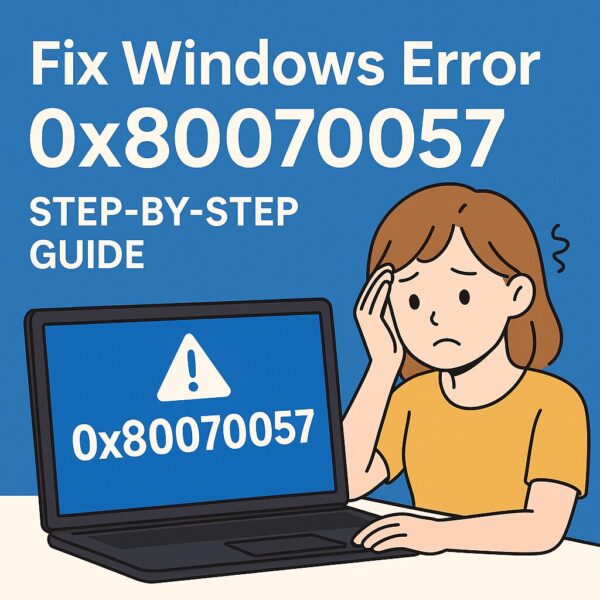
<!– wp:image –> <figure class=”wp-block-image size-large is-resized”> <img src=”https://kimiyoya.com/wp-content/uploads/2025/07/068341FC-698F-4580-A22C-E710A0CE251D-300×300.jpg” alt=”A worried user looking at a Windows PC displaying error code “0x80070057” on screen, with a blue background and bold text saying “Fix Windows Error 0x80070057 – Step-by-Step Guide”.” style=”width:250px”/> </figure>
<p><strong>This guide is designed for beginners who suddenly see Windows errors and want a clear, step-by-step way to fix them safely.</strong></p> <p>If you’ve ever turned on your PC and been greeted by strange codes like:</p> <ul> <li><strong>0x80070057</strong></li> <li>0xC1900101</li> <li>0x80240034</li> </ul> <p>—you are not alone. These codes look scary, but most of the time, they point to fixable issues such as corrupted files or Windows Update problems.</p> <p>In this guide, we’ll focus on one of the most common errors: <strong>0x80070057</strong> — and walk through every reliable solution.</p>
- 1 🔍 What Does Error 0x80070057 Mean?
- 2 🛠️ Step-by-Step Solutions
- 2.1 ✅ Step 1: Run the Windows Update Troubleshooter
- 2.2 ✅ Step 2: Repair System Files Using SFC
- 2.3 ✅ Step 3: Repair the Windows Image with DISM
- 2.4 ✅ Step 4: Check Free Disk Space
- 2.5 ✅ Step 5: Clear the Windows Update Cache
- 2.6 ✅ Step 6: Perform a Clean Boot
- 2.7 ✅ Step 7: Check if It’s Related to a Recent Windows Update
- 3 ❓ Frequently Asked Questions (FAQ)
- 4 🔐 How to Prevent This Error in the Future
- 5 📝 Summary of Fixes
- 6 📚 Recommended Articles
🔍 What Does Error 0x80070057 Mean?
<p>The error generally appears when Windows runs into one of the following problems:</p> <ul> <li>Corrupted or missing system files</li> <li>Windows Update problems (stuck, retrying, failing)</li> <li>Low or failing storage (SSD/HDD issues)</li> <li>A Blue Screen of Death (BSOD) related to disk errors</li> </ul> <p><strong>Good news:</strong> Most causes can be fixed by following the steps below in order.</p>
🛠️ Step-by-Step Solutions
✅ Step 1: Run the Windows Update Troubleshooter
Windows includes an automatic troubleshooter that can detect and repair many update issues.
How to run it:
- Press <strong>Windows Key + I</strong> → open Settings
- Go to System → Troubleshoot
- Click Other troubleshooters
- Find Windows Update
- Click <strong>Run</strong>
If the issue is caused by a temporary update malfunction, this tool often fixes it immediately.
✅ Step 2: Repair System Files Using SFC
The System File Checker (SFC) scans Windows for damaged or missing files.
How to run SFC:
- Open Command Prompt (Admin)
- Enter:
sfc /scannow- Wait 5–10 minutes
- Restart your PC
If corrupted files triggered the error, this step usually resolves it.
✅ Step 3: Repair the Windows Image with DISM
DISM repairs deeper issues that SFC cannot fix.
Run these commands one by one:
DISM /Online /Cleanup-Image /CheckHealthDISM /Online /Cleanup-Image /ScanHealthDISM /Online /Cleanup-Image /RestoreHealthRestart your computer afterward.
✅ Step 4: Check Free Disk Space
Windows Update may fail with this error if your C: drive has less than 5GB free.
What you can do:
- Open File Explorer
- Check available space on C:
- Free space by:
- Running Disk Cleanup
- Uninstalling unused apps
- Emptying the Recycle Bin
- Clearing Microsoft Teams logs / OneDrive cache
- Moving files to OneDrive or external storage
Even a few gigabytes can make a big difference.
✅ Step 5: Clear the Windows Update Cache
If Windows keeps reusing corrupted update files, the error will reappear.
How to clear the cache:
- Open Command Prompt (Admin)
- Stop update services:
net stop wuauservnet stop bits- Go to:
C:\Windows\SoftwareDistribution- Delete everything inside the following folders:
- Download
- DataStore
- Restart services:
net start wuauservnet start bits- Restart your PC
If you see “Access Denied,” repeat the steps in Safe Mode.
✅ Step 6: Perform a Clean Boot
This helps determine whether other software is interfering.
How to clean boot Windows:
- Press Windows + R → type
msconfig - Open the Services tab
- Check Hide all Microsoft services
- Click Disable all
- Go to the Startup tab → Open Task Manager
- Disable all startup items
- Restart your PC
Try the update or operation again.
✅ Step 7: Check if It’s Related to a Recent Windows Update
As of 2025, error 0x80070057 is often linked to:
- Windows 11 24H2 upgrade failures
- Cumulative updates like KB5037853
- Update loops after reboot
If this seems to be your case, try:
- Windows Update Assistant
- Media Creation Tool
- Manual upgrade using an ISO
👉 <a href=”https://kimiyoya.com/24h2-windows-howto/”>How to Upgrade Unsupported PCs to Windows 11 24H2</a>
❓ Frequently Asked Questions (FAQ)
Q: Can restarting fix the error?
A: Yes — if caused by temporary system issues.
Q: Do I need a new PC?
A: No. Only very old hardware might require an upgrade.
Q: Is clearing the Windows Update cache safe?
A: Yes. Windows recreates everything automatically.
Q: I’m not good with commands. What should I do?
Use:
Settings → System → Troubleshoot → Windows Update
Q: My PC became slow after the error. Why?
Failed updates and corrupted system files can slow down Windows.
🔐 How to Prevent This Error in the Future
- Keep at least 10GB free on the C: drive
- Install updates after checking for known issues
- Remove unused apps regularly
- Use Storage Sense to auto-clean temporary files
📝 Summary of Fixes
| Fix | What It Solves |
|---|---|
| Windows Update Troubleshooter | Small update glitches |
| SFC scan | Corrupted system files |
| DISM repair | Damaged Windows image |
| Disk cleanup | Low storage issues |
| Clear update cache | Corrupted update packages |
| Clean boot | Conflicts from third-party software |
📚 Recommended Articles
・Is Your Laptop Overheating? Quiet Cooling Tips for Working in Public Spaces (2025 Guide)
・Troubleshooting Windows Insider Program: Channel Errors, Boot Failures, and Fixes
・Windows PC Running Slow? Here’s How to Fix 100% Disk Usage Easily