
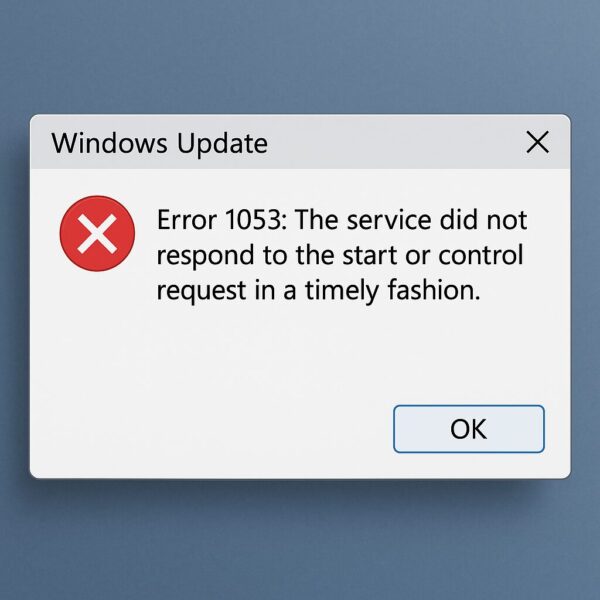
“Error 1053: The service did not respond to the start or control request in a timely fashion.”
If you’ve just seen this message—especially after a Windows Update, reboot, or software install—you’re not alone.
This error looks complicated, but in reality the causes are common, predictable, and usually easy to fix.
This guide explains:
- What Error 1053 really means
- Why it happens
- Step-by-step beginner-friendly fixes
- Advanced repair steps used by IT professionals
- Tips for enterprise environments, servers, and .NET Framework issues
Let’s get your services running again.
- 1 💡 What Is Error 1053?
- 2 🔍 Common Causes of Error 1053
- 3 🛠 Solutions (Start from the top)
- 4 ✅ Solution 1: Restart Your PC (Simple but Effective)
- 5 🧰 Solution 2: Boot Into Safe Mode
- 6 🧩 Solution 3: Check and Repair .NET Framework
- 7 🛡 Solution 4: Temporarily Disable Antivirus Software
- 8 ⏳ Solution 5: Increase the Service Startup Timeout (Advanced Fix)
- 9 🔧 Solution 6: Repair or Reinstall the Application / Service
- 10 🛠 When Multiple Services Fail at Once
- 11 🔍 Why Services Fail to Start (Deeper Explanation)
- 12 📌 Summary
- 13 🔗 Helpful Related Guides
💡 What Is Error 1053?
Error 1053 occurs when a Windows service takes too long to start.
Windows expects each service to initialize within a specific timeout window (default: 30 seconds).
If the service:
- loads too slowly
- waits for another dependency
- is blocked by antivirus
- cannot access a required file or driver
…Windows gives up and throws Error 1053.
It means “the service didn’t start fast enough,” not “the service is broken.”
🔍 Common Causes of Error 1053
| Cause | Description |
|---|---|
| Windows Update inconsistencies | Updated files don’t match service dependencies |
| .NET Framework issues | Many services rely on .NET; mismatched or missing versions cause failure |
| Antivirus interference | Startup is slowed or blocked during security scans |
| Driver problems | Needed drivers fail to load or conflict |
| Startup timeout too short | Windows gives up before a service fully initializes |
| Corrupted service files | The service executable or config files are damaged |
Most cases involve one of the following:
- A recent Windows update
- A slow or delayed dependency
- .NET version mismatch
- Overly aggressive antivirus software
🛠 Solutions (Start from the top)
Below are the safest and most effective fixes, ranked in recommended order.
✅ Solution 1: Restart Your PC (Simple but Effective)
A reboot clears:
- pending updates
- locked system files
- temporary conflicts
If Error 1053 started immediately after an update, this alone often fixes it.
🧰 Solution 2: Boot Into Safe Mode
Safe Mode loads only essential drivers and can help you isolate the cause.
- If the error still happens in Safe Mode →
the service files may be corrupted. - If the error does not appear →
a driver or third-party app (especially antivirus) is causing interference.
This information tells you exactly where to focus next.
🧩 Solution 3: Check and Repair .NET Framework
Because so many Windows services depend on .NET Framework, a missing or corrupted version is one of the most common causes of Error 1053.
What to do:
- Go to Settings → Apps → Installed Apps and repair .NET Framework.
- If needed, reinstall or update .NET Framework directly from Microsoft:
https://dotnet.microsoft.com/en-us/download/dotnet-framework
After reinstalling, reboot and test the service again.
🛡 Solution 4: Temporarily Disable Antivirus Software
Security software can:
- block service initialization
- delay loading executable files
- slow down startup enough to trigger Error 1053
Temporarily disable your antivirus and then retry starting the service.
If it works → add the service executable to your antivirus exclusion list.
⏳ Solution 5: Increase the Service Startup Timeout (Advanced Fix)
Some services simply need more than 30 seconds to load—especially on slower systems or after updates.
You can increase the limit via the registry.
Steps:
- Press Win + R, type
regedit, and press Enter. - Navigate to:
HKEY_LOCAL_MACHINE\SYSTEM\CurrentControlSet\Control- Look for:
ServicesPipeTimeout- If it doesn’t exist → create a DWORD (32-bit) value.
- Set it to:
60000(= 60 seconds)
- Restart your PC.
This fix alone resolves many enterprise-level service failures.
🔧 Solution 6: Repair or Reinstall the Application / Service
If a specific program’s service fails, the service executable may be corrupt.
Examples:
- Backup tools
- VPN services
- SQL Server components
- Print spooler extensions
- Third-party utilities
Fix:
- Go to Settings → Apps
- Select the app
- Choose Repair or Uninstall → Reinstall
This refreshes the service files that Error 1053 depends on.
🛠 When Multiple Services Fail at Once
If many services trigger 1053 at the same time, the issue is often system-wide:
- Windows Component Store corruption
- Broken update files
- Damaged system dependencies
Use Windows repair commands to fix the underlying file structure.
🖥 Step 1: Open Command Prompt (Admin)
Right-click Start → Terminal (Admin)
or
Search “cmd” → Right-click → Run as administrator
🛠 Step 2: Run Repair Commands
1. Repair the Component Store
DISM /Online /Cleanup-Image /RestoreHealthThis one may take several minutes.
2. Repair System Files
sfc /scannowThis rebuilds missing or corrupted system files used by services.
🔁 Step 3: Restart Your PC
After both scans complete, reboot and retry starting the service.
🔍 Why Services Fail to Start (Deeper Explanation)
Understanding the underlying mechanism helps identify the real cause.
⚙ How Windows Services Start
When a service launches, Windows:
- Loads the service executable
- Checks its dependencies
- Loads required drivers
- Runs security checks
- Initializes .NET Framework (if needed)
- Starts the service
If any of these steps are delayed → Error 1053.
🔗 Dependency Chain Failures
Some services depend on others.
For example:
- Print Spooler → RPC (Remote Procedure Call)
- Windows Update → MSI Installer, BITS
- SQL Server Agent → SQL Server Engine
If a required dependency fails, the child service also fails with Error 1053.
🏢 Very Common in Enterprise Systems
Error 1053 frequently appears in:
- Domain-joined PCs
- SQL Server installations
- VPN or firewall software
- Backup and monitoring tools
- Server environments with heavy workloads
These systems often have slower service dependencies or stricter security rules, causing the timeout.
📌 Summary
Error 1053 can look intimidating, but most cases come down to:
- .NET Framework problems
- Antivirus interference
- Slow service startup
- Service dependency failure
- Component Store corruption
- Damaged service files
Start with:
- Restart PC
- Safe Mode test
- Check .NET
- Disable antivirus
- Increase timeout
- Repair DISM/SFC
- Reinstall the related application
If nothing works, there may be deeper system corruption or hardware issues—consider contacting a technician.
🔗 Helpful Related Guides
▶ How to Upgrade an Unsupported PC to Windows 11 24H2
https://kimiyoya.com/windows-11-24h2-upgrade-unsupported-pc/
▶ Windows 11 Keeps Freezing – Ultimate Fix Guide
https://kimiyoya.com/windows11-freezing-fix/
▶ June 2025 Windows 11 Update Errors – Complete Fix Guide
https://kimiyoya.com/windows11-june-2025-update-errors-fix/

