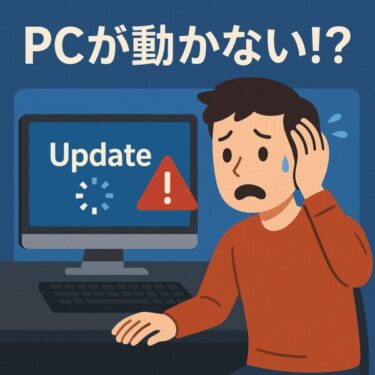
“My lock screen appears instantly, but after entering the password, everything freezes… for 30 minutes!”
That’s one of many complaints that started appearing after the July 2025 Windows cumulative updates. Some users on Windows 11 (especially 24H2) reported:
- Extremely long logons
- Black screens with just a mouse pointer
- Desktop and taskbar that take ages to respond
While July 2025 updates like KB5062553 (security) and KB5062660 (non-security preview) were meant to improve Windows 11, they also exposed issues with drivers, services, and storage on certain systems.
In this guide, we’ll walk through possible causes and practical fixes for severe slowdowns and long freezes after a Windows update – starting from beginner-friendly checks and moving up to advanced tweaks and last-resort methods.
Introduction – Symptoms and Root Causes
“The lock screen shows up quickly, but after I enter my password, the system hangs for 30 minutes!”
Since the July 2025 cumulative updates, many users have reported:
- Very slow logons
- Unresponsive desktops after sign-in
- Black screen with a movable mouse cursor
- Disk usage stuck at 100% in Task Manager
These problems rarely mean your PC is “too old” or “out of space”. Instead, they often point to:
- Storage controller quirks (especially older SATA SSDs/HDDs)
- Drivers that didn’t like the new update
- Background services spiking CPU or disk usage
- Conflicts with third-party security software
In some cases, even earlier updates like KB5060842 (June 2025 security update) had compatibility issues and were throttled or revised by Microsoft, which shows that not every patch behaves nicely on every machine.
The good news: in most cases, you can fix the slowdown without replacing your PC. Let’s start with the easy steps.
Common Symptoms
Typical signs after the update include:
- The lock screen appears normally, but login takes 10–30+ minutes
- A black screen with a mouse pointer shows for a long time
- Taskbar or File Explorer is unresponsive or very slow
- Severe input lag even after the desktop appears
- Disk usage at 100% in Task Manager, even when no heavy apps are open
Possible Causes (Overview)
| Category | Details |
|---|---|
| 💽 Storage Compatibility | Older SATA SSD/HDD setups can hit I/O bottlenecks, especially with certain AHCI drivers |
| 🛠 Problematic Drivers | GPU, chipset, or storage drivers auto-installed with the update may be unstable |
| ⏱ Background Services | Services like SysMain, Windows Search, or Connected Devices Platform can spike resource usage at logon |
| 🛡 Security Software | Third-party antivirus or endpoint security can clash with the updated Windows version |
The July 2025 updates changed internal components quite deeply, especially on Windows 11 24H2, so even a small mismatch in drivers or services can lead to huge delays.
Also note: reinstalling Windows doesn’t always solve it if the underlying problem is driver/firmware-level or tied to a particular update.
General Fixes
1. Disable Unnecessary Startup Programs
Too many startup apps can turn a normal boot into a 20-minute wait.
- Press Ctrl + Shift + Esc to open Task Manager.
- Click the Startup tab.
- Right-click unnecessary apps (updaters, launchers, etc.) → choose Disable.
This reduces the load when Windows first starts, often shaving minutes off login time.
2. Temporarily Stop Heavy Services
Services such as SysMain, Windows Search, and Connected Devices Platform sometimes cause high disk usage after updates. You can temporarily stop them and see if performance improves.
Option A: Using PowerShell (Admin)
- Right-click Start → Windows PowerShell (Admin) or Terminal (Admin).
- Run these commands one by one:
Stop-Service -Name "SysMain"Stop-Service -Name "WSearch"Stop-Service -Name "CDPSvc"These may take a while to complete; wait for each command to finish.
Option B: Using Services Console
- Press Win + R, type
services.msc, press Enter. - Find and right-click each of these:
- SysMain
- Windows Search
- Connected Devices Platform Service
- Choose Stop.
If your system feels noticeably faster afterward, you can later set them to Disabled or Manual – but test for a few days first.
3. Check and Roll Back Problematic Drivers
Windows updates frequently install new drivers in the background. If one of them is unstable, your login can become painfully slow.
- Right-click Start → Device Manager.
- Pay special attention to:
- IDE ATA/ATAPI Controllers
- Storage Controllers
- Display Adapters
- For each important device:
- Right-click → Properties
- Open the Driver tab
- Check Driver Provider and Driver Date
- If available, click Roll Back Driver
Useful checks:
| Check | What to Look For | Why It Matters |
|---|---|---|
| ⚠ Warning Icons | Yellow triangle on devices | Indicates a loading or compatibility issue |
| 🔄 Recently Updated | Driver date matches the update date | New driver may be the direct trigger |
| ⬅ Rollback Available | “Roll Back Driver” button is clickable | Lets you revert to a previously stable version |
| ❓ Unknown Devices | Devices listed under “Other devices” | Missing drivers can stall boot and logon |
If your issues started right after the July 2025 updates, rolling back a driver to the pre-update version can sometimes restore normal behavior.
4. Uninstall and Block a Buggy Update
If your PC became unusably slow after a specific update (for example KB5060842 or another recent cumulative update), uninstalling that patch may help until Microsoft releases a fixed build.
To uninstall a recent update:
- Go to Settings → Windows Update → Update history.
- Click Uninstall updates.
- Select the suspicious update (e.g., KB5060842) → Uninstall.
To prevent Windows from reinstalling the same update immediately, you can use Microsoft’s wushowhide.diagcab tool to hide it until a fixed version is available.
(Tool link and explanation in your original block are fine –そのまま使ってOKです)
⚠ Note: Hiding updates is a short-term workaround. Once Microsoft publishes a corrected patch (for example with KB numbers like KB5062660 / KB5062663 for July 2025 24H2/23H2 non-security updates), you should allow the newer update to install.
Advanced Fix – MSI Mode for SATA Controllers
Some systems with older SATA SSDs/HDDs and the inbox Microsoft AHCI driver (StorAHCI.sys) experience severe slowdowns when MSI (Message Signaled Interrupts) mode is enabled. This is a known behavior documented since KB3083595 and reiterated in several OEM and community guides.
Important:
- This tweak is only for systems using the Microsoft AHCI/StorAHCI driver (SATA).
- It is not appropriate for most NVMe-only laptops.
- Editing the registry always carries risk – create a restore point or full backup first.
Step 1 – Confirm Your Controller
- Right-click Start → Device Manager.
- Expand IDE ATA/ATAPI controllers (or Storage Controllers).
- Right-click your Standard SATA AHCI Controller → Properties.
- On the Driver tab, click Driver Details.
- If the list includes
StorAHCI.sys, you’re using the Microsoft inbox AHCI driver and this workaround applies.
Step 2 – Disable MSI Mode in the Registry
- Press Win + R, type
regedit, press Enter. - Navigate to:
HKEY_LOCAL_MACHINE\SYSTEM\CurrentControlSet\Enum\PCI\<YourDeviceID>\Device Parameters\Interrupt Management\MessageSignaledInterruptProperties- In the right pane, double-click
MSISupported. - Change Value data from
1to0. - Click OK, close Registry Editor, and restart your PC.
If MSI mode was causing an I/O bottleneck, you should see:
- Faster logon
- Lower disk usage in Task Manager
- Fewer long freezes
To revert this change, set MSISupported back to 1.
Last-Resort Methods
If none of the above helps and your PC is still painfully slow:
1. In-Place Upgrade (Repair Install)
This keeps your files and apps but refreshes Windows system files.
- Download the latest Windows 11 ISO from Microsoft:
- Windows 11 download page
- Mount the ISO and run
setup.exe. - Choose Keep personal files and apps.
- Let the process complete (it may take a while, especially on slow disks).
This can fix deep system corruption introduced around the July 2025 updates without wiping your data.
2. Clean Install + Offline Boot Test
If even an in-place repair does not help, a clean install is the final step:
- Create a bootable USB with the latest Windows 11 installer.
- Back up your important data first.
- Perform a clean installation.
- Do not connect to the internet during the very first boot.
- Log in once and observe system behavior before any updates or drivers are installed.
If the system is smooth before updates, but becomes slow after, you’ve confirmed that the issue is related to a specific update or driver. You can then:
- Use wushowhide.diagcab to hide known problematic updates.
- Install drivers manually from the manufacturer instead of letting Windows choose everything.
Conclusion
If your Windows 11 PC suddenly takes 30 minutes to log in after a July 2025 update, the problem is almost never “just because it’s old”. It’s usually caused by:
- Heavy services (SysMain, Windows Search, Connected Devices Platform)
- Driver conflicts introduced by cumulative updates
- Storage controller quirks, especially with older SATA SSD/HDD setups
To recap:
- ✅ Disable unnecessary startup apps and heavy services
- ✅ Review and roll back drivers that changed around the time of the issue
- ✅ Uninstall and temporarily hide the problematic cumulative update
- ✅ Consider the MSI mode tweak for systems using
StorAHCI.sys - ✅ As a last resort, perform an in-place repair or clean install with offline boot
With a bit of patience and systematic testing, most systems can be brought back to normal without replacing the hardware.
Related Articles
▶︎How to Clean Up a Cluttered Right-Click Menu Using ShellEXView (2025 Edition)
▶︎How to Fix Display Issues After Windows Update (2025 Guide)
▶︎Fixing the ‘Your Device Ran Into a Problem’ Error on Windows 11/10