Seeing a blue screen on Windows 11?
Don’t panic — this guide will help you fix it step by step.
- 1 Your Device Ran Into a Problem? Don’t Panic (Quick Fix First)
- 2 What This Error Actually Means (Simple Explanation)
- 3 Step 1: Restart Your PC (Most Important First Step)
- 4 Step 2: Disconnect External Devices
- 5 Step 3: Update Windows
- 6 Step 4: Update Drivers (Very Common Cause)
- 7 Step 5: Run Windows Troubleshooter
- 8 Step 6: Check Recent Changes
- 9 Step 7: Use Safe Mode (If It Keeps Happening)
- 10 When Should You Be Worried?
- 11 Important Safety Tips (Beginner-Friendly)
- 12 Bonus: Why This Error Looks Scary
- 13 Frequently Asked Questions (FAQ)
- 14 Summary
Your Device Ran Into a Problem? Don’t Panic (Quick Fix First)
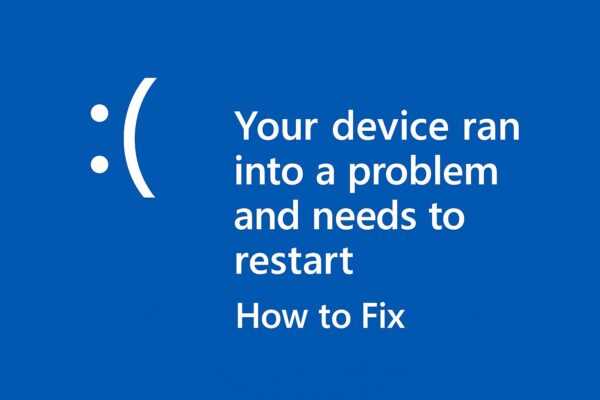
If your PC suddenly shows a blue screen with the message:
“Your device ran into a problem and needs to restart”
Don’t worry — this is a common Windows error.
In many cases, simply restarting your PC fixes the problem.
What This Error Actually Means (Simple Explanation)
This error is called a Blue Screen of Death (BSOD).
It happens when Windows finds a serious problem and stops to protect your system.
Common causes include:
- Driver problems
- Windows update issues
- Hardware conflicts
- Temporary system errors
The key point:
This does NOT always mean your PC is broken
Step 1: Restart Your PC (Most Important First Step)
Before trying anything complicated:
- Let your PC restart automatically
- If it doesn’t, press and hold the power button
- Turn it back on
✔ Many BSOD errors disappear after a restart
✔ This is the easiest and safest fix
Step 2: Disconnect External Devices
Sometimes devices cause conflicts.
Try removing:
- USB drives
- External hard disks
- Printers
- USB adapters
Then restart your PC again.
Step 3: Update Windows
An outdated system can cause this error.
Steps:
- Open Settings
- Click Windows Update
- Click Check for updates
- Install all updates
Updates often fix hidden system issues
Step 4: Update Drivers (Very Common Cause)
Drivers are one of the biggest causes of this error.
Easy way:
- Right-click the Start button
- Open Device Manager
- Right-click your device (especially graphics card)
- Click Update driver
Focus on:
- Graphics (GPU)
- Network adapter
- Storage drivers
Step 5: Run Windows Troubleshooter
Windows has built-in tools to fix problems.
Steps:
- Open Settings
- Go to System → Troubleshoot
- Click Other troubleshooters
- Run recommended tools
Step 6: Check Recent Changes
Ask yourself:
- Did you install new software?
- Did you update drivers recently?
- Did the problem start after a Windows update?
If yes, that change may be the cause
Step 7: Use Safe Mode (If It Keeps Happening)
If your PC keeps crashing:
- Restart your PC
- Interrupt startup 2–3 times
- Enter Recovery Mode
- Choose Safe Mode
Safe Mode helps you fix problems safely
When Should You Be Worried?
Most cases are temporary.
But you should be careful if:
- The error happens repeatedly
- Your PC won’t start
- You see different error codes every time
In that case, deeper repair may be needed
Important Safety Tips (Beginner-Friendly)
✔ Restart first — don’t panic
✔ Avoid random “fix tools” from the internet
✔ Don’t delete system files
Simple actions are often enough
Bonus: Why This Error Looks Scary
The blue screen is designed to:
- Stop damage
- Protect your data
- Prevent further errors
It looks serious, but it’s actually a safety feature
Frequently Asked Questions (FAQ)
Q1. What should I do immediately when I see this blue screen?
The first thing you should do is stay calm and wait for your PC to restart.
In many cases, Windows will restart automatically and the problem will disappear.
If it doesn’t restart, press and hold the power button, then turn it back on.
👉 This simple step fixes many cases.
Q2. Will this error damage my computer?
No, this error is actually designed to protect your computer.
Windows stops everything to prevent further damage.
👉 So while it looks scary, it is a safety feature.
Q3. Why does this error keep happening?
If it happens more than once, common reasons include:
- Outdated or broken drivers
- Problems after a Windows update
- Software conflicts
- Hardware issues
👉 Repeated errors usually mean something needs to be fixed.
Q4. Is it safe to keep using my PC after this error?
Yes, if it only happens once.
But if it happens frequently, you should fix the issue as soon as possible.
👉 Repeated crashes can cause data loss.
Q5. What is a “stop code” on the blue screen?
A stop code is a short message that helps identify the problem.
Examples include:
- MEMORY_MANAGEMENT
- IRQL_NOT_LESS_OR_EQUAL
- CRITICAL_PROCESS_DIED
👉 You can search the stop code to find more specific solutions.
Summary
- This error is common in Windows 11/10
- Restarting fixes many cases
- Drivers and updates are the main causes
- Stay calm and follow simple steps
If unsure, start with restart and basic checks
✔️You might also find these helpful:
▶︎Realtek Audio Device Not Showing on Windows 11? Here’s How to Fix It (2025 Edition)
▶︎Windows Help Made Easy: A Troubleshooting Guide for Seniors & Beginners
💡 Looking for more tips? Check out our full list of Windows Help Guides.