- 1 Introduction: “Not Now, Windows…”
- 2 TL;DR (Quick Fix Checklist)
- 3 1. The Hard Truth: Windows Update Isn’t Designed to Stay “Off”
- 4 2. Active Hours: What It Does (and What It Does Not)
- 5 3. Why “Disabling Windows Update” Often Doesn’t Stick
- 6 4. Driver Updates: A Hidden Source of Freezes and Stutters
- 7 5. What’s Happening When You See 100% Disk and High CPU
- 8 6. Why Completely Disabling Updates Is Risky
- 9 7. Practical Ways to Reduce Freezes and Interruptions (Safely)
- 9.1 7.1 Use “Pause updates” before critical work
- 9.2 7.2 Plan around monthly update waves
- 9.3 7.3 Set Active hours to match your real schedule
- 9.4 7.4 Use a metered connection to reduce surprise downloads
- 9.5 7.5 “Pre-update” before busy days
- 9.6 7.6 Be intentional with driver updates (GPU and network)
- 9.7 7.7 Disconnect external drives during long focus sessions
- 10 8. If Your PC Freezes During an Update: What to Do
- 11 9. FAQ
- 12 10. Key Takeaways: How to Live With Windows Update (Without Losing Your Mind)
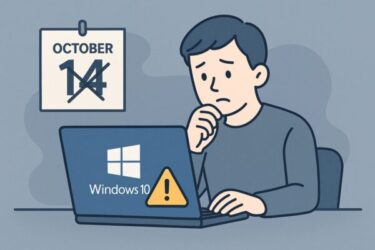
Introduction: “Not Now, Windows…”

You sit down with a cup of coffee, ready to focus.
Then suddenly:
- Your laptop fan roars at full speed
- The mouse starts lagging or freezing
- The disk activity light stays lit, and apps respond in slow motion
You open Task Manager and see high CPU and sometimes 100% disk usage, with Windows Update–related processes near the top.
“But I set updates to manual.”
“I even configured Active hours. Why is Windows updating now?”
If that sounds familiar, you’re not alone. Windows users everywhere ask questions like:
- “Why does Windows Update still run automatically?”
- “Why does my PC freeze during work because of updates?”
- “How do I reduce forced update interruptions without breaking my system?”
This guide explains:
- Why Windows 10/11 can still update even when you try to control it
- What’s actually happening in the background when your PC becomes slow or unresponsive
- Why completely disabling Windows Update is risky
- Practical, safe ways to reduce freezes and interruptions while staying secure
This isn’t about risky registry hacks or shady “disable updates forever” tools. Instead, we’ll focus on supportable settings that help you stay secure and keep your PC usable.
TL;DR (Quick Fix Checklist)
- Need a quiet work window? Use Pause updates (temporary and supported).
- Stop surprise restarts? Set Active hours to match your real schedule and enable restart notifications.
- Reduce surprise downloads? Use a metered connection (especially on Wi-Fi).
- Prevent “update day” surprises? Fully update + reboot before busy days.
- PC still slow? Wait for background jobs (indexing/Defender) to finish, then check Resource Monitor.
1. The Hard Truth: Windows Update Isn’t Designed to Stay “Off”
Here’s the uncomfortable reality:
Windows 10 and Windows 11 are built to keep themselves updated.
For home and small business PCs, Windows Update is designed to:
- Install security patches automatically (to reduce risk from known vulnerabilities)
- Keep core servicing components healthy (so updates can continue to install correctly)
- Deliver reliability fixes that prevent long-term compatibility problems
That’s why certain updates can still arrive even when you feel like you “turned updates off” or “made it manual.” Some options only delay updates or control restarts—they don’t fully block background update activity.
Updates that often override “manual expectations”
Windows may still push or prioritize:
- Critical security updates (especially when risk is high)
- Servicing Stack / update component updates (the plumbing required to install other updates)
- Security intelligence updates for Microsoft Defender
- Some driver updates (varies by device and configuration)
So if you’ve ever thought, “I’m sure I set this to manual—why is it still doing something?”… it’s not your imagination. Windows sometimes prioritizes its supported security baseline over your preferred rhythm.
2. Active Hours: What It Does (and What It Does Not)
A common misunderstanding is that Active hours stops Windows Update from doing anything during that time.
Active hours mainly control automatic restarts—not downloads or background preparation.
What Active hours helps with:
- Reduces the chance of an automatic restart while you’re working
- Encourages Windows to restart when you’re less likely to be using the PC
What Active hours does not guarantee:
- No update downloads
- No background installation/preparation
- No heavy disk/CPU usage during the day
That’s why you can still feel “my PC is crawling,” and later notice “Updates were installed.” You likely experienced the background preparation phase.
3. Why “Disabling Windows Update” Often Doesn’t Stick
If you’ve searched the web for ways to disable Windows Update, you’ve probably seen suggestions like:
- Stopping the Windows Update service
- Setting services to Disabled
- Using third-party tools that claim to block updates permanently
Modern Windows includes protective components designed to keep the update system functional. One well-known example is the Windows Update Medic Service, which can repair or restore update-related components.
In plain terms: if Windows thinks the update system is “broken,” it may try to fix it—even if you broke it on purpose.
That “undoing” behavior is a big reason people say, “I disabled updates, but they came back.” It’s often by design, not a mystery bug.
4. Driver Updates: A Hidden Source of Freezes and Stutters
Even when you’re focused on Windows Update, your system may also be receiving driver updates through Windows Update, your PC maker’s utilities, or GPU vendor tools.
Drivers affect:
- Graphics (GPU)
- Network (Wi-Fi/Ethernet)
- Audio
- Storage controllers
Why driver updates can feel like “my PC froze”
During a driver update, Windows may reload low-level components. Symptoms can include:
- Brief black screen, then recovery
- Laggy mouse/keyboard
- Apps redraw slowly or stop responding briefly
- Network disconnects and reconnects
So even if you think “I stopped Windows Update,” you might still have driver-related update mechanisms running—and they can cause noticeable stutter.
5. What’s Happening When You See 100% Disk and High CPU
When updates are being prepared, you might see processes such as:
- Windows Modules Installer (TrustedInstaller)
- Windows Update components / orchestrators
- .NET optimization tasks
- Microsoft Defender scanning newly updated files
Behind the scenes, Windows may be:
- Downloading and unpacking large packages
- Applying delta patches and component updates
- Updating system files and the recovery environment
- Rebuilding search indexes or optimizing system components
Result: high disk I/O, higher CPU, more heat, louder fans, and apps that feel “stuck.” It’s not personal—Windows is doing heavy maintenance work at the worst possible time.
6. Why Completely Disabling Updates Is Risky
It’s tempting to think: “Fine—I’ll disable updates forever.” But that usually creates bigger problems later.
What you risk by fully blocking updates
- Security exposure
Missing patches leaves known vulnerabilities open longer than necessary. - Compatibility drift
Apps and drivers may expect a certain patch level, and problems can build silently. - More painful future upgrades
The longer you avoid updates, the bigger the “jump” later—often with more failures. - A tug-of-war with Windows components
When Windows tries to repair the update system, your “fixes” can cause instability.
Better goal: control when updates happen—not pretending updates don’t exist.
7. Practical Ways to Reduce Freezes and Interruptions (Safely)
This is the part you actually care about: how to stop updates from hijacking your work sessions—without breaking Windows.
7.1 Use “Pause updates” before critical work
For many people, Pause updates is the single most effective, built-in solution.
- Open Settings → Windows Update
- Choose Pause updates (usually 1 week at a time)
- Extend the pause window if needed (Windows limits how long you can pause continuously)
Important: Pause is meant to be temporary. After your deadline or event is over, use Resume updates and let your PC catch up.
Think of Pause as “Do not disturb for updates,” not a permanent off switch.
7.2 Plan around monthly update waves
Windows updates tend to arrive in waves (especially monthly quality updates). If possible:
- Avoid scheduling your most fragile work on typical update days
- If you must, pause updates ahead of time
- Update and reboot on your schedule (evening/weekend) so your next workday starts clean
7.3 Set Active hours to match your real schedule
Active hours won’t stop downloads, but it still prevents the worst surprise: an automatic restart mid-work.
- Set Active hours to cover your true working window
- Enable restart notifications so you can schedule the reboot yourself
- Restart manually when you see “Restart required” (you stay in control)
7.4 Use a metered connection to reduce surprise downloads
On Wi-Fi, marking your network as metered tells Windows to be more conservative with background downloads.
- Open Settings → Network & internet → Wi-Fi
- Select your connected network
- Turn on Metered connection
Note: Critical updates may still download eventually. Metered mode reduces surprises—it doesn’t guarantee zero update activity.
7.5 “Pre-update” before busy days
One of the simplest habits that actually works:
Before a busy week, update and reboot on purpose—on a day/time you choose.
- Settings → Windows Update
- Click Check for updates
- Install everything available
- Restart, then check again until there are no pending updates
When Windows is already fully updated, it’s far less likely to start heavy preparation right in the middle of your work session.
7.6 Be intentional with driver updates (GPU and network)
Drivers can improve stability—but surprise driver changes can also cause freezes. A safer pattern for most users is:
- Install driver updates when you have time to reboot and test
- Be cautious with “optional driver updates” unless they address a problem you actually have
- If your PC maker provides a reliable update utility, use it as your main driver source
7.7 Disconnect external drives during long focus sessions
This sounds minor, but it can matter—especially on slower PCs.
- External drives can be scanned, indexed, or accessed during maintenance
- Extra I/O can push disk usage into “100% disk” territory
If you don’t need external drives during your focus session, unplug them. Less disk activity = fewer stutters.
8. If Your PC Freezes During an Update: What to Do
8.1 Don’t hard-power off immediately (when update screens are visible)
If you see “Working on updates,” “Installing updates,” or “Do not turn off your computer,” avoid powering off right away. Some phases look stuck but are doing heavy work.
- Give it time (especially on older HDD-based PCs)
- Keep the laptop plugged in
Hard shutdowns during critical update phases can lead to corrupted files or boot problems—turning a slowdown into a bigger repair.
8.2 If Windows is slow (but still responding), confirm what’s running
- Press Ctrl + Shift + Esc (Task Manager)
- Check Performance (CPU/Disk)
- Look at Processes for update-related activity
If it’s clearly update activity, save what you can, then let Windows finish. After that, apply the preventive steps in section 7 so it’s less likely to happen again.
9. FAQ
Q1. Can I permanently stop Windows Update forever?
Realistically: not in a safe, supported way for most home users. Tools that “force-disable updates forever” often increase long-term instability and security risk—and Windows may restore update components later.
Q2. Are third-party “disable update” tools safe?
In general, they’re not recommended. You often don’t know exactly what they changed, and those changes can break later updates or system features. Built-in options like Pause, Active hours, and metered connections are safer.
Q3. Why does Windows feel slow even after updates finish?
After updates, Windows may run background tasks like search indexing and security scanning. This can temporarily raise CPU/disk usage. If the slowdown persists for many hours of normal use, use Resource Monitor (resmon) to see what’s actively using disk and CPU.
10. Key Takeaways: How to Live With Windows Update (Without Losing Your Mind)
1) It’s not your fault. Background update activity can happen even when you try to control updates—often due to security priorities.
2) Active hours mainly controls restarts. It helps prevent surprise reboots, but it doesn’t stop all background downloading or preparation.
3) Disabling updates completely is a risky trade. It can create security exposure and future instability.
4) Aim for control, not denial. Use:
- Pause updates before critical work
- Active hours + restart notifications
- Metered connection to reduce surprise downloads
- Pre-update + reboot before busy days
- Careful, scheduled driver updates
- Disconnect unnecessary external drives during focus sessions
You don’t have to love Windows Update—but with the right strategy, you can stay secure and keep your PC responsive when you need it most.
💡 Looking for more tips? Check out our full list of Windows Help Guides.