Introduction
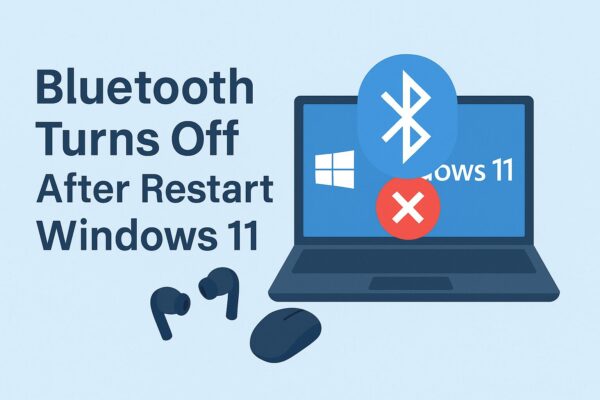
If your Bluetooth keeps turning off every time you restart your Windows 11 PC, you’re not alone.
This issue has become increasingly common—especially after recent Windows updates—where Bluetooth either:
- Turns off automatically after reboot
- Fails to reconnect to paired devices
- Completely disappears from settings
In this guide, you’ll learn exact causes + step-by-step fixes that actually work in 2026.
- 1 Why Bluetooth Turns Off After Restart
- 2 Fix 1: Disable Power Saving for Bluetooth (Most Effective)
- 3 Fix 2: Restart Bluetooth Services
- 4 Fix 3: Update or Reinstall Bluetooth Driver
- 5 Fix 4: Turn Off Fast Startup
- 6 Fix 5: Run Bluetooth Troubleshooter
- 7 Fix 6: Disable Battery Saver Mode
- 8 Fix 7: Check Windows Updates (Critical)
- 9 Fix 8: Uninstall Problematic Updates (Advanced)
- 10 Fix 9: Re-pair Bluetooth Devices
- 11 Fix 10: Full Power Reset (Underrated Fix)
- 12 Pro Tips (Advanced Users)
- 13 FAQ
- 14 Conclusion
Why Bluetooth Turns Off After Restart
This issue is usually caused by one (or more) of the following:
| Cause | Description |
|---|---|
| Power saving settings | Windows may disable Bluetooth to save battery |
| Driver issues | Outdated or corrupted drivers |
| Windows update bugs | Recent updates can break Bluetooth behavior |
| Bluetooth services not running | Required services may fail to start |
| Fast startup conflicts | Hybrid boot can cause device initialization issues |
Power management settings and drivers are among the most common causes.
Fix 1: Disable Power Saving for Bluetooth (Most Effective)
This is the #1 fix.
Steps:
- Press Windows + X → Device Manager
- Expand Bluetooth
- Right-click your Bluetooth adapter → Properties
- Go to Power Management tab
- Uncheck:
- ✔ Allow the computer to turn off this device to save power
- Click OK
Since Windows may disable Bluetooth to save power, this fix often resolves the issue.
Fix 2: Restart Bluetooth Services
Sometimes Bluetooth fails because its background service didn’t start properly.
Steps:
- Press Windows + R
- Type
services.msc - Find:
- Bluetooth Support Service
- Right-click → Restart
- Set Startup Type → Automatic
Fix 3: Update or Reinstall Bluetooth Driver
Driver problems are a major cause.
Option A: Update Driver
- Open Device Manager
- Right-click Bluetooth adapter
- Select Update driver
Option B: Reinstall Driver
- Right-click → Uninstall device
- Restart PC
- Windows will reinstall automatically
Driver issues are one of the main causes of Bluetooth problems.
Fix 4: Turn Off Fast Startup
Fast Startup can prevent proper hardware initialization.
Steps:
- Open Control Panel
- Go to Power Options
- Click Choose what the power buttons do
- Disable:
- ✔ Turn on fast startup
Fix 5: Run Bluetooth Troubleshooter
Windows has a built-in repair tool.
Steps:
- Settings → System → Troubleshoot
- Click Other troubleshooters
- Run Bluetooth
The built-in troubleshooter can sometimes detect and fix the issue automatically.
Fix 6: Disable Battery Saver Mode
Battery Saver can disable Bluetooth.
Steps:
- Click battery icon → Turn OFF Battery Saver
Power saving mode can affect Bluetooth performance.
Fix 7: Check Windows Updates (Critical)
Recent updates sometimes break Bluetooth.
There have been reports of Bluetooth disappearing after Windows updates.
Steps:
- Settings → Windows Update → Check for updates
Fix 8: Uninstall Problematic Updates (Advanced)
If the issue started after an update:
Steps:
- Settings → Windows Update
- Update history → Uninstall updates
- Remove recent update
Fix 9: Re-pair Bluetooth Devices
Sometimes devices fail to reconnect automatically.
Steps:
- Remove device
- Restart PC
- Pair again
Fix 10: Full Power Reset (Underrated Fix)
Surprisingly effective.
Steps:
- Shut down PC
- Unplug power (or hold power button 30 sec)
- Restart
May resolve the issue through a full power reset (confirmed in recent cases).
Pro Tips (Advanced Users)
- Update BIOS if available
- Check manufacturer drivers (Intel / Realtek)
- Disable conflicting wireless devices
FAQ
Q1. Why does Bluetooth turn off every restart?
Because Windows may disable it due to:
- Power management
- Driver issues
- Update bugs
Q2. Why does Bluetooth disappear completely?
Usually:
- Driver corruption
- Windows update issue
- Hardware detection failure
Q3. Is this a Windows 11 bug?
Sometimes yes.
Recent updates have caused Bluetooth failures on some systems.
Conclusion
If Bluetooth turns off after every restart in Windows 11, the most effective fixes are:
✔ Disable power saving
✔ Reinstall drivers
✔ Restart Bluetooth services
Start with those—and in most cases, your issue will be resolved.
Related Articles
・Windows 11 Bluetooth Not Working: Causes, Fixes, and Prevention Tips
・Fix “Bluetooth Disappeared” in Windows 11/10 — Causes, Full Solutions, and Prevention
・Bluetooth Speaker or Earbuds Keep Cutting Out? Causes and 15+ Fixes