File extensions not showing in Windows 11?
By default, Windows 11 hides file extensions, which can make it difficult to identify file types—and in some cases, even put your system at risk.
If you’ve ever wondered why a file won’t open correctly or whether it’s safe to use, hidden extensions could be the cause.
In this guide, you’ll learn how to show file extensions in Windows 11 in under a minute, plus how to fix the issue if they are not showing properly.
How to Show File Extensions in Windows 11 (Quick Method)
The fastest way to enable file extensions is through File Explorer:
- Open File Explorer
- Click the View menu
- Select Show
- Check File name extensions
That’s it. File extensions will now be visible for all files.
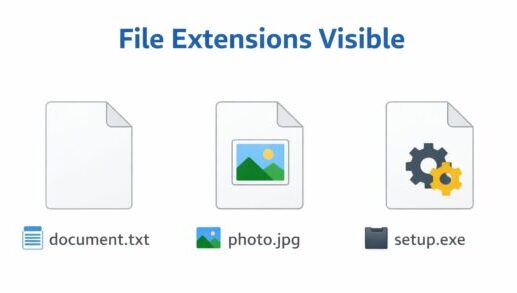
For example, you will see file names like:
- document.txt
- image.jpg
- program.exe
Why You Should Enable File Extensions
Showing file extensions is not just about convenience—it’s also important for safety.
- Identify file types instantly
- Avoid opening harmful files
- Prevent file format mistakes
For example, a file named invoice.pdf.exe may look like a PDF, but it’s actually an executable file. If extensions are hidden, you might not notice the difference.
Enabling file extensions helps you avoid these risks.
Fix: File Extensions Still Not Showing
If file extensions are still not visible, check your system settings below.
Method 1: Use Folder Options
- Open Control Panel
- Click File Explorer Options
- Go to the View tab
- Uncheck Hide extensions for known file types
- Click Apply → OK
Method 2: Restart File Explorer
Sometimes the setting doesn’t apply immediately.
- Press Ctrl + Shift + Esc to open Task Manager
- Find Windows Explorer
- Click Restart
This refreshes the system and applies your changes.
Common Reasons Why Extensions Are Hidden
- Default Windows settings are enabled
- Folder options override the setting
- Explorer did not refresh properly
In most cases, simply enabling the setting again or restarting Explorer fixes the issue.
Bonus Tip: When You Might Want to Hide Extensions
While it’s generally recommended to show file extensions, some users prefer hiding them for a cleaner look.
If you’re a beginner and don’t often manage files, hiding extensions may reduce visual clutter—but be aware of the risks.
FAQ
Is it safe to show file extensions?
Yes. In fact, showing file extensions improves security because you can identify potentially dangerous files.
Why are file extensions hidden by default?
Windows hides extensions to simplify the interface for beginners, but it can cause confusion in many cases.
Conclusion
Windows 11 hides file extensions by default, but you can easily enable them in just a few clicks.
Showing extensions makes it easier to understand file types and protects you from potentially dangerous files.
If extensions are not showing, check your folder settings or restart File Explorer to fix the issue.
✔️You might also find these helpful:
▶︎How to Adjust Screen Brightness in Windows 11 (Laptop & Desktop)
▶︎How to Export Microsoft Teams Posts to Excel (Beginner’s Guide)
▶︎The Beginner’s Guide to Safe BIOS Updates: Everything You Need to Know
💡 Looking for more tips? Check out our full list of Windows Help Guides.