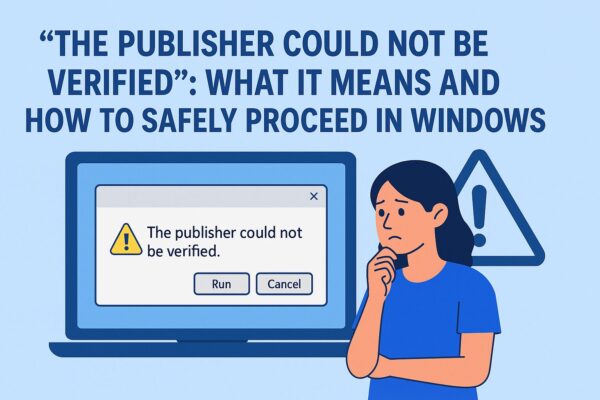
If you’ve ever seen the warning “The publisher could not be verified” when opening a file or installing software on Windows, you’re not alone. This guide explains what the message means, when it’s safe to proceed, and how to stop it from appearing in the future.
Have you ever downloaded an app or opened a file on your PC only to be stopped by a message like “The publisher could not be verified”? If you’re not familiar with Windows security, the message can be confusing — even alarming.
Don’t worry. This guide breaks down the warning in simple terms and teaches you how to handle it safely, even if you’re new to Windows.
What Does “The Publisher Could Not Be Verified” Mean?
The message appears when Windows cannot confirm the file’s digital signature — meaning Windows doesn’t know who created it. Digital signatures act as proof of identity for software publishers. If one is missing, damaged, or untrusted, Windows shows this warning to protect your system.
Common Situations Where the Warning Appears
- Opening a file downloaded from the internet
- Running a program from a USB flash drive
- Launching an .exe file directly from a ZIP archive
This message doesn’t automatically mean the file is harmful — but it does mean you should pause and confirm the source before proceeding.
Why Does This Warning Appear?
| Reason | Description |
|---|---|
| No digital signature | Common in small, indie, or free utilities |
| Untrusted download source | Files from unofficial or unknown websites |
| Running from inside a ZIP | Windows blocks files that haven’t been extracted |
How to Respond Safely — Step-by-Step
Step 1: Verify the File’s Origin
- Did you download it from an official website or trusted vendor?
- Was it sent via email or messaging apps from an unknown person?
→ If you cannot confirm the source, do not open the file.
Step 2: Check the File’s Properties
- Right-click the file
- Select Properties
- Under the General tab, look for “This file came from another computer”
- If you’re confident it’s safe, check Unblock and click Apply
Step 3: Scan the File for Malware
If you’re unsure, scan the file using Microsoft Defender or your preferred antivirus before running it.
How to Tell If a File Is Safe
| Check | What It Means |
|---|---|
| Official source? | ✔ Safe if downloaded from trusted vendors like Microsoft or Adobe |
| No antivirus alert? | ✔ A clean scan is a good sign |
| Known developer? | ✔ Signed software is more trustworthy |
| Positive user feedback? | ✔ Reviews can help verify legitimacy |
| Running from inside ZIP? | ✘ Always extract ZIP files before running executables |
Even if everything looks fine, scanning the file is still a smart step — especially with apps you’ve never used before.
Still Unsure? Choose the Safer Option
- Re-download the file from the official website
- Ask a knowledgeable friend or colleague to verify it
- Look for a safer or more reputable alternative application
If something feels suspicious, trust your instincts — don’t run it. That alone is excellent cybersecurity practice.
Summary: Stay Calm and Double-Check
| What to Do | Why It Matters |
|---|---|
| Verify the source | Avoids unsafe, unknown files |
| Unblock only when sure | Prevents accidental execution of harmful apps |
| Run an antivirus scan | Adds an extra layer of safety |
| Don’t force it | Better safe than sorry |
This Windows warning is working as intended — it’s designed to protect you. When in doubt, pause, research, or ask someone. A moment of caution can save you from serious problems later.
✔️You might also find these helpful:
▶︎ Fix “No Audio Driver Found” or “No Sound” Issue on Windows 11: A Complete Step-by-Step Guide
▶︎ Blurry CJK Fonts in Chromium Browsers on Windows
▶︎ Why Windows Gets Stuck at 100% Disk Usage — Full Fix Guide for Automatic Maintenance Problems
💡 Looking for more tips? Check out our full list of Windows Help Guides.