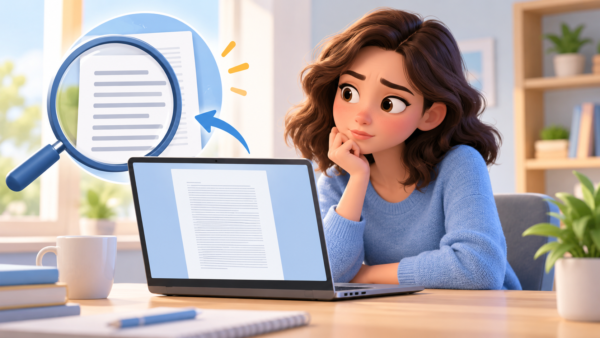
Does your Word document look too small to read? Before changing the font, check whether the problem is the document itself or just the way it appears on your screen.
Zoom changes your view. Font size changes the document. If the printed page is too small, the paper size or print settings may also be involved. This guide helps you identify the difference and choose the right fix.
The steps below focus on desktop Word for Microsoft 365, Word 2024, Word 2021, and Word 2019. Some menu names and options may differ between Windows and Mac.
- 1 First, find out what looks too small
- 2 1. Make the Word page larger on screen with Zoom
- 3 2. Change the actual font size
- 4 3. Use Styles to fix repeated small text
- 5 4. Check line spacing if the text feels crowded
- 6 5. If Word’s menus and other apps look small, check display settings
- 7 6. If the printed text is too small, check Print Preview
- 8 What if the font size keeps changing back?
- 9 Quick answers
- 10 Summary
First, find out what looks too small
| What you notice | Check first |
|---|---|
| The page looks small on your screen, but the font size is correct | Word’s zoom setting |
| The text is small in the document and when printed | Font size or document styles |
| Word’s menus and other apps also look small | Your computer’s display settings |
| The document looks fine on screen but prints too small | Print preview, paper size, and pages per sheet |
If you are unsure, start with zoom. It is quick to change and does not alter the document or its printed size.
1. Make the Word page larger on screen with Zoom
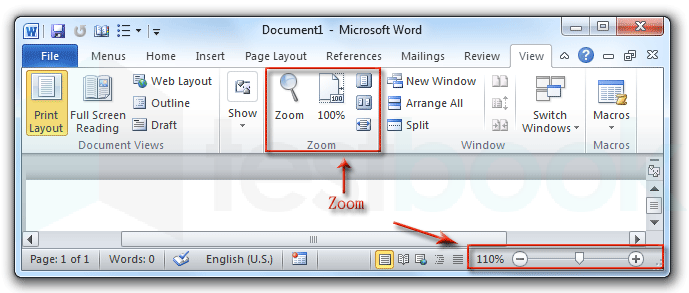
Look at the bottom-right corner of the Word window for the zoom slider and percentage. Move the slider toward the plus sign to make the page larger on your screen.
You can also open the View tab and choose a zoom option such as Page Width. This fits the page width to the available window space. If you need to see the whole page at once, choose One Page, although the text may appear smaller.
Changing Zoom does not change the font size, page layout, or printed document. It only changes how you view the file in Word.
Tip: If Page Width still makes the text look small, maximize the Word window or choose a zoom percentage that feels comfortable. There is no single percentage that works best for every monitor.
2. Change the actual font size
If the text itself is too small, select the text you want to change. Then open the Home tab and choose a larger value in the Font Size box.
- Select a word, paragraph, or section. To select all text in the document, press Ctrl + A on Windows or Command + A on Mac.
- On the Home tab, find the number in the Font Size box.
- Choose a larger size and check the result on screen and in print preview.
Unlike Zoom, changing the font size changes the document. It can also move text onto different lines or pages, so review headings, tables, and page breaks afterward.
If only a few words are too small
Select just those words and change their font size. There is no need to change the whole document.
If the whole document is too small
Check whether the document uses Word styles before resizing every paragraph manually. Updating a style can give the document a more consistent result.
3. Use Styles to fix repeated small text
Word styles control the appearance of text such as body paragraphs and headings. If all body text is too small, changing the Normal style may be easier than selecting and formatting each paragraph.
- Open the Home tab and find Normal in the Styles gallery.
- Right-click the style and choose Modify.
- Choose the font and size you want, then confirm the change.
Text using that style should update together. You can modify Heading 1 or Heading 2 in the same way if the headings are too small.
Before applying the change, check whether Word offers an option for this document only or new documents based on this template. Choose the document-only option if you do not want future documents to use the new settings.
If a particular paragraph does not change with the style, it may have additional manual formatting. Select that paragraph and check its font size on the Home tab.
4. Check line spacing if the text feels crowded
Sometimes the font is large enough, but closely packed lines make the document tiring to read. Select the affected paragraphs, then go to Home → Line and Paragraph Spacing and try a little more space between lines.
Paragraph spacing can also help separate sections without inserting extra blank lines. These settings change the document’s layout and may increase its page count, so check the result before printing or sharing it.
5. If Word’s menus and other apps look small, check display settings
Word’s Zoom control enlarges the document page, but it does not enlarge all the buttons and menus in Windows. If Word’s interface and other apps also look too small, check your computer’s display settings instead.
In Windows 11, open Settings → System → Display → Scale to review the size of apps and other items. If you mainly want text in the Windows interface to appear larger, see Settings → Accessibility → Text size.
On a Mac, open System Settings → Displays and review the available display size options. Display settings affect more than one Word document, so choose a setting that works comfortably across your apps.
6. If the printed text is too small, check Print Preview
A document can look large in Word because of Zoom and still print at its actual font size. Open File → Print and inspect the print preview before changing the document.
- Check the paper size. Confirm that the document and printer are using the intended size, such as A4 or Letter.
- Check the number of pages per sheet. Printing multiple document pages on one sheet makes each page—and its text—smaller.
- Check printer-specific settings. Scaling or fit-to-paper options vary by printer and operating system. Review the preview after changing them.
If the preview shows normal-sized pages but the letters are still too small to read, increase the document’s font size or adjust its styles. Remember that this may change page breaks.
What if the font size keeps changing back?
First, check whether the text is part of a style such as Normal or Heading 1. If many paragraphs keep returning to the same appearance, modify the relevant style instead of repeatedly changing individual words.
If the problem happens only in new documents, check Word’s default font or template settings. If it happens only in one file, focus on that document’s styles and formatting first.
Quick answers
Will Zoom make the text print larger?
No. Zoom changes the on-screen view only. To change the printed text, change the font size or the document’s styles.
Why does the same file look different on another computer?
The two computers may use different monitor sizes, display settings, Word window sizes, or zoom levels. Compare the document’s actual font size before changing the file for everyone.
Should I change the margins to make the text bigger?
Margins change the space available on each page, not the font size. Adjust them when the page layout needs work, but use Zoom or Font Size when those are the actual problems.
Summary
When Word text looks too small, check Zoom first if the problem is limited to your screen. Change Font Size or Styles if the document itself needs larger text. If everything on your computer looks small, review display settings. For a print-only problem, inspect Print Preview and paper settings before changing the file.
These checks help you make the document easier to read without changing settings that were already correct.
Microsoft support references
- Zoom in or out of a document
- Change the font size
- Customize or create new styles
- Print a document in Word
💡 Looking for more tips? Check out our full list of Windows Help Guides.