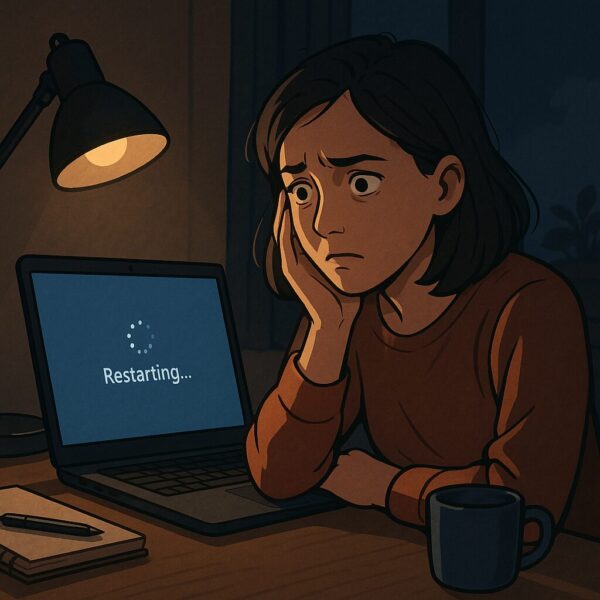
Does your Windows PC restart by itself without warning?
Don’t worry.
This problem is more common than you think, and in many cases, it can be fixed easily.
In this guide, you’ll learn:
- Why your PC keeps restarting
- What causes the issue
- Simple step-by-step fixes you can try right now
Common Causes of Random Restarts
A Windows PC may restart automatically for several reasons:
- Windows updates or system changes
- Driver or software problems
- Overheating or hardware issues
- Malware or system errors
The key is to identify which one is affecting your PC.
Fix 1: Disable Automatic Restart
Why this helps
Windows may restart automatically when it detects a system error.
Steps
- Press Windows + R
- Type sysdm.cpl and press Enter
- Go to Advanced tab
- Under Startup and Recovery, click Settings
- Uncheck Automatically restart
- Click OK
This prevents unexpected restarts caused by hidden errors.
Common mistake
Many users don’t notice this setting is enabled by default.
Fix 2: Check Windows Update
Why this helps
Pending or failed updates can trigger automatic restarts.
Steps
- Open Settings
- Go to Windows Update
- Click Check for updates
- Install all updates
- Restart your PC
Tip
Updates sometimes force restarts automatically, especially after installation.
Fix 3: Turn Off Fast Startup
Why this helps
Fast Startup can cause reboot issues and system instability.
Steps
- Open Control Panel
- Click Power Options
- Select Choose what the power buttons do
- Click Change settings that are currently unavailable
- Uncheck Turn on fast startup
- Save changes
Common mistake
Many users leave Fast Startup ON, causing repeated restart problems.
Fix 4: Check for Overheating
Why this helps
If your PC overheats, it may restart automatically to protect itself.
What to check
- Is the fan noisy?
- Is the PC very hot?
- Are vents blocked by dust?
Quick fixes
- Clean air vents
- Move your PC to a cooler place
- Close heavy apps
Fix 5: Update Drivers
Why this helps
Outdated drivers can cause system crashes and restarts.
Steps
- Right-click Start
- Open Device Manager
- Right-click devices → Update driver
Fix 6: Scan for Malware
Why this helps
Malware can cause unexpected restarts.
Steps
- Open Windows Security
- Click Virus & threat protection
- Run a Full scan
Fix 7: Try Safe Mode
Why this helps
Safe Mode helps identify software or driver issues.
Steps
- Hold Shift + Restart
- Select Troubleshoot → Advanced options → Startup Settings
- Choose Safe Mode
If the problem stops, a driver or app is the cause.
Quick Fix Summary Table
| Problem Cause | Quick Fix | Time Needed | Difficulty |
|---|---|---|---|
| System error restart | Disable auto restart | 1 minute | Easy |
| Update issue | Install updates | 5 minutes | Easy |
| Fast startup conflict | Turn it off | 3 minutes | Easy |
| Overheating | Clean & cool PC | 5–10 minutes | Easy |
| Driver issue | Update drivers | 5 minutes | Easy |
| Malware | Run full scan | 10–20 minutes | Medium |
Start from the top and try each fix step by step.
FAQ
Q1. Why does my PC restart without warning?
This usually happens بسبب updates, system errors, or overheating.
Most of the time, it is not a serious issue.
Q2. Is automatic restart a virus?
Not always.
Windows itself can restart automatically after updates or errors.
Q3. Can overheating really cause restarts?
Yes.
If your PC gets too hot, it will restart to prevent damage.
Q4. What should I do if nothing works?
Try:
- System Restore
- Reset Windows
- Check hardware (RAM, power supply)
Q5. Can this happen again?
Yes, especially after updates or driver changes.
But the same fixes usually work again.
Conclusion
Automatic restarts in Windows are common, but usually easy to fix.
In most cases:
- Update issues
- Settings
- Drivers
…are the main cause.
Take it step by step, and your PC should return to normal.
✔️You might also find these helpful:
▶︎WSUS Clients Not Updating? Common Causes and How to Fix Them
▶︎Is It Safe to Stop a Windows Update Midway? Don’t Shut Down Without Reading This
▶︎ Windows Update Causing PC to Freeze? How to Fix It Step-by-Step