Has your Windows 11 PC suddenly lost sound because of a Realtek Audio RPC error?
If you’re seeing a Realtek Audio RPC error, missing audio devices, or no sound after a Windows update, you’re not alone. This issue is fairly common and is usually caused by problems with Windows audio services, Realtek drivers, or system components rather than a hardware failure.
In many cases, you can restore sound without replacing your speakers or reinstalling Windows. The key is identifying what’s preventing Windows from communicating with the Realtek audio service.
In this complete guide, you’ll learn:
- What the Realtek Audio RPC error means
- Why it happens on Windows 11
- How to identify the most likely cause
- Step-by-step solutions to restore audio safely
- Ways to prevent the problem from happening again
Whether your sound disappeared after a Windows Update, your speakers are no longer detected, or the Realtek Audio RPC error keeps returning, this guide will help you troubleshoot the issue step by step.
- 1 Common Symptoms of a Realtek Audio RPC Error
- 2 What Is the Realtek Audio RPC Error?
- 3 Common Causes of the Realtek Audio RPC Error
- 4 Before You Start Troubleshooting
- 5 How to Identify What’s Causing the Realtek Audio RPC Error
- 6 When Is the Realtek Audio RPC Error a Hardware Problem?
- 7 Common Mistakes That Can Make the Problem Worse
- 8 How to Prevent the Realtek Audio RPC Error
- 9 Why Does the Realtek Audio RPC Error Keep Coming Back?
- 10 Common Error Messages Related to the Realtek Audio RPC Error
- 11 When Should You Contact Technical Support?
- 12 Frequently Asked Questions
- 13 Quick Summary
- 14 Related Articles
Common Symptoms of a Realtek Audio RPC Error
A Realtek Audio RPC error does not always appear in exactly the same way. Some users see an error message, while others simply notice that sound has stopped working.
Common symptoms include:
- No sound from built-in speakers, headphones, or external speakers
- Realtek Audio is missing from the available output devices
- The volume icon shows that no audio device is installed
- Sound settings fail to open or respond slowly
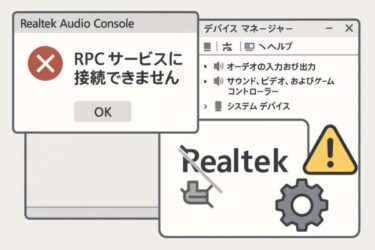
- Realtek Audio Console displays an RPC service error
- Sound disappears after a Windows update or driver installation
- Audio works temporarily after restarting but stops again later
If you are experiencing one or more of these symptoms, the problem is often related to an audio service, driver, or Windows component rather than damaged speakers.
The next section explains what the RPC error means and why it can prevent Realtek Audio from working correctly.
What Is the Realtek Audio RPC Error?
RPC stands for Remote Procedure Call, a Windows system that allows different services and applications to communicate with each other.
Realtek audio drivers rely on several Windows services to detect audio devices, control sound output, and communicate with apps such as Realtek Audio Console.
When this communication fails, Windows may display an RPC-related error or stop recognizing the Realtek audio device correctly.
This can lead to problems such as:
- No sound from speakers or headphones
- Realtek Audio Console failing to open
- Audio devices disappearing from Sound settings
- The volume icon showing an audio device error
- Sound working only after restarting Windows
In most cases, the RPC error does not mean that the Realtek audio chip or your speakers are permanently damaged. It usually means that an audio service has stopped, a driver is not working correctly, or Windows cannot complete communication between its audio components.
Understanding this is important because the problem can often be fixed by restarting the correct services, checking the audio driver, or repairing Windows system files.
Common Causes of the Realtek Audio RPC Error
The Realtek Audio RPC error can occur for several reasons. Understanding the most common causes can help you choose the right solution instead of trying every fix.
- Windows Audio services have stopped
If the Windows Audio service or Windows Audio Endpoint Builder is not running correctly, Windows cannot communicate with the Realtek audio driver. - Corrupted or outdated Realtek drivers
A damaged, outdated, or incompatible driver can interrupt communication between Windows and your audio hardware. - Problems after a Windows Update
Some Windows updates replace or modify audio drivers, which may temporarily cause RPC errors or missing audio devices. - Incorrect audio device settings
Windows may select the wrong playback device, making it appear as though the Realtek driver has stopped working. - Corrupted Windows system files
If important Windows components become corrupted, audio-related services may fail to start correctly. - Audio enhancements or third-party software conflicts
Some audio enhancement software, virtual audio devices, or third-party utilities can interfere with Realtek services.
Fortunately, most of these problems can be resolved without reinstalling Windows. The next section explains what to check before you begin troubleshooting.
Before You Start Troubleshooting
Before trying the fixes below, take a minute to check a few simple things. These quick checks can sometimes solve the problem immediately or help you identify the real cause.
- Restart your computer
Temporary glitches in Windows services can disappear after a normal restart. - Check your speaker or headphone connections
If you’re using external speakers or a headset, make sure the cables or Bluetooth connection are working properly. - Increase the volume
Verify that both Windows volume and your device’s physical volume controls are turned up. - Disconnect unnecessary audio devices
USB headsets, HDMI monitors, Bluetooth speakers, and docking stations can sometimes become the default playback device. - Remember when the problem started
If the issue appeared after a Windows update, driver installation, or software change, that information can help you choose the correct fix.
Once you’ve completed these quick checks, continue with the step-by-step solutions below, starting with Fix 1.
How to Identify What’s Causing the Realtek Audio RPC Error
Not every Realtek Audio RPC error has the same cause. Before trying every solution, match your symptoms with the situations below to find the most likely fix.
No sound from any device
This usually indicates that the Windows Audio service has stopped or the Realtek driver is not working correctly.
Recommended fixes: Fix 1 and Fix 2.
The problem started after Windows Update
A recent Windows update may have replaced or modified the audio driver.
Recommended fixes: Fix 2 and Fix 6.
Only headphones or external speakers have no sound
Windows may have selected the wrong playback device.
Recommended fix: Fix 3.
Realtek Audio Console won’t open
This often points to a driver issue or a problem with Windows services.
Recommended fixes: Fix 1, Fix 2, and Fix 4.
The error keeps coming back
If restarting temporarily fixes the issue but it returns later, corrupted system files or software conflicts may be responsible.
Recommended fixes: Fix 4 and Fix 5.
When Is the Realtek Audio RPC Error a Hardware Problem?
Most Realtek Audio RPC errors are caused by software issues rather than faulty hardware. In many cases, restarting Windows services or reinstalling the audio driver restores sound without replacing any components.
However, the problem could be hardware-related if you notice any of the following:
- The speakers or headphones do not work on another computer.
- Windows never detects any audio device, even after reinstalling the driver.
- There is no sound in the BIOS or during startup.
- An external USB sound card also produces no audio.
- The audio jack is physically damaged or loose.
If these symptoms apply, the issue may involve the speakers, headphones, motherboard, or audio hardware rather than the Realtek driver.
For most users, though, the problem is software-related and can usually be resolved using the troubleshooting steps below.
Common Mistakes That Can Make the Problem Worse
When sound suddenly stops working, many users try random fixes that can make troubleshooting more difficult. Before making major changes, avoid these common mistakes.
- Installing multiple audio drivers
Installing different Realtek drivers from several websites can create driver conflicts. - Disabling Windows Audio services
Stopping essential Windows services may prevent audio from working completely. - Deleting drivers without restarting
Windows usually reinstalls the correct driver after a restart. Skipping this step can leave the system without an audio driver. - Assuming the speakers are broken immediately
Most RPC errors are software-related and can often be fixed without replacing hardware. - Skipping the easiest fixes
Many users jump directly to advanced repairs, even though restarting Windows Audio services solves the problem in many cases.
Following the troubleshooting steps in order gives you the best chance of restoring sound quickly.
How to Prevent the Realtek Audio RPC Error
Although the Realtek Audio RPC error cannot always be avoided, a few simple habits can greatly reduce the chances of it happening again.
- Keep Windows updated
Install Windows updates regularly to receive bug fixes and driver improvements. - Use official Realtek or PC manufacturer drivers
Avoid downloading drivers from unknown websites, as unofficial versions may cause compatibility issues. - Create a restore point before major updates
A System Restore point allows you to roll back changes if an update causes audio problems. - Restart your PC occasionally
A full restart refreshes Windows services and can prevent temporary audio service issues. - Keep unnecessary audio software to a minimum
Installing multiple audio enhancement programs or virtual audio devices can increase the risk of driver conflicts.
These simple maintenance steps can help keep your audio system stable and reduce the likelihood of future RPC errors.
Why Does the Realtek Audio RPC Error Keep Coming Back?
If you’ve fixed the error before but it keeps returning, there may be an underlying issue that hasn’t been resolved.
Common reasons include:
- Windows automatically reinstalling an incompatible driver
- Corrupted system files
- Audio services failing after waking from sleep
- Third-party audio software conflicts
- A Windows Update replacing the working driver
If the error repeatedly returns after every restart or Windows update, consider installing the latest driver from your PC manufacturer’s support website instead of relying only on Windows Update.
Common Error Messages Related to the Realtek Audio RPC Error
Depending on your system, you may see different error messages even though the underlying problem is similar.
Examples include:
- Remote Procedure Call Failed
- Realtek Audio Console cannot connect to RPC service
- No Audio Output Device Is Installed
- Windows Audio Service is not responding
- Audio Endpoint Builder is not running
- Realtek Audio Service unavailable
Although the wording varies, many of these errors can be resolved using the troubleshooting steps described in this guide.
When Should You Contact Technical Support?
If none of the troubleshooting methods in this guide solve the problem, it may be time to seek additional help.
You should consider contacting your PC manufacturer or a qualified technician if:
- Windows cannot detect any audio device after reinstalling the driver.
- The audio problem started after physical damage to the computer.
- External speakers and headphones also fail on multiple devices.
- The motherboard’s built-in audio hardware appears to be defective.
Before contacting support, write down your Windows version, PC model, and any error messages you receive. This information can help technicians diagnose the issue more quickly.
Frequently Asked Questions
1. What does the Realtek Audio RPC error mean?
The error usually means that Windows cannot communicate properly with the Realtek audio service or driver through Remote Procedure Call (RPC). This is typically caused by software or service issues rather than hardware failure.
2. Can Windows Update cause the Realtek Audio RPC error?
Yes. A Windows update may replace your audio driver or change system components, which can sometimes trigger the error. Reinstalling the correct driver often resolves the issue.
3. Is it safe to reinstall the Realtek audio driver?
Yes. Reinstalling the official Realtek driver is one of the most common and effective solutions. Windows may also reinstall a compatible driver automatically after you restart your PC.
4. Will reinstalling the driver delete my files?
No. Reinstalling an audio driver only affects the driver software. Your personal files, documents, and photos will not be removed.
5. Why does the error keep coming back?
Repeated errors are often caused by Windows automatically installing an incompatible driver, corrupted system files, or conflicts with third-party audio software.
6. Can I fix the problem without reinstalling Windows?
In most cases, yes. Restarting Windows Audio services, reinstalling the Realtek driver, or repairing system files usually resolves the problem without requiring a full Windows reinstall.
7. Is this a hardware problem?
Usually not. Most Realtek Audio RPC errors are software-related. Hardware problems are more likely if no audio device is detected even after reinstalling the driver or if the audio jack is physically damaged.
8. What should I do if none of the fixes work?
If you’ve tried every solution in this guide and the issue persists, install the latest audio driver from your PC manufacturer’s support website. If the problem continues, contact your computer manufacturer or a qualified technician for further assistance.
Where can I find more Windows audio troubleshooting guides?
If you’re experiencing other sound problems, such as missing audio devices, speaker issues, or Windows Update audio errors, check out our related Windows troubleshooting guides for additional solutions.
Quick Summary
- Restart Windows Audio services first.
- Reinstall the Realtek driver if necessary.
- Check the default playback device.
- Run System File Checker if the problem continues.
- Contact your PC manufacturer if no audio device is detected after all fixes.
Related Articles
・Realtek Audio Device Not Showing on Windows 11? Here’s How to Fix It
・Windows 11 Bluetooth Not Working: Causes, Fixes, and Prevention Tips