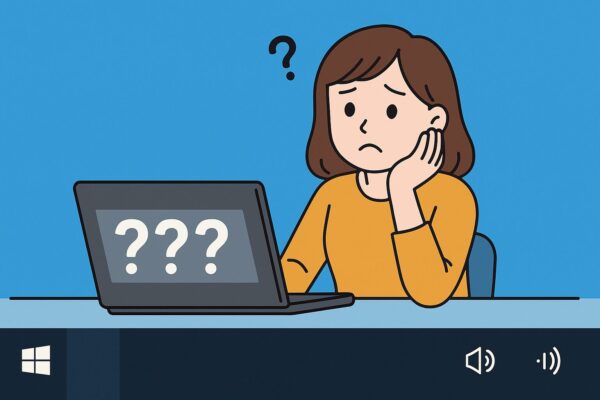
Have you noticed that your taskbar icons suddenly became invisible or transparent in Windows 10 or Windows 11?
Don’t worry—this is a common issue.
It often happens after system updates or temporary glitches. While your apps may still be running, missing icons can make it difficult to see what is open or pinned.
The good news is that this problem is usually easy to fix and does not indicate a hardware failure.
In this guide, you’ll learn the most common causes and simple step-by-step fixes. We’ll also share tips to prevent this issue from happening again.
Common Symptoms
When this bug occurs, users typically experience one or more of the following:
- Taskbar icons are completely invisible.
- Icons appear faint or semi-transparent.
- Icons briefly show up when hovered or clicked, then vanish.
- Only pinned apps are invisible, while running apps display normally.
- The issue appears after reboot or right after installing updates.
Main Causes and How to Fix Them
Cause 1: Corrupted Icon Cache
Windows stores icon information in a cache (IconCache.db) to load them faster. If this cache becomes corrupted, icons may appear blank or transparent.
▶ Fix: Rebuild the icon cache
- Press Ctrl + Shift + Esc to open Task Manager.
- Go to File > Run new task.
- Type
cmd, check Run as administrator, and press OK. - Run these commands one by one.
taskkill /IM explorer.exe /FDEL /A /Q "%localappdata%\IconCache.db"DEL /A /F /Q "%localappdata%\Microsoft\Windows\Explorer\iconcache*"start explorer.exeRestart your PC to rebuild the icon cache.
Cause 2: Windows Explorer (Explorer.exe) Glitch
The taskbar and Start Menu rely on Explorer.exe. If it freezes or malfunctions, icons may not render correctly.
▶ Fix: Restart Windows Explorer
- Open Task Manager with Ctrl + Shift + Esc.
- Find Windows Explorer under the Processes tab.
- Right-click it and select Restart.
Cause 3: Transparency Effects or Theme Issues
Windows 10/11 includes transparency and theme effects that sometimes interfere with icon rendering, especially on outdated graphics drivers.
▶ Fix: Turn off transparency effects
- Press Windows + I to open Settings.
- Go to Personalization > Colors.
- Toggle Transparency effects to Off.
- Optionally, reset your theme to the default one.
Cause 4: Recent Windows Update Issues
Some Windows updates can occasionally cause temporary UI glitches, including invisible or transparent taskbar icons.
These issues are usually related to system changes made during updates and may affect how icons are displayed.
▶ Fix: Uninstall the problematic update
- Go to Settings > Windows Update > Update history.
- Select Uninstall updates.
- Choose the recent update and uninstall it.
- Reboot and wait for a patched update from Microsoft.
Cause 5: Corrupted User Profile
If your account profile is damaged, taskbar icons may fail to load properly.
▶ Fix: Create a new local account
- Open Settings > Accounts > Family & other users.
- Click Add someone else to this PC.
- Create a new local account and log in.
- Check if taskbar icons appear normally.
Prevention Tips
To reduce the chances of transparent icons happening again:
- Clear icon cache periodically.
- Keep GPU drivers updated (NVIDIA, Intel, AMD official sites).
- Create restore points before major updates.
- Pause updates temporarily if bugs are widespread.
- Disable unnecessary startup apps to reduce conflicts.
How to Identify the Cause of Invisible Taskbar Icons
Before trying every fix, it helps to understand what is causing the issue.
This can save time and solve the problem faster.
If icons suddenly disappeared after an update
- Most likely cause: Windows update glitch.
Try restarting Explorer or updating Windows.
If icons are transparent or flickering
- Most likely cause: Explorer process error or graphics issue.
Try restarting Windows Explorer.
If only some icons are missing
- Most likely cause: Icon cache corruption.
Try rebuilding the icon cache.
If taskbar is completely broken
- Most likely cause: System file or configuration issue.
Try SFC scan or system restart.
Matching your symptoms to the cause helps you fix the problem more efficiently.
FAQ (Frequently Asked Questions)
Q1. Is this issue temporary?
Often yes. Restarting Explorer or rebuilding the icon cache usually fixes it. But it may reoccur after Windows Updates.
Q2. Can I lose data because of this?
No. Invisible icons don’t delete apps or files — they only affect display. Still, regular backups are recommended.
Q3. Is this caused by hardware failure?
In nearly all cases, no. It’s related to cache, Explorer, or graphics drivers, not faulty hardware.
When Nothing Works
If none of the fixes help, consider performing a repair install (in-place upgrade). This reinstalls Windows while keeping your files and apps intact.
■ Quick Fix Summary Table
| Problem | Quick Fix | Time Needed | Difficulty |
|---|---|---|---|
| Icons not showing | Restart Explorer | 1 minute | Easy |
| Transparent icons | Restart PC / GPU check | 2–5 minutes | Easy |
| Missing icons | Rebuild icon cache | 5 minutes | Medium |
| Taskbar glitch | Run SFC scan | 10 minutes | Medium |
Start with the first fix and move down the list step by step.
Most problems can be solved in just a few minutes without advanced knowledge.
Summary
- Transparent taskbar icons are usually caused by corrupted cache, Explorer glitches, or update bugs.
- Fixes include rebuilding the icon cache, restarting Explorer, disabling transparency effects, or uninstalling updates.
- The problem is software-related and rarely hardware-related.
- Prevent issues with restore points, updated drivers, and backups.
Final Thoughts
It’s easy to panic when your taskbar icons vanish, but in most cases the fix is simple. Start with Explorer restart and icon cache rebuild, then move to update management and driver checks. By preparing restore points and backups in advance, you can avoid unnecessary stress the next time Windows UI glitches strike.
Looking for more troubleshooting tips? Check out these guides:
・How to Remove the Weather Forecast from the Taskbar in Windows 10 and 11
・USB Speaker Not Working on Windows 11? How to Fix No Sound Issues
・Why Windows Doesn’t Remember Your Window Positions (and How to Fix It)
・How to Make Windows Sound Clearer and Fix Audio Distortion in Remote Meetings