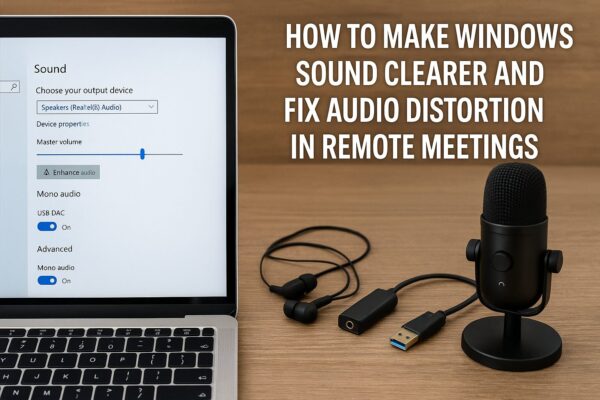
Is your audio unclear, distorted, or muffled during Zoom or Teams meetings?
Don’t worry.
This is a very common problem on Windows PCs, especially after updates or when using built-in audio settings.
The good news is that most audio issues can be fixed in just a few minutes.
In this guide, you’ll learn:
- Why your sound becomes distorted
- How to make your audio clearer
- Simple step-by-step fixes for beginners
- 1 Why Audio Gets Distorted in Meetings
- 2 Fix 1: Turn Off Audio Enhancements
- 3 Fix 2: Check Zoom or Teams Audio Settings
- 4 Fix 3: Select the Correct Audio Device
- 5 Fix 4: Update Audio Drivers
- 6 Fix 5: Disable Manufacturer Audio Software
- 7 Fix 6: Restart Audio Services
- 8 Fix 7: Check Hardware (Simple but Important)
- 9 ■ Quick Fix Summary Table
- 10 ■ FAQ
Why Audio Gets Distorted in Meetings
Audio problems in remote meetings are usually caused by:
- Audio enhancements or sound effects
- Incorrect microphone or speaker settings
- Outdated drivers
- Conflicts with Zoom or Teams settings
Many Windows PCs automatically apply audio processing that can actually reduce sound quality.
Fix 1: Turn Off Audio Enhancements
Why this works
Windows often adds effects like noise suppression or echo cancellation, which can distort sound.
Steps
- Open Settings
- Go to System → Sound
- Click your Microphone
- Find Audio enhancements
- Set it to Off
This is one of the most effective fixes for distorted audio.
Common mistake
Leaving enhancements ON.
→ Causes muffled or robotic sound
Fix 2: Check Zoom or Teams Audio Settings
Why this works
Meeting apps apply their own audio processing.
Steps (Zoom example)
- Open Zoom Settings
- Go to Audio
- Turn OFF:
- Automatically adjust microphone volume
- Turn ON:
- Original sound (if available)
Advanced settings can improve audio clarity significantly.
Tip
Wrong settings can block background sound or distort audio.
Fix 3: Select the Correct Audio Device
Why this works
Windows may switch devices automatically.
Steps
- Click the sound icon
- Select correct microphone/speaker
- Test your audio
Always confirm the correct device is selected.
Fix 4: Update Audio Drivers
Why this works
Old drivers can cause distortion or lag.
Steps
- Right-click Start
- Open Device Manager
- Expand Sound devices
- Right-click → Update driver
Updating drivers often resolves sound issues.
Fix 5: Disable Manufacturer Audio Software
Why this works
Some PCs include extra audio software that interferes with meeting apps.
Examples
- MaxxAudio (Dell)
- Bang & Olufsen (HP)
- Dolby Audio
These can distort or block sound in Zoom or Teams.
What to do
- Open the app → Turn OFF enhancements
- Or disable it temporarily
Fix 6: Restart Audio Services
Why this works
Audio services may glitch or stop working properly.
Steps
- Press Windows + R
- Type services.msc
- Find Windows Audio
- Right-click → Restart
Fix 7: Check Hardware (Simple but Important)
Why this works
Physical issues are often overlooked.
Check:
- Loose cables
- Faulty headset
- Bluetooth connection issues
Even small connection issues can affect audio quality.
■ Quick Fix Summary Table
| Problem | Quick Fix | Time Needed | Difficulty |
|---|---|---|---|
| Distorted sound | Turn off audio enhancements | 1 minute | Easy |
| Bad Zoom/Teams audio | Adjust app settings | 2–3 minutes | Easy |
| Wrong device | Select correct mic/speaker | 1 minute | Easy |
| Driver issue | Update drivers | 5 minutes | Easy |
| Extra audio apps | Disable manufacturer software | 3–5 minutes | Easy |
| Audio glitch | Restart audio service | 2 minutes | Easy |
Start with Fix 1. It solves most problems.
■ FAQ
Q1. Why does my audio sound robotic or muffled?
This is usually caused by audio enhancements or noise suppression settings.
Q2. Does Zoom or Teams reduce sound quality?
Yes, sometimes.
These apps apply processing to improve voice clarity, which can distort sound.
Q3. Should I disable audio enhancements?
In many cases, yes.
They often make sound worse instead of better.
Q4. Why is my microphone volume changing automatically?
Because “auto adjustment” is enabled in Zoom or Teams settings.
Q5. What if nothing fixes the problem?
Try:
- Reinstalling Zoom or Teams
- Using a different headset
- Testing audio in another app
In most cases, audio problems in Zoom or Teams are not serious.
Simple changes like turning off audio enhancements, checking your settings, or selecting the correct device can make a big difference.
Take it step by step, and you should notice an improvement quickly.
If you still have issues, consider using a better microphone or headset for clearer sound.