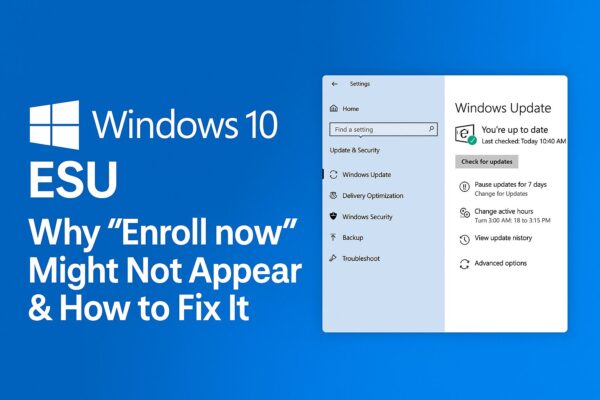
As of May 2026, normal support for Windows 10 has already ended.
Many users are still using Windows 10 PCs, especially older computers that cannot officially upgrade to Windows 11. Because of that, interest in Microsoft’s Extended Security Updates (ESU) program has increased rapidly.
However, some users notice that the “Enroll now” option for ESU does not appear in Windows Update at all.
In many cases, this is not a bug or hardware failure. The device may not be eligible, Windows Update may not be fully ready, or Microsoft may have changed how enrollment is offered after the end of support.
This guide explains:
- Why the ESU enrollment option may be missing
- What changed after Windows 10 support ended
- Whether your PC can still receive security updates
- What to do if your PC cannot move to Windows 11
We’ll keep everything simple and beginner-friendly.
- 1 What is Windows 10 ESU?
- 2 First: Check the Requirements (Quick Checklist)
- 3 If “Enroll now” appears: How to enroll (safe, simple steps)
- 4 “Enroll now” is missing: Why it happens and what to do
- 5 What Changed After Windows 10 Support Ended?
- 6 Can You Still Use Windows 10 Safely in 2026?
- 7 FAQ
- 8 Summary – Quick Reference (Do this in order)
- 9 Related Articles (Internal Links)
What is Windows 10 ESU?
Extended Security Updates (ESU) is an optional program that continues delivering important and critical security updates for Windows 10 after the official support end date. It’s meant to be a bridge—a little extra time to upgrade hardware, plan a migration, or avoid rushing.
- What you get: Important/Critical security patches for Windows 10
- What you don’t get: New features, major improvements, or “normal” consumer support like an actively supported OS
- Coverage period (consumer ESU): From end of support (October 14, 2025) through October 13, 2026 for the consumer ESU program Microsoft describes on its ESU page
How ESU enrollment works (and why the link matters)
For consumer devices, Microsoft’s ESU enrollment is designed to start from Settings → Update & Security → Windows Update. When your device is eligible and has been included in the rollout, Windows Update shows an “Enroll now” link that launches the enrollment reminder/wizard.
Enrollment generally requires signing in with a Microsoft account (even if you normally use a local account), and you may be offered multiple ways to enroll (free option tied to backup/settings sync, Rewards points, or paid). Exact options can vary by region and Microsoft may adjust the offering over time.
Because the entry point is controlled by Windows Update, no link = no consumer enrollment path yet (for most users). That’s why your first goal is to confirm you’re eligible and that Windows Update is healthy—then understand the rollout reality.
💡 Tip – Prepare safely first
Before enrolling in ESU (or doing any major Windows change), back up what you can’t replace. A USB drive or external SSD is cheap insurance.
First: Check the Requirements (Quick Checklist)
If any item below is missing, Windows Update may not offer ESU enrollment yet. Microsoft also states that ESU availability is expanding gradually as part of a phased rollout.
| Requirement | How to check | Why it matters |
|---|---|---|
| Windows 10 Version 22H2 | Settings → System → About or Win+R → winver | Consumer ESU is described as rolling out to eligible devices running Windows 10, version 22H2. |
| Latest Windows updates installed | Settings → Update & Security → Windows Update → Check for updates | Out-of-date systems often won’t get new enrollment UI until servicing is current. |
| Microsoft account available | Settings → Accounts → Your info | Microsoft’s ESU flow prompts local-account users to sign in with a Microsoft account. |
| Administrator rights | Settings → Accounts → Your info / Family & other users | Enrollment and system changes can fail from a standard account. |
| Not managed by work/school IT | Settings → Accounts → Access work or school | Work/school managed environments often use separate (commercial) paths and policies; consumer enrollment may not appear. |
| Included in the phased rollout | Re-check Windows Update periodically | Even eligible devices can wait days/weeks as Microsoft expands availability. |
Important: Even if everything above is perfect, you still may not see “Enroll now” immediately because of the staged rollout. Start by making Windows Update “ready,” then check again later.
If “Enroll now” appears: How to enroll (safe, simple steps)
- Open Settings → Update & Security → Windows Update.
- Click Enroll now (the ESU enrollment link).
- If you’re signed in with a local account, follow the prompt to sign in with a Microsoft account.
- Follow the on-screen steps and choose an enrollment option that’s offered to you (options can vary by region and may change over time).
- Repeat on other PCs if needed (Microsoft describes enrolling multiple devices under one Microsoft account).
✅ Good news: If you enroll later, you typically won’t “miss” protection—security updates released since ESU began will still be offered once your device is enrolled (as long as the device remains eligible and able to receive updates).
“Enroll now” is missing: Why it happens and what to do
Most cases fall into one of two buckets:
- You’re not eligible yet (version/update/account/device management conditions aren’t met)
- You are eligible, but your device hasn’t been reached in the phased rollout yet
1) Confirm Windows 10 is really 22H2 (and fully patched)
Open Win+R → type winver. You should see Version 22H2.
Then go to Settings → Update & Security → Windows Update and:
- Click Check for updates
- Install everything offered (including servicing stack / cumulative updates)
- Restart when prompted (even if it feels annoying)
Why this helps: Enrollment UI is delivered through servicing and Windows Update experiences. If you’re behind on updates, you’re often behind on eligibility checks too.
2) Make sure Windows Update isn’t “blocked” (paused, metered, wrong time)
These simple settings can quietly delay update-driven UI like enrollment offers:
- Paused updates: Windows Update → make sure updates aren’t paused
- Metered connection: Settings → Network & Internet → check if your Wi-Fi/Ethernet is set as metered
- Date/Time: Settings → Time & Language → enable “Set time automatically” (a badly skewed clock can break update and sign-in flows)
3) Verify you can sign in with a Microsoft account (and you’re an admin)
Microsoft’s ESU steps for consumer devices include prompting local-account users to sign in with a Microsoft account. So if Microsoft account sign-in is blocked or broken, ESU enrollment can’t start normally.
Check account type
- Settings → Accounts → Your info
- If you see an email address (Microsoft account), good.
- If you only see a local username, you may still be able to enroll—but expect a prompt to sign in during the ESU flow.
Check Administrator rights
- Settings → Accounts → Family & other users
- Select your account → Change account type → set to Administrator (if appropriate for your home PC)
⚠️ If this is a shared family PC, changing account types affects security—make sure at least one admin account is protected with a strong password.
4) Confirm the PC is not work/school managed
Consumer ESU is aimed at personal devices. If the device is managed by a company or school (policies, MDM/Intune, domain join), your Windows Update experience may be controlled by your organization, and the consumer enrollment link may never appear.
- Settings → Accounts → Access work or school
- If you see an organization connected, that’s a clue the PC is managed.
If this is a work PC, ask IT what they’re doing for Windows 10 post-support (many organizations use commercial ESU paths instead of consumer enrollment).
5) Run Windows Update Troubleshooter (quick health check)
When Windows Update components are partially broken, devices can miss “offer” UI like enrollment prompts.
- Settings → Update & Security → Troubleshoot → Additional troubleshooters → Windows Update
After the troubleshooter runs, reboot and check Windows Update again.
6) Do a “servicing refresh” (SFC/DISM) if updates are acting weird
If Windows Update fails frequently, shows errors, or won’t install cumulative updates reliably, the ESU link may not show because the update stack isn’t healthy.
Run these in an Administrator Command Prompt / Windows Terminal (Admin):
sfc /scannow
DISM /Online /Cleanup-Image /RestoreHealth
Then reboot and run Check for updates again.
7) Availability Can Differ Between Devices
Even in 2026, some Windows 10 PCs still show ESU enrollment options while others do not.
This can depend on factors such as:
- Device eligibility
- Microsoft account status
- Regional availability
- Windows Update health
- Whether the PC is managed by an organization
In some cases, Microsoft may prioritize encouraging upgrades to Windows 11 instead of continuing Windows 10 enrollment options on older devices.
If your PC no longer shows the ESU option, it does not always mean the computer is broken. However, it may indicate that the device is no longer being prioritized for consumer ESU enrollment.
What Changed After Windows 10 Support Ended?
Before October 2025, many users expected the ESU program to appear automatically inside Windows Update.
However, after Windows 10 reached end of support, Microsoft gradually changed how ESU enrollment is presented depending on the device, region, and account status.
Because of this, some users now experience situations such as:
- The “Enroll now” button never appears
- The option appeared once and disappeared later
- Windows Update only recommends moving to Windows 11
- The PC is considered unsupported for ESU enrollment
This does not always mean your PC is broken. In many cases, Microsoft is prioritizing migration to Windows 11 rather than actively promoting long-term Windows 10 usage.
Can You Still Use Windows 10 Safely in 2026?
Technically, yes — many Windows 10 PCs still work normally in 2026.
However, devices without ESU protection no longer receive regular security patches from Microsoft. This increases security risks over time, especially for PCs connected to the internet every day.
If you must continue using Windows 10, it is important to:
- Use updated antivirus protection
- Avoid suspicious downloads and unknown websites
- Keep browsers updated
- Back up important files regularly
- Consider upgrading hardware when possible
For light home use, some users may continue using Windows 10 temporarily. But for banking, work, or sensitive personal data, moving to a supported system is strongly recommended.
FAQ
Q1. If I enroll in ESU, can I still upgrade to Windows 11 later?
Yes. ESU is designed as a bridge so you can move to Windows 11 when you’re ready. ESU doesn’t block upgrading—it just keeps Windows 10 security patches flowing for a limited time.
Q2. Do I need a Microsoft account?
Microsoft’s consumer ESU instructions describe prompting local-account users to sign in with a Microsoft account during enrollment, and coverage details commonly reference Microsoft account-based enrollment.
Q3. Is Windows 10 still supported in 2026?
No. Regular support for Windows 10 officially ended on October 14, 2025.
Most home users no longer receive standard monthly security updates unless they enrolled in Microsoft’s ESU program or moved to Windows 11.
Q4. Will Microsoft 365 (Office) keep getting security updates on Windows 10?
Microsoft states it will continue providing security updates for Microsoft 365 Apps on Windows 10 until October 10, 2028 (even though Windows 10 itself ends support in 2025), while recommending upgrading to Windows 11 for best reliability and feature support.
Summary – Quick Reference (Do this in order)
- Confirm you’re on Windows 10 Version 22H2 (
winver) - Install all updates and reboot (Windows Update must be healthy)
- Make sure updates aren’t paused and your connection/time settings aren’t blocking update services
- Be ready to sign in with a Microsoft account during enrollment
- Confirm the PC is personal (not work/school managed)
- If the link still doesn’t show, it’s usually rollout timing—check again periodically
If you’ve checked eligibility and made Windows Update healthy but still don’t see “Enroll now,” don’t panic—this is common during a phased rollout. Your best move is to stay updated, keep backups, and re-check Windows Update periodically.
✔️You might also find these helpful:
Related Articles (Internal Links)
▶︎ C Drive Space Disappearing on Windows 11? 10 Real Causes and Fixes
▶︎ Common Windows 11 Issues and Easy Fixes You Can Do Yourself
▶︎ What Is a Windows Installation Media? A Beginner’s Guide (Windows 10 & 11)