- 1 If you’re trying to enroll in Windows 10 ESU (Extended Security Updates) and it keeps failing, you’re not alone.
- 2 What Is KB5071959?
- 3 What Problem Does It Fix?
- 4 Who Should Install KB5071959?
- 5 Why ESU Enrollment Fails
- 6 How to Fix the Problem (Step-by-Step)
- 7 Step 2 — Run ESU Enrollment Again
- 8 Step 3 — Check for Updates Again
- 9 How to Confirm It’s Fixed
- 10 Quick Fix Summary Table
- 11 If It Still Doesn’t Work
- 12 Important Notes
- 13 Should You Stay on Windows 10?
- 14 Final Summary
If you’re trying to enroll in Windows 10 ESU (Extended Security Updates) and it keeps failing, you’re not alone.
Many users report vague errors like:
“Something went wrong”
“Unable to complete enrollment”
In most cases, the issue is caused by a known problem that Microsoft addressed with KB5071959.
👉 This guide explains exactly what to do.
What Is KB5071959?
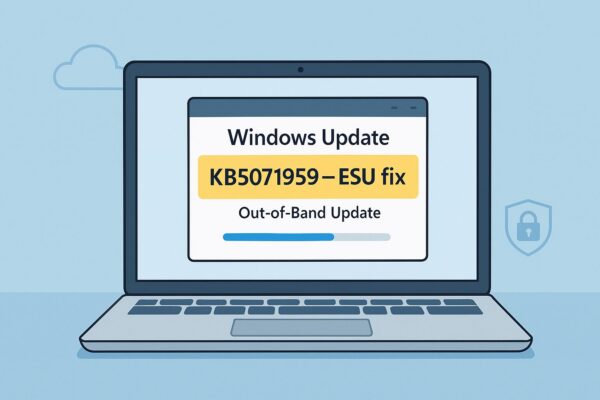
KB5071959 is an out-of-band (OOB) update for Windows 10 version 22H2.
👉 Its purpose is simple:
- Fix ESU enrollment failures
- Restore access to future security updates
Key point:
KB5071959 does NOT add features — it fixes the update system itself.
What Problem Does It Fix?
Before this update, some users experienced:
- ESU enrollment wizard fails
- “Out of support” message appears incorrectly
- No security updates after end of support
👉 Even if the system was technically eligible
Who Should Install KB5071959?
✔ You should install it if:
- You are using Windows 10 version 22H2
- ESU enrollment fails
- You plan to continue using Windows 10
❌ You can skip if:
- You already moved to Windows 11
- You do not plan to use ESU
Why ESU Enrollment Fails
This is important 👇
The failure is usually caused by:
- Broken enrollment system components
- Incorrect update state
- Temporary Microsoft-side issue (already fixed)
👉 KB5071959 resolves these internally
How to Fix the Problem (Step-by-Step)
Step 1 — Install KB5071959
Method A: Windows Update (recommended)
- Open Settings
- Go to Windows Update
- Click Check for updates
- Install KB5071959
- Restart your PC
Method B: Manual install
If not shown:
- Download from Microsoft Update Catalog
- Install the .msu file
- Restart
Step 2 — Run ESU Enrollment Again
After restart:
- Go to Windows Update
- Find Enroll now (or similar)
- Complete ESU enrollment
👉 This step is required
Step 3 — Check for Updates Again
After enrollment:
- Click Check for updates
- Install available security updates
👉 This restores your update flow
How to Confirm It’s Fixed
Check these:
- No more enrollment errors
- Updates download normally
- “Out of support” warning disappears
Optional:
- Press Win + R → winver
- Confirm latest build installed
Quick Fix Summary Table
| Issue | Cause | Fix |
|---|---|---|
| ESU enrollment fails | System bug | Install KB5071959 |
| “Out of support” message | Display bug | Update + restart |
| No updates after enrollment | Flow incomplete | Check updates again |
If It Still Doesn’t Work
Try these safe fixes:
✔ Restart and retry
Simple but effective
✔ Repair system files
Run:
DISM /Online /Cleanup-Image /RestoreHealth
sfc /scannow
✔ Check Windows version
Must be:
👉 Windows 10 22H2
Important Notes
- KB5071959 is safe to install
- It does not include security fixes itself
- It enables future updates
Should You Stay on Windows 10?
Short answer:
👉 Only if necessary
- ESU is temporary
- Windows 11 is the long-term solution
Final Summary
If ESU enrollment fails:
👉 Fix it like this:
- Install KB5071959
- Restart
- Run enrollment again
- Check for updates
👉 That’s it — in most cases, this fully resolves the issue.