
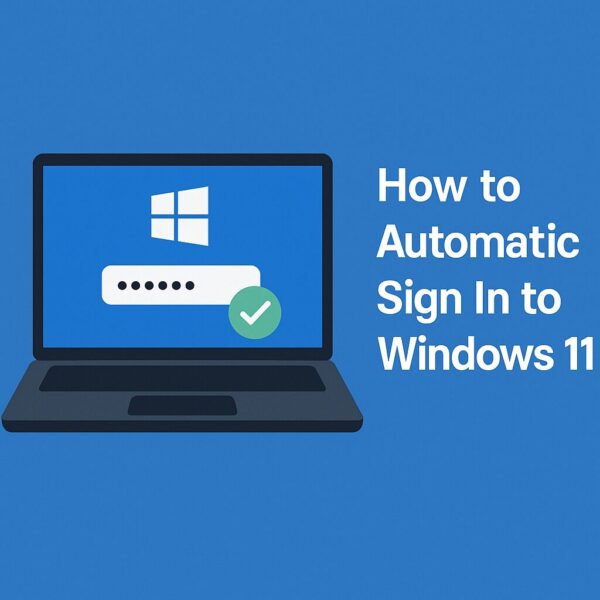
Do you want to skip the password screen on Windows 11?
Don’t worry.
This guide is for beginners.
You can log in automatically and go straight to your desktop.
This saves time every day.
But be careful.
Auto login is convenient, but it has security risks.
We will explain both.
- 1 When You Should Use Auto Login
- 2 Method 1: Enable Auto Login (Easy Method)
- 3 If You Cannot See the Checkbox
- 4 Method 2: Use Registry (Advanced)
- 5 Important Warning
- 6 Method 3: Reduce Sign-In Requests (Microsoft Account)
- 7 When You Cannot Remove PIN
- 8 Security Tips (Very Important)
- 9 Common Problems and Fixes
- 10 Better Alternative (Safer Option)
- 11 When You Should NOT Use Auto Login
- 12 Which Option Should You Choose?
- 13 Quick Decision Table
- 14 FAQ
- 15 Conclusion
When You Should Use Auto Login
Auto login is OK if:
- You are the only user
- Your PC stays at home
- No important data is stored
Do NOT use it if:
- You use a laptop outside
- You share your PC
- You use a work device
Method 1: Enable Auto Login (Easy Method)
This is the simplest way.
Steps:
- Press Windows + R
- Type
netplwiz - Press Enter
Then:
- Select your account
- Uncheck this box:
“Users must enter a user name and password to use this computer”
- Click OK
- Enter your password
- Restart your PC
Your PC will log in automatically.
If You Cannot See the Checkbox
In newer Windows versions (24H2 and later),
this option may be hidden.
Don’t worry. There is another way.
Method 2: Use Registry (Advanced)
Only use this if Method 1 does not work.
⚠️ Be careful. This method is advanced.
Steps:
- Press Windows + R
- Type
regedit - Press Enter
Go to:
HKEY_LOCAL_MACHINE\SOFTWARE\Microsoft\Windows NT\CurrentVersion\Winlogon
Create or edit:
DefaultUserName→ your usernameDefaultPassword→ your passwordAutoAdminLogon→ set to 1
Restart your PC.
Important Warning
Your password is saved in plain text.
This is NOT secure.
Use this only on a safe personal PC.
Method 3: Reduce Sign-In Requests (Microsoft Account)
If you use a Microsoft account:
You may not fully skip login, but you can reduce it.
Steps:
- Open Settings
- Go to Accounts → Sign-in options
- Set “Require sign-in” to Never
When You Cannot Remove PIN
This happens when:
- Windows Hello is required.
- Work/school account is used.
Fix:
- Turn OFF “Require Windows Hello sign-in”.
- Or switch to a local account.
Security Tips (Very Important)
Auto login reduces security.
Do this to stay safe:
- Use BitLocker (disk encryption)
- Lock screen when away (Windows + L)
- Do not store sensitive data
Common Problems and Fixes
Problem: Auto login does not work
Fix:
- Check password is correct.
- Run
netplwizagain. - Restart PC.
Problem: Password still required after sleep
Fix:
- Go to Settings → Sign-in options
- Set “Require sign-in” to Never
Problem: Option missing
Fix:
- Use Registry method
- Or update Windows
Better Alternative (Safer Option)
If you want speed AND security:
Use Windows Hello.
Options:
- Face recognition
- Fingerprint
- PIN
Faster than password.
More secure than auto login.
When You Should NOT Use Auto Login
Avoid it if:
- You travel with your laptop.
- You use public places.
- Your PC contains private data.
Security is more important than speed.
Which Option Should You Choose?
Not sure if auto login is right for you?
Here is a simple guide.
Use Auto Login if:
- You use your PC at home.
- You are the only user.
- You want faster startup.
Best for convenience.
Use Windows Hello if:
- You want both speed and security.
- You use your PC every day.
- Your device supports face or fingerprint.
Best balance.
Use Password (Normal Login) if:
- You use a laptop outside.
- You store important files.
- You share your PC.
Best for safety.
Quick Decision Table
| Situation | Best Option |
|---|---|
| Home PC (private use) | Auto Login |
| Daily use with security | Windows Hello |
| Work / shared PC | Password |
If you are not sure:
Use Windows Hello.
It is fast and safe.
FAQ
Q1. Is auto login safe on Windows 11?
A. It is safe only if you use a personal PC at home.
If other people can access your computer, it is not recommended.
Q2. Why is the auto login option missing?
A. In newer Windows 11 versions, the option may be hidden.
You can use the Registry method or adjust sign-in settings.
Q3. Can I disable auto login later?
A. Yes.
Run netplwiz again and check the password box, or change sign-in settings.
Conclusion
Auto login makes your PC faster and easier to use.
Start with:
- netplwiz method
- Simple settings changes
If needed:
- Use registry (advanced)
But always remember:
Convenience vs Security.
✔️You might also find these helpful:
▶︎⚠️ How to Handle Suspicious Sign-In Activity on Your Microsoft Account
▶︎Microsoft Suspicious Sign-In Alert: What to Do Next (Step-by-Step Guide)
▶︎Can You Skip the “OK” After Face Recognition in Windows Hello? Full Guide
💡 Looking for more tips? Check out our full list of Windows Help Guides.
![[2025 August Update] How to Fix Windows Error 0x80072EFE — Causes, Solutions, and Prevention Tips](https://kimiyoya.com/wp-content/uploads/2025/08/58D5F379-917B-4424-BA03-731F05987005-375x375.jpg)