After installing Windows 11 update KB5063878, did your PC start acting strangely?
Maybe you noticed:
- USB devices not working
- Your printer disappearing
- Slow startup
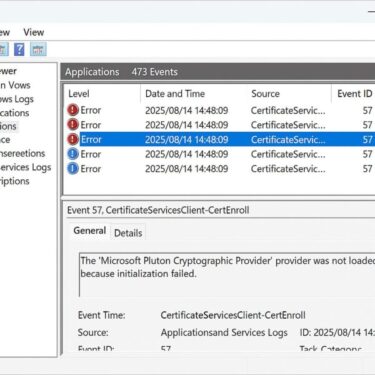
- A strange Event Viewer error
Don’t worry.
Most users update without serious problems, but some devices may show temporary issues after an update.
This guide explains the known problems and simple fixes in easy English.
Update Overview
- Update name: KB5063878
- OS versions: Windows 11 23H2 (Build 22631.xxx) and some 24H2 builds via Release Preview Channel
- Update type: Cumulative security and quality improvements
Key security improvements:
- Fixes for known vulnerabilities in Windows components and services
- Reliability improvements for system services
Known Issues After Installing KB5063878
| Symptom | Likely Cause | Notes |
|---|---|---|
| Event Viewer shows Error ID 57 (CertificateServicesClient-CertEnroll) | Common Problems After KB5063878 | Harmless log entry; can appear even on devices without Pluton; often logged after restart; no user action required. |
| USB peripherals stop responding after reboot | USB driver reload timing issue; interference from hubs/docking stations | Connect directly to the PC, try another port/cable; reinstall device via Device Manager; update OEM USB/chipset drivers or dock firmware. |
| Printer not detected | Windows Update overwrote vendor driver or driver model mismatch (WIA/TWAIN) | Remove the printer, install the latest full-feature OEM driver, re-add the device, and set it as default. |
| Slower boot times | Post-update indexing/cache rebuild | Usually temporary; improves after a few restarts. Optional health checks: DISM /Online /Cleanup-Image /RestoreHealth and sfc /scannow (Admin). |
Below are issues reported by users and confirmed in various forums, IT communities, and Microsoft’s own release notes.
* Symptoms may vary by device model and driver versions. Always check the OEM support page for the latest drivers.
Microsoft’s Official Statements
Microsoft has acknowledged certain issues, particularly the Error ID 57 in Event Viewer, stating:
- No functional or security impact
- No immediate user action required
- A fix will be delivered in a future cumulative update
For other hardware-related problems (e.g., USB, printers), Microsoft advises updating drivers directly from the manufacturer’s website.
Step-by-Step Troubleshooting
A. For Event Viewer Error ID 57
- No action required unless it interferes with automated log monitoring.
- IT admins may temporarily exclude Event ID 57 from alerts.
- Wait for Microsoft’s future update to resolve the logging bug.
B. For USB Devices Not Responding
- Disconnect the device.
- Plug it directly into the PC (avoid USB hubs temporarily).
- Open Device Manager → Right-click the device → Uninstall.
- Reconnect it and let Windows reinstall the driver.
- If still unresponsive, download the latest driver from the manufacturer.
C. For Printers Not Detected
- Remove the printer from Settings → Bluetooth & devices.
- Download the latest OEM driver from the manufacturer’s website.
- Re-add the printer and set it as default.
D. For Slow Boot Times
- Run Windows Security → Device performance & health to check system health.
- Let indexing complete; performance should normalize after a few days.
- Optional: Run DISM /Online /Cleanup-Image /RestoreHealth and sfc /scannow from Command Prompt (Admin).
How to Avoid Problems Next Time
- Save important files before updating
- Keep your drivers updated
- Restart your PC after updates
Summary
KB5063878 delivers important security fixes for Windows 11 but has introduced some side effects for certain users, particularly the harmless but frequent Event ID 57 log entry.
While most issues are minor or temporary, proactive driver management and staged deployment are the best ways to ensure a smooth update experience.
If you encounter problems, use the troubleshooting steps above or monitor Microsoft’s update health dashboard for official fixes.
Affiliate Tip – Recommended Tools for IT and Home Users
✔️You might also find these helpful:
▶︎Why a Clean Install Might Be the Best Fix for Your PC
▶︎Fix Error 0x800f0825: Windows Update Failed to Install
▶︎What Do WUSA, TrustedInstaller, and Update Orchestrator Errors Mean? Simple Guide for Windows Users
💡 Looking for more tips? Check out our full list of Windows Help Guides.