If you regularly open a Word document and catch yourself thinking…
“Why is everything so tiny?”
…you’re definitely not the only one.
In Microsoft Word, text can look small (or strangely “off”) for multiple reasons—not just one. The most common culprits are:
- Font size (the real size stored in the document)
- Zoom (how big the page looks on your screen)
- Margins / page layout (how much text fits per line)
- Line spacing / paragraph spacing (how “dense” the page feels)
- Display scaling in Windows or macOS (system-wide sizing)
Most guides focus on only one setting and ignore the rest. This article is different: it connects the pieces so you can make Word documents truly readable—on screen and on paper.
Scope:
This guide applies to Word for Microsoft 365 and Word 2019/2021 on Windows and macOS.
Menu names may differ slightly, but the logic is the same.
- 1 1. Before You Touch Anything: Font Size vs Zoom vs Display Scaling
- 2 2. Change the Actual Font Size (Real Document Size)
- 3 3. Change Zoom (Make the Page Larger on Screen Only)
- 4 4. Fix Print Size Without Redesigning the Document (Print Scaling)
- 5 5. Make Documents Easier to Read: Line Spacing & Paragraph Spacing
- 6 6. View Modes: Why the Same Text Looks Different
- 7 7. Styles: The Smart Way to Fix Font Size Across the Whole Document
- 8 8. Margins & Layout: Why Text Sometimes Feels “Cramped”
- 9 9. Tables and Lists: Where Readability Often Breaks
- 10 10. Troubleshooting: When Font Size Changes Don’t “Stick”
- 11 11. Quick Cheat Sheet (Copy/Paste Friendly)
1. Before You Touch Anything: Font Size vs Zoom vs Display Scaling
To fix “tiny text” quickly, it helps to understand the three layers that control what you see.
- Font Size (point size)
- Applies to selected text, paragraphs, or styles.
- Controls how big the text actually is in the document and when printed.
- Zoom (view magnification)
- Only changes how large the page looks on your screen.
- Does not change the real document size or print output.
- Display Scaling (Windows / macOS)
- System-wide setting (125%, 150%, etc.).
- Makes apps and UI elements larger overall—including Word.
Quick diagnosis:
If only this document looks tiny → start with font size or styles.
If every document looks tiny → check zoom.
If Word and other apps look tiny → check display scaling.
2. Change the Actual Font Size (Real Document Size)
This step changes the document itself—what others see, and what prints.
2.1 Change font size from the Ribbon
- Select the text you want to resize.
- Go to the Home tab.
- In the Font group, find the Font Size box (often 11 or 12 by default).
- Choose a size from the dropdown (or type a custom number). For example:
- 11–12 pt for body text (common)
- 14–18 pt for headings (depends on style)
You’ll see the change immediately.
2.2 Use “Grow Font” / “Shrink Font” (fast adjustments)
Near the font size box, there are usually two quick buttons:
- Increase Font Size (often “A” with an up arrow)
- Decrease Font Size (often “A” with a down arrow)
Use these when you don’t care about the exact number—you just want it a bit bigger or a bit smaller.
2.3 Keyboard shortcuts (Windows + Mac)
Windows:
- Increase one step: Ctrl + Shift + >
- Decrease one step: Ctrl + Shift + <
Mac:
- Increase one step: ⌘ + Shift + >
- Decrease one step: ⌘ + Shift + <
These are perfect for quickly tuning headings or emphasis text while you’re formatting.
3. Change Zoom (Make the Page Larger on Screen Only)
If the font size is fine but the page still looks tiny, the issue is usually zoom.
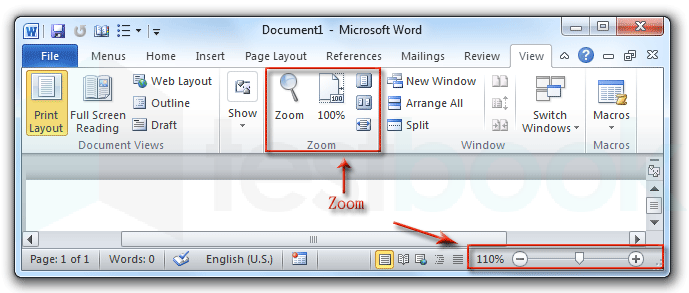
3.1 Use the zoom slider (bottom-right)
Look at the bottom-right corner of Word. You’ll typically see a zoom slider with a percentage (like 100%).
- Drag right to zoom in (125%, 150%, 200%).
- Drag left to zoom out (90%, 75%).
- Click the percentage to type an exact zoom value (in many versions).
Important: Zoom changes your view, not the document.
3.2 Use the Zoom dialog (precise control)
- Go to the View tab.
- Click Zoom (in the Zoom group).
- Choose what fits your workflow:
- 100% (baseline)
- Page Width (great for laptops)
- Text Width (nice for reading-focused sessions)
- Many Pages (overview)
Comfort tip:
On high-resolution displays, many people find 110–130% more comfortable than 100% for long editing sessions.
3.3 Fit the page to your window (fast “no math” option)
If you hate horizontal scrolling, try:
- View tab
- Click Page Width
Word will automatically choose a zoom level that makes the page fit neatly across your window.
4. Fix Print Size Without Redesigning the Document (Print Scaling)
Sometimes the document is readable on screen, but prints too small or too large. In that case, you want print scaling—not font changes.
4.1 Scale when printing (common A4 vs Letter problems)
- Go to File → Print.
- Look for options such as:
- Scale to Paper Size
- Shrink One Page / Fit to Page (varies by version/printer)
- 1 Page Per Sheet vs multiple pages per sheet
- Select the correct paper size (A4 or Letter) if the document was created for a different region.
This is ideal when you received a template from someone abroad or your document “looks right” but prints wrong.
5. Make Documents Easier to Read: Line Spacing & Paragraph Spacing
Even with a decent font size, text can still feel exhausting if the page is too dense. This is where spacing settings make a huge difference.
5.1 Adjust line spacing (inside a paragraph)
- Select the text (or the whole document with Ctrl + A / ⌘ + A).
- Go to Home.
- In Paragraph, click Line and Paragraph Spacing.
- Try common options:
- 1.15 (lightly more readable than single spacing)
- 1.5 (comfortable for reports and long reading)
- 2.0 (double spacing for drafts/academic requirements)
Readability rule of thumb: If people complain “my eyes get tired,” spacing is often the real issue—not font size.
5.2 Add space before/after paragraphs (the “clean layout” trick)
Paragraph spacing makes documents easier to scan and reduces the “wall of text” effect.
- Select the paragraphs.
- Go to Home → Line and Paragraph Spacing.
- Choose Add Space Before Paragraph or Add Space After Paragraph (or open Line Spacing Options for precise control).
Comfortable starting settings many people like:
- Before: 0–6 pt
- After: 6–12 pt
This improves readability without wasting a ton of paper.
6. View Modes: Why the Same Text Looks Different
Word view modes can change how “big” text feels, even if font size is identical.
6.1 Print Layout (recommended default)
- Shows margins, page breaks, headers/footers—closest to print output.
- Best for reports, contracts, school assignments, and most everyday documents.
To switch:
- Go to View.
- Select Print Layout.
If text looks “weird,” check this first.
6.2 Web Layout (common cause of “everything feels small”)
- Text flows like a web page (not a sheet of paper).
- Lines can become extremely wide on big monitors—making text harder to track and feel smaller.
If the page suddenly looks “too wide” or “too tiny,” you may be in Web Layout. Switch back to Print Layout.
6.3 Focus / Reading modes (great for proofreading)
Depending on your Word version, you may see:
- Read Mode / Reading View
- Focus (and sometimes other reading-friendly modes)
These remove distractions and can be ideal when you’re done formatting and just want to read comfortably.
7. Styles: The Smart Way to Fix Font Size Across the Whole Document
If you manually change font size everywhere, it works… until it doesn’t. Word is built for consistency, and that’s what Styles are for.
7.1 What are Styles?
Most paragraphs are tagged with a style, such as:
- Normal (body text)
- Heading 1 / Heading 2 / Heading 3
- Title, Subtitle, Quote, etc.
When you modify a style, everything using that style updates automatically. That’s the “professional” way to resize documents.
7.2 Change the Normal style (body text) once
- Go to Home → find the Styles gallery.
- Right-click Normal → click Modify…
- Set your preferred:
- Font + size (example: 12 pt if you want more legibility)
- Line spacing
- Spacing before/after paragraphs
- (Optional) Enable “New documents based on this template” to make it your default for future files.
7.3 Fix headings so they look “right” instantly
If your headings feel too small (or too loud), adjust the heading styles instead of manually fixing each one.
- Right-click Heading 1 in the Styles gallery → Modify…
- Set a suitable size (example: 16–18 pt) and choose bold if needed.
- Add spacing before/after for clean separation.
Repeat for Heading 2 and Heading 3 if needed. For long documents, this saves a ridiculous amount of time.
8. Margins & Layout: Why Text Sometimes Feels “Cramped”
Sometimes text is technically “big enough,” but the document still feels uncomfortable because lines are too long or the layout is too tight.
8.1 Adjust margins
- Go to the Layout (or Page Layout) tab.
- Click Margins.
- Choose a preset (Normal, Narrow, Moderate) or click Custom Margins…
Tip: Narrow margins fit more words per page, but can make documents feel dense. Slightly wider margins often improve readability and leave room for notes.
8.2 Confirm page size and orientation
- Layout → Size (A4, Letter, etc.)
- Layout → Orientation (Portrait / Landscape)
If a file was created in a different paper standard (A4 vs Letter), the layout can shift and make text feel oddly small or break in unexpected places.
9. Tables and Lists: Where Readability Often Breaks
Even if your body text is perfect, tables and bulleted lists are often the parts people struggle to read.
9.1 Make table text readable
- Select the table (use the small handle at the top-left of the table, if visible).
- Open Table Tools → Layout (naming may vary).
- Increase row height and column width if cells feel tight.
- Increase font size from Home → Font (tables often default smaller than body text).
Also useful:
- Right-click the table → AutoFit → AutoFit Window (fills available page width)
9.2 Improve list spacing (scan-friendly lists)
- Select the list.
- Home → Line and Paragraph Spacing.
- Try 1.15 or 1.5, then add a little space after paragraphs if it still feels cramped.
A small spacing change can turn a “wall of text” list into something easy to skim.
10. Troubleshooting: When Font Size Changes Don’t “Stick”
Here are the most common real-world issues and the fixes that actually work.
10.1 “I change the font size, but it keeps reverting”
This usually happens because styles are being reapplied.
Fix:
- Modify the style (Normal / Heading) instead of manually formatting random sections.
- Or reset formatting: select text → Home → Clear All Formatting (eraser icon) → apply the correct style again.
10.2 “New documents always start tiny”
You likely have a template with small defaults (often related to Normal.dotm on Windows).
Fix:
- Create a new blank document.
- Modify the Normal style (example: 12 pt + 1.15 spacing).
- Enable “New documents based on this template”.
- Close Word completely, then reopen it.
10.3 “Everything in Word looks small (not just this file)”
This is usually a zoom or display scaling problem.
- Check the zoom slider—make sure you didn’t accidentally drop to 70–80%.
- Windows: Settings → System → Display → Scale (125% or 150% often helps on high-DPI laptops).
- macOS: System Settings → Displays → choose a more “Scaled” (larger) option.
10.4 “My colleague says it looks fine, but it’s unreadable on my PC”
The same document can feel very different depending on:
- monitor size and resolution
- display scaling (100% vs 150%)
- Word version and view mode
What to do:
Focus on zoom (your side), use Print Layout, and choose sensible base sizing (often 11–12 pt body text, 14–18 pt headings).
11. Quick Cheat Sheet (Copy/Paste Friendly)
- Change actual text size:
Home → Font Size, orCtrl + Shift + > / <(Windows) /⌘ + Shift + > / <(Mac) - Make the page look bigger on screen:
Zoom slider (bottom-right), or View → Zoom → Page Width - Fix print size without redesigning:
File → Print → Scale to Paper Size / Fit to Page - Make reading easier:
Line spacing 1.15–1.5, paragraph spacing After 6–12 pt - Fix the entire document cleanly:
Modify Styles (Normal, Heading 1/2/3) - When in doubt:
Use Print Layout and keep zoom around 110–130% for comfortable editing
If you want the “best default” setup for readability, a great starting point is: 12pt body text, 1.15–1.5 line spacing, and Page Width zoom—then fine-tune based on your screen size and how long you’ll be reading.
💡 Looking for more tips? Check out our full list of Windows Help Guides.