- 1 Think your Windows PC may have a virus?
- 2 Common Signs Your PC May Have a Virus
- 3 Step 1: Run a Quick Virus Scan Using Windows Security
- 4 Step 2: Run a Full Scan for a Deeper Check
- 5 Step 3: Run Microsoft Defender Offline Scan (Best for Hidden Threats)
- 6 Step 4: Check Suspicious Startup Apps
- 7 Step 5: Check Your Browser Extensions
- 8 Step 6: Watch Out for Fake Virus Warnings
- 9 Step 7: Check Task Manager for Strange Activity
- 10 Step 8: Use Microsoft Safety Scanner (Optional Extra Check)
- 11 Is Microsoft Defender Enough?
- 12 FAQ
- 13 Final Thoughts
Think your Windows PC may have a virus?
Maybe your computer suddenly feels slow.
Maybe strange pop-up messages keep appearing.
Maybe your browser opens pages you did not choose.
Or maybe you clicked something by mistake and now feel worried.
If that sounds familiar, you are not alone.
Many people panic and immediately search for a free antivirus download.
But that can actually make things worse.
Some “free antivirus” tools are safe.
But others are confusing, unnecessary, or even fake.
The good news?
Your Windows PC already includes tools that can help you check for viruses safely.
You do not need to install random software just to see if your computer is infected.
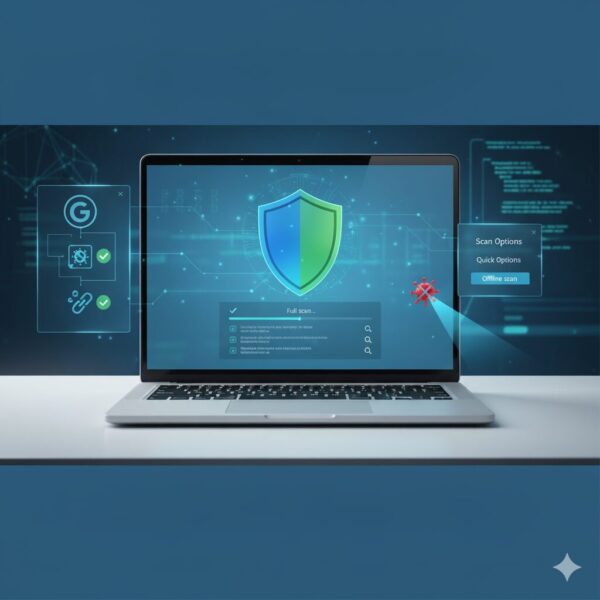
In this beginner-friendly guide, you will learn how to check your Windows 11 or Windows 10 PC for signs of infection using built-in Windows tools and a few safe checks anyone can do.
We will cover:
- how to spot common virus warning signs
- how to run a safe virus scan using Windows tools
- how to check suspicious startup apps
- how to inspect browser extensions
- how to avoid fake virus warnings
- what to do if you think your PC is infected
No technical experience needed.
Just follow the steps one by one.
Common Signs Your PC May Have a Virus
Not every slow PC has a virus.
Sometimes Windows updates, low storage space, or too many startup apps can make your computer feel slow.
But some warning signs should not be ignored.
Here are common signs that may suggest malware or unwanted software:
Your PC suddenly becomes very slow
If your computer was working normally and suddenly becomes unusually slow, something in the background may be using system resources.
This does not always mean a virus.
But it is worth checking.
Strange pop-up messages appear
Do you see warning messages like:
- “Your PC is infected!”
- “Virus detected! Call support now!”
- “Your computer is at risk!”
Be careful.
Many of these are fake scare messages designed to make you panic.
Your browser keeps redirecting
If your browser suddenly opens strange websites, search results look different, or your homepage changes by itself, unwanted software may be involved.
This is often caused by adware or malicious browser extensions.
Unknown apps appear
Did you notice software you do not remember installing?
If yes, check it carefully.
Some unwanted programs install together with free downloads.
Fans are always loud
If your laptop fan keeps running even when you are doing almost nothing, a hidden background process may be active.
Again, not always malware—but worth checking.
High CPU or memory usage
If your PC feels hot or slow, Task Manager may show unusual activity.
We will check that later.
If one or more of these signs look familiar, do not panic.
Start with a safe built-in scan.
Step 1: Run a Quick Virus Scan Using Windows Security
Windows already includes built-in protection called Microsoft Defender.
This is Microsoft’s official security tool.
For most home users, it is enough for basic virus detection and protection.
Here is how to run a quick scan.
Step-by-step:
- Click the Start button
- Type Windows Security
- Open the app
- Click Virus & threat protection
- Click Quick scan
Windows will now check the most common places where malware hides.
This usually takes only a few minutes.
If Windows finds something suspicious, follow the instructions on screen.
When should you use Quick Scan?
Quick Scan is good when:
- your PC suddenly feels strange
- you clicked a suspicious link
- you downloaded a file you do not trust
- you just want a fast safety check
But Quick Scan does not check everything.
For a deeper scan, the next step is better.
Step 2: Run a Full Scan for a Deeper Check
A Quick Scan is useful.
But it only checks the most common areas where malware usually hides.
If your PC still feels suspicious, a Full Scan is the better choice.
A Full Scan checks much more of your system, including:
- installed programs
- downloaded files
- system folders
- hidden locations where malware may exist
It takes longer than a Quick Scan.
Depending on your PC, it may take 30 minutes or much more.
That is normal.
Step-by-step:
- Open Windows Security
- Click Virus & threat protection
- Under the current scan area, click Scan options
- Select Full scan
- Click Scan now
Now Windows will begin checking your entire computer.
You can still use your PC while the scan runs, but it may feel slower.
When should you use a Full Scan?
A Full Scan is a good idea if:
- your browser keeps acting strangely
- your PC is suddenly much slower than usual
- pop-up ads keep appearing
- Quick Scan found something suspicious
- you installed software from an unknown source
Important tip for beginners
Do not cancel the scan too early.
Some people see that it is taking a long time and assume something is wrong.
That usually is not true.
A longer scan often means Windows is checking many files carefully.
Just let it finish.
What if the scan finds a threat?
If Microsoft Defender detects malware, you may see options such as:
- Remove
- Quarantine
- Allow on device
If you are unsure, choose Quarantine or Remove.
Do not choose “Allow” unless you are certain the file is safe.
A Full Scan is strong.
But some advanced threats hide before Windows fully starts.
That is where the next method becomes very useful.
Step 3: Run Microsoft Defender Offline Scan (Best for Hidden Threats)
Some malware is smarter than normal viruses.
It hides while Windows is running.
This makes it harder for a normal scan to remove it.
That is why Microsoft includes Microsoft Defender Offline Scan.
This is one of the most powerful built-in security tools in Windows.
It works by restarting your PC and scanning before Windows fully loads.
Because of this, hidden threats are easier to detect and remove.
This method can help find:
- rootkits
- deeply hidden malware
- stubborn threats that keep coming back
- suspicious software that blocks normal scans
Do not worry.
This sounds advanced, but the steps are simple.
Step-by-step:
- Open Windows Security
- Click Virus & threat protection
- Click Scan options
- Select Microsoft Defender Offline scan
- Click Scan now
- Save your work
- Let your PC restart
Windows will restart automatically.
The offline scan usually takes around 10 to 20 minutes.
Sometimes a little longer.
That is normal.
When should you use Offline Scan?
This is a good choice if:
- strange pop-ups keep returning
- your browser keeps redirecting
- Defender found something but the issue continues
- your PC behaves strangely even after a Full Scan
- you suspect a deeper infection
Important before you start
Save any open files first.
Your computer will restart immediately after you begin the scan.
If you are editing documents or working in your browser, save everything.
Is this safe?
Yes.
This is an official Microsoft feature built into Windows.
It does not install extra software.
It does not require technical knowledge.
For many users, this is the strongest built-in virus check available.
Step 4: Check Suspicious Startup Apps
Not every slow or strange PC has a virus.
Sometimes, too many apps start automatically when Windows turns on.
Some of these apps are harmless.
But others may be unwanted or suspicious.
Checking your startup apps is a simple way to spot problems.
Step-by-step:
- Press Ctrl + Shift + Esc
- Task Manager will open
- Click Startup apps
(On some Windows versions, this may appear as Startup) - Look through the list carefully
What should you look for?
Pay attention to apps that:
- you do not recognize
- have strange names
- show Unknown publisher
- were installed recently
- have a High impact rating
Example:
If you see something like:
- random letters
- software you never installed
- suspicious browser helper tools
that deserves a closer look.
Important for beginners
Do not disable everything just because it looks unfamiliar.
Some Windows services have technical names.
That does not mean they are dangerous.
If you are unsure, search the app name first.
Why startup apps matter
Some unwanted programs start automatically every time you turn on your PC.
That can cause:
- slow startup
- constant background activity
- strange pop-ups
- browser problems
- high CPU usage
If your computer feels slow from the moment it starts, this check is especially useful.
Step 5: Check Your Browser Extensions
Sometimes, the problem is not a virus inside Windows.
It may be hiding in your browser instead.
This is very common.
A suspicious browser extension can cause:
- strange pop-up ads
- search redirects
- unwanted toolbars
- homepage changes
- fake virus warnings
- slow browser performance
If your browser is behaving strangely, check your extensions.
Google Chrome
- Open Chrome
- Click the three dots in the top-right corner
- Click Extensions
- Select Manage Extensions
Look through the list.
Microsoft Edge
- Open Edge
- Click the three dots
- Click Extensions
- Choose Manage Extensions
Now review everything installed.
What should you look for?
Be careful with extensions that:
- you do not remember installing
- have strange or generic names
- claim to “protect” your PC unexpectedly
- inject ads into pages
- change your search engine
Examples:
- fake security extensions
- coupon tools you never added
- unknown shopping helpers
- random search tools
What should you do?
If something looks suspicious:
- turn it off first
- restart your browser
- check whether the problem disappears
If the issue stops, you may have found the cause.
If you are sure the extension is unwanted, remove it.
Step 6: Watch Out for Fake Virus Warnings
Not every virus warning is real.
In fact, many scary warning messages are fake.
Their goal is simple:
Make you panic.
These fake alerts try to scare you into:
- calling a fake support number
- downloading suspicious software
- paying for unnecessary “virus removal”
- giving away personal information
This is sometimes called scareware.
Common fake warning messages
You may see messages like:
- Your PC is infected!
- Virus detected!
- Microsoft security warning
- Call support immediately
- Your files are at risk
- Do not close this page
Some fake warnings even:
- play loud sounds
- show flashing screens
- pretend to lock your browser
- repeatedly open pop-ups
This can feel frightening.
But stay calm.
How to tell if it is fake
A warning is suspicious if:
- it appears inside your browser
- it includes a phone number
- it demands immediate action
- it says your PC is badly infected without a scan
- it asks you to install unknown software
Microsoft does not show support phone numbers in this way.
What should you do?
If you see a fake warning:
Do NOT:
- click anything
- call the number
- install the suggested tool
- enter passwords
- allow remote access
Instead:
Safe steps:
- Close the browser tab
- If the browser will not close, press Ctrl + Shift + Esc
- Open Task Manager
- Find your browser
- Click End task
- Reopen the browser
If the fake warning keeps returning
If the same message comes back again:
- check browser extensions
- clear browser data
- remove suspicious add-ons
This usually solves the problem.
Step 7: Check Task Manager for Strange Activity
If your PC still feels slow, noisy, or suspicious, check what is running in the background.
Windows includes a built-in tool called Task Manager.
It helps you see which apps are using your system.
Step-by-step:
- Press Ctrl + Shift + Esc
- Open Task Manager
- Click Processes
You will see running apps and background processes.
What should you look for?
Pay attention to:
- unusually high CPU usage
- very high memory usage
- apps you do not recognize
- strange names
- processes using resources constantly
For example:
If your browser is using high CPU while doing nothing, an extension may be the cause.
If an unknown app is using large amounts of memory, it deserves attention.
Important note
Do not randomly end Windows system processes.
Some background tasks are completely normal.
If you are unsure, search the process name online first.
Step 8: Use Microsoft Safety Scanner (Optional Extra Check)
If you still want a second opinion, Microsoft offers another free tool.
It is called Microsoft Safety Scanner.
This is useful when:
- you still feel something is wrong
- Defender found nothing
- you want an additional scan from Microsoft
It is not a replacement for normal protection.
It is only a manual scanning tool.
That makes it a good optional extra check.
Is Microsoft Defender Enough?
For most home users, yes.
Microsoft Defender has improved a lot over the years.
For normal use, it offers strong protection against common threats.
It includes:
- real-time protection
- virus scanning
- ransomware protection features
- phishing protection
- firewall integration
For many people, installing extra antivirus is unnecessary.
In some cases, extra antivirus software can even slow down your PC.
When extra protection may help
Some advanced users may want more tools if they:
- frequently download unknown files
- test software often
- use risky websites
- handle sensitive business data
But for most everyday Windows users, Defender is enough.
FAQ
Can a slow PC always mean a virus?
No.
A slow PC can also be caused by:
- too many startup apps
- low disk space
- Windows updates
- browser extensions
- old hardware
That is why checking step by step is important.
Is Windows Security free?
Yes.
It is built into Windows.
You do not need to pay extra to use Microsoft Defender.
What if Windows Security will not open?
This may happen if:
- Windows files are damaged
- another antivirus disabled it
- malware interfered with security settings
If that happens, additional troubleshooting may be needed.
Should I trust browser virus warnings?
Usually, no.
Real Microsoft warnings do not behave like fake scare pop-ups.
Browser warnings that demand urgent action are often scams.
Final Thoughts
If you think your Windows PC has a virus, do not panic.
And do not rush to download random antivirus software.
Start with safe built-in Windows tools.
The best order is:
✔ Quick Scan
✔ Full Scan
✔ Microsoft Defender Offline Scan
✔ Check Startup Apps
✔ Review Browser Extensions
✔ Watch for Fake Virus Warnings
✔ Check Task Manager
In many cases, the problem is not a real virus at all.
It may simply be:
- a bad browser extension
- too many startup apps
- fake scareware warnings
- normal Windows slowdown
By checking carefully, you can protect your PC safely without making the problem worse.
Recommended Articles
- How to Scan Your Windows PC for Viruses Using Microsoft Defender (Beginner Guide)
- How to Back Up Your Entire C Drive in Windows 10 and 11
- How to Check Your IP Address in Windows 11 (Beginner Guide)
💡 Looking for more tips? Check out our full list of Windows Help Guides.