Introduction: Is Microsoft Defender Enough for Everyday Windows Users?
If you use a Windows PC, you may have asked yourself this question:
“Is Microsoft Defender enough, or do I need another antivirus?”
This is a very common question, especially when setting up a new PC, reinstalling Windows, or seeing news about security problems.
Recently, Microsoft disclosed a security vulnerability affecting Microsoft Defender components (CVE-2026-41091), which made some users wonder:
- Is Defender still safe to use?
- Should I install paid antivirus software instead?
- Is the built-in protection really enough?
The honest answer is: for many everyday users, Microsoft Defender is still a solid choice.
But no security software is perfect.
Like any antivirus product, Microsoft Defender can have vulnerabilities, which is why keeping it updated is important.
The good news is that for most home users, Defender already provides strong basic protection when used correctly.
In this beginner-friendly guide, we’ll explain:
- what Microsoft Defender does
- when it is enough
- when extra protection may help
- and simple steps to make your Windows PC safer
No scary technical jargon. Just practical advice in simple English.
- 1 Is Microsoft Defender Still Enough for Most Home Users?
- 2 What Is Microsoft Defender?
- 3 How to Check If Microsoft Defender Is Working
- 4 What Microsoft Defender Is Good At (and What It Cannot Do)
- 5 Self-Check: Is Defender Enough for You?
- 6 How to Get 120% Out of Microsoft Defender
- 7 Extra Protection Options to Add on Top of Defender
- 8 Special Note for Windows 10 Users Near End of Support
- 9 What to Do If You Think You Might Be Infected
- 10 Final Thoughts: Is Microsoft Defender Enough?
Is Microsoft Defender Still Enough for Most Home Users?
Let’s start with the simple answer:
Yes — for many everyday home users, Microsoft Defender is still enough.
If you mainly use your PC for normal activities like:
- browsing the web
- checking email
- watching videos
- shopping on trusted websites
- using social media
then Microsoft Defender usually provides solid basic protection.
However, “good enough” does not mean “perfect.”
Recent security issues, including vulnerabilities like CVE-2026-41091, remind us that no antivirus software is completely risk-free.
That does not mean you need to panic or immediately buy expensive security software.
It simply means:
- keep Microsoft Defender updated
- use safe browsing habits
- be careful with links, downloads, and email attachments
For many people, these simple habits matter just as much as the antivirus itself.
When Extra Protection May Be Helpful
- You do online banking, trading or crypto frequently
- You use your PC for freelance / remote work with client data
- You often visit niche or risky websites (cracks, keygens, shady downloads)
- You get a lot of email attachments from unknown senders
- You frequently use public Wi-Fi (cafés, hotels, airports)
- You don’t feel confident about spotting phishing emails and fake websites
In these cases, it’s safer to combine Defender with:
- A reputable paid security suite (one product, not several)
- A password manager
- Possibly a VPN when using public networks
We’ll look at this in more detail later.
What Is Microsoft Defender?
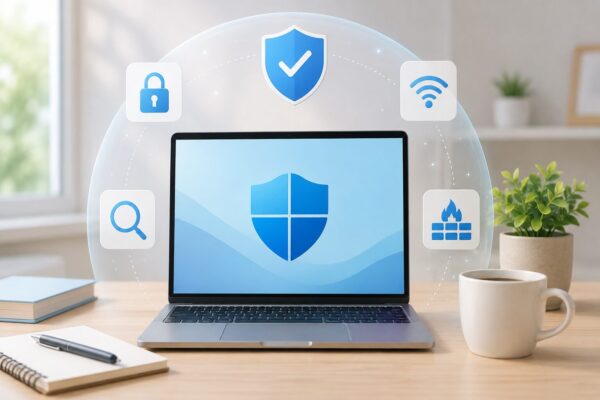
If you use Windows 10 or Windows 11, your PC already includes Microsoft’s built-in security protection.
This is called Microsoft Defender Antivirus, and you can manage it from the Windows Security app.
Microsoft Defender helps protect your PC by:
- scanning files and apps in real time
- checking for viruses and other malware
- offering quick and full security scans
- helping protect against ransomware
- blocking some suspicious websites and apps with SmartScreen
- working with Windows Firewall for network protection
In simple words:
Most Windows PCs already have basic security protection, even if you never installed antivirus software yourself.
How to Check If Microsoft Defender Is Working
If you are not sure whether Microsoft Defender is active on your PC, don’t worry.
It only takes a minute to check.
Let’s go step by step.
Step 1: Open Windows Security
- Click the Start button.
- Type Windows Security.
- Click the app with the shield icon.
This opens your built-in Windows security settings.
👉How to Stop Unwanted Pop-ups and Notifications in Windows
Step 2: Look at the Main Protection Screen
You will see several protection areas, such as:
- Virus & threat protection
- Account protection
- Firewall & network protection
- App & browser control
Look at the icons:
✅ Green check mark = protection is working normally
⚠️ Yellow warning = something needs attention
❌ Red warning = protection may be turned off
If you see yellow or red, click that section and follow the suggested action.
Step 3: Check for Security Updates
- Click Virus & threat protection
- Scroll down to Virus & threat protection updates
- Click Protection updates
- Click Check for updates
This helps make sure Microsoft Defender has the latest protection.
👉Why Your Windows PC Feels Slow
What Microsoft Defender Is Good At (and What It Cannot Do)
What Microsoft Defender Does Well
Microsoft Defender has improved a lot over the years and now offers solid protection for many home users. Some key advantages:
- Built-in and free – no extra subscription required
- Good detection rates in independent antivirus tests
- Lightweight – usually doesn’t slow down everyday tasks
- Integrated with Windows Update – engine and signatures update automatically
- Easy to manage for non-technical users
For many home users with ordinary habits, Defender already gives solid basic protection.
Where Microsoft Defender Has Limits
No security software is perfect, and Microsoft Defender is no exception. Defender still has some limitations:
- It’s not a full “security suite” with banking protection or payment shields
- Phishing and fake websites are still a big risk if you click without thinking
- It doesn’t manage your passwords and logins
- Alerts can be confusing: non-technical users might click “Allow” without understanding
In simple words:
Defender is strong against malware itself,
but it cannot completely protect you from tricks that target humans.
That’s why your habits, passwords and browser behavior are as important as the antivirus engine.
👉Microsoft Suspicious Sign-In Alert: What to Do Next
Self-Check: Is Defender Enough for You?
Use this small checklist to decide whether you should stay with Defender only or add more protection.
A. Signs Defender Alone Is Probably Fine
Tick the boxes that apply:
☐ I mainly watch videos, read news, and use social media.
☐ I only install apps from official stores or well-known websites.
☐ I rarely open attachments from unknown senders.
☐ I only use official banking sites or apps, opened from my own bookmarks.
☐ I don’t store sensitive client or business data on this PC.
☐ Other people don’t use my PC without my supervision.
If you checked 4 or more, Defender — with good settings — is likely enough for you.
B. Signs You Should Add Extra Protection
Tick what applies:
☐ I often handle money-related tasks (banking, trading, crypto).
☐ I work from home and deal with customer or company data.
☐ I sometimes visit “grey area” sites (software cracks, unknown downloads).
☐ I connect my laptop to public Wi-Fi in cafés, hotels or airports.
☐ I have trouble telling real emails from phishing attempts.
☐ I share this PC with family members who are not careful online.
If you checked 2 or more, it’s worth considering one or more of these:
- A paid security suite with stronger web and banking protection
- A password manager
- A reliable VPN when on public Wi-Fi
- Extra backups of important data
We’ll talk about each below.
How to Get 120% Out of Microsoft Defender
Even if you only use Defender, the configuration matters a lot.
Here are the key things you should check.
1. Make Sure Real-Time Protection Is On
- Open Windows Security → Virus & threat protection.
- Under “Virus & threat protection settings”, click Manage settings.
- Ensure Real-time protection is On.
If it’s off and you didn’t turn it off yourself, turn it back on immediately.
2. Turn On Ransomware Protection (Controlled Folder Access)
Ransomware encrypts your files and demands money to restore them. Defender has a feature to protect important folders.
- In Virus & threat protection, scroll down to Ransomware protection.
- Click Manage ransomware protection.
- Turn on Controlled folder access.
- Check which folders are protected (Documents, Pictures, Desktop, etc.).
If a trusted app is blocked, you can add it to the Allowed apps list – but only for programs you fully trust.
3. Use SmartScreen to Block Suspicious Apps & Sites
- Open Windows Security.
- Click App & browser control.
- For “Microsoft Defender SmartScreen”, set options to Block or Warn.
SmartScreen checks downloads and websites against a database of known threats.
It’s not perfect, but it can stop many accidental clicks on dangerous links.
4. Keep Windows and Apps Updated
Defender and Windows security patches arrive via Windows Update.
- Open Settings → Windows Update.
- Click Check for updates.
Install important security updates regularly. If you’re worried about big feature updates causing problems, you can decide to delay them but still keep security patches enabled.
Extra Protection Options to Add on Top of Defender
If your self-check in section B suggested higher risk, consider these layers.
1. One Good Paid Security Suite
Don’t install several antivirus programs at once. Instead, pick one reputable product that offers:
- Strong web and phishing protection
- Banking/payment protection or browser isolation
- Good support options (chat or phone)
- A low impact on performance
Many of them can work alongside some Defender features, but as a general rule, let the paid suite handle real-time protection, and use Defender as a backup scanner if needed.
💡 Tip: Don’t buy just because of a scary pop-up or random ad.
Use trusted reviews and official stores, or your own Amazon affiliate recommendations.
2. Password Manager
Even the best antivirus can’t protect you from weak or reused passwords.
A password manager helps you:
- Use a different, strong password for every website
- Store them in encrypted form
- Auto-fill logins without typing them each time
- Sync passwords across PC and smartphone
Start by protecting your email, bank, main shopping sites and cloud services.
Enable two-factor authentication (2FA) wherever possible.
3. VPN for Public Wi-Fi
A VPN (Virtual Private Network) is useful if you often:
- Work from cafés, hotels or co-working spaces
- Use airport or train-station Wi-Fi
- Travel frequently with your laptop
A good VPN:
- Encrypts your internet traffic
- Makes it harder for attackers on the same Wi-Fi to snoop on your data
- Is especially important when logging in to email or work systems on public networks
At home on your private router, VPN is less critical, but still useful for some people.
Special Note for Windows 10 Users Near End of Support
If you’re still using Windows 10, pay attention to support timelines:
- Once support fully ends, you no longer receive security patches
- Defender alone cannot compensate for an unpatched operating system
- Many security suites will also gradually drop support for old Windows versions
If you plan to stay on Windows 10 for a while:
- Keep all security updates installed while they are still available
- Use a browser that still supports Windows 10 and updates regularly
- Start planning for a future move to Windows 11 or a new device
What to Do If You Think You Might Be Infected
If you suspect something is wrong:
- Disconnect from the network (turn off Wi-Fi / pull out the cable).
- Run a Full scan with Defender.
- Note any threat names or file paths it shows.
- Don’t ignore browser warnings or strange pop-ups – take screenshots.
- Change passwords for important accounts (email, banking) from a known-clean device.
- If the problem continues, consider:
- Asking a professional support service
- Restoring from a clean backup
- As a last resort, resetting or reinstalling Windows
[Sponsored]
Looking for extra protection beyond Windows Defender?
- Stronger phishing and malicious website blocking
- Dedicated online banking and payment protection
- Automatic scans and updates — ideal for non-technical users
Final Thoughts: Is Microsoft Defender Enough?
For many everyday home users, the answer is yes.
Microsoft Defender offers solid built-in protection for Windows 10 and Windows 11, and for normal daily use, it is often enough.
However, no antivirus software is perfect.
Recent security vulnerabilities, such as CVE-2026-41091, remind us that staying updated is always important.
The good news is that you do not need to panic.
Simple habits can make a big difference:
- keep Microsoft Defender updated
- install Windows security updates
- avoid suspicious downloads
- be careful with links and email attachments
- use strong passwords
If you handle sensitive work, online banking, or use public Wi-Fi often, adding extra protection may be a smart idea.
But for many people, Microsoft Defender + safe habits = a strong starting point.
Security does not need to be complicated.
Taking a few simple steps today can help keep your PC much safer.