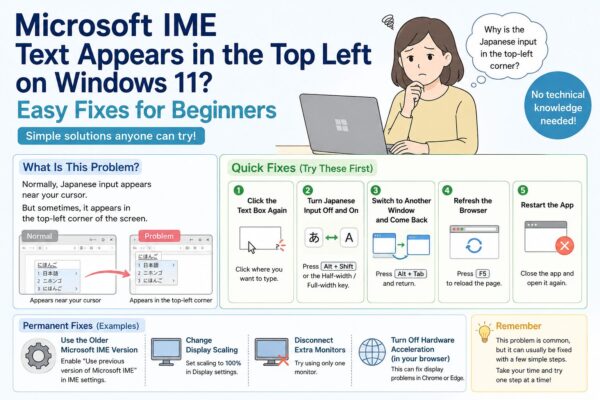
Have you ever started typing in Japanese on your Windows PC, only to see the text or conversion box appear in the top-left corner of the screen instead of near your cursor?
It can feel strange and frustrating.
You may think:
“Is my PC broken?”
“Did Windows update cause this?”
“Is Microsoft IME not working?”
Don’t worry.
In most cases, your computer is not broken.
This usually happens because Microsoft IME cannot correctly detect where your text cursor is.
The good news is that this problem is often easy to fix.
In this guide, we will show simple step-by-step fixes for beginners.
No technical knowledge is needed.
Important:
The names of buttons, menus, and settings may look slightly different depending on your Windows version, PC brand, language settings, or recent updates.
If your screen looks different, don’t worry—just look for a similar option.
- 1 What Is This Problem?
- 2 Quick Fixes (Try These First)
- 3 Permanent Fixes (Step by Step)
- 4 Fix 1: Use the Older Microsoft IME Version
- 5 Fix 2: Change Display Scaling
- 6 Fix 3: Disconnect Extra Monitors
- 7 Fix 4: Turn Off Hardware Acceleration in Your Browser
- 8 Why Does This Problem Keep Coming Back?
- 9 Frequently Asked Questions (FAQ)
- 10 Final Thoughts
What Is This Problem?
Normally, when you type in Japanese, the text and conversion suggestions appear near your cursor.
But sometimes, they appear in the top-left corner of the screen instead.
This can happen in:
- Google Docs
- WordPress editor
- chat apps
- Remote Desktop
- full-screen apps
- dual monitor setups
This is usually not a hardware problem.
It is often a display position problem between Microsoft IME and the app you are using.
In simple words:
Your computer does not know exactly where to show the Japanese input box.
So it shows it in the wrong place.
Quick Fixes (Try These First)
If you need a fast fix, try these simple steps first.
These methods often solve the problem in less than a minute.
1. Click the Text Box Again
This is the easiest fix.
Click inside the text box where you want to type.
Then try typing in Japanese again.
Sometimes Microsoft IME loses the correct position, and a simple click fixes it.
2. Turn Japanese Input Off and On
Try switching the input mode.
Press:
Alt + Shift
or
the Half-width / Full-width key
(depending on your keyboard)
Then turn Japanese input back on.
This refreshes Microsoft IME.
3. Switch to Another Window and Come Back
Press:
Alt + Tab
Move to another app.
Then return to your original app.
This can refresh the cursor position.
4. Refresh the Browser
If this happens in Chrome, Edge, WordPress, or Google Docs:
Press:
F5
This reloads the page.
Sometimes the problem disappears immediately.
5. Restart the App
If nothing works, close the app completely.
Then open it again.
This often fixes temporary display problems.
Permanent Fixes (Step by Step)
If the quick fixes did not work, try these longer fixes.
Take your time.
You do not need to try everything at once.
Fix 1: Use the Older Microsoft IME Version
Some apps work better with the older Microsoft IME.
This can fix position problems.
Steps:
- Open Settings
- Click Time & Language
- Click Language & Region
- Click the three dots (…) next to Japanese
- Select Language options
- Find Microsoft IME
- Click Keyboard options
- Look for:
Use previous version of Microsoft IME
- Turn it ON
- Restart your app
If you cannot find the exact option name, look for something similar.
Windows updates sometimes change menu names.
Fix 2: Change Display Scaling
Display scaling can cause position problems.
This is common if text on your screen looks larger than normal.
Steps:
- Open Settings
- Click System
- Click Display
- Find Scale
- Change it to:
100%
- Test Japanese input again
If the problem is fixed, your previous scaling setting may be the cause.
Fix 3: Disconnect Extra Monitors
If you use two or more screens, this may be the cause.
Windows sometimes gets confused about cursor position.
Try this:
- Disconnect the second monitor
- Use only one screen
- Test Japanese input again
If it works, the issue may be related to multi-monitor settings.
Fix 4: Turn Off Hardware Acceleration in Your Browser
If this only happens in Chrome or Edge, try this.
Steps:
- Open your browser
- Open Settings
- Search for:
hardware acceleration
- Turn it OFF
- Restart the browser
This can fix display-related problems.
Why Does This Problem Keep Coming Back?
You fixed it…
But then it happens again.
Why?
This is actually common.
Here are some reasons.
1. Windows Updates Changed Something
After a Windows update, display settings or Microsoft IME behavior may change.
This can make the problem come back.
If the issue started after an update, this may be the reason.
2. Your App Updated
Browsers and apps also change.
For example:
- Chrome
- Edge
- WordPress editor
- Google Docs
- chat apps
A small app update can change how text is displayed.
3. Sleep Mode or Restart Problems
Sometimes Windows forgets the correct screen position after:
- sleep mode
- restarting
- connecting or disconnecting a monitor
This can cause temporary display issues.
4. Multiple Monitor Settings
If you use more than one monitor, Windows may calculate the wrong position.
This is especially common if:
- one monitor uses 100% scaling
- another uses 125% or 150%
Mixed display settings often cause problems.
5. Temporary Windows Glitches
Sometimes Windows just has temporary bugs.
Yes, it happens.
In many cases, the problem disappears after the next update.
Frequently Asked Questions (FAQ)
Is my PC broken?
Probably not.
In most cases, this is just a Microsoft IME display problem.
Your hardware is usually fine.
Does this happen only on Windows 11?
No.
This can also happen on Windows 10.
The steps may look slightly different, but many fixes are the same.
Will restarting my PC fix this?
Sometimes, yes.
A restart can clear temporary Windows problems.
But if the issue keeps coming back, you may need to change settings.
What if I cannot find the exact settings?
That is normal.
Windows menu names can change after updates.
Different PC brands may also show slightly different options.
Look for a similar setting.
Does this happen only in Chrome?
No.
It can happen in many apps, such as:
- Chrome
- Edge
- Google Docs
- WordPress
- chat apps
- Remote Desktop
Can I use another Japanese input tool?
Yes.
Some people try Google Japanese Input instead of Microsoft IME.
But for most users, changing Windows settings is enough.
Final Thoughts
If Japanese text appears in the top-left corner of your screen, your PC is probably not broken.
In most cases, this is a Microsoft IME display problem.
Try these fixes:
- click the text box again
- turn Japanese input off and on
- restart the app
- change display scaling
- try the older Microsoft IME version
If one fix does not work, do not worry.
Try the next one.
This is a common Windows problem, and it can usually be fixed in a few minutes.