- 1 How to Show Hidden Files in Windows 11 (Quick Answer)
- 2 What Are Hidden Files (And Why Can’t You See Them?)
- 3 Method 1: The Easiest Way (Best for Beginners)
- 4 Method 2: Show All Hidden Files (Advanced Settings)
- 5 Method 3: Show Protected System Files (Advanced Users Only)
- 6 What to Do If Hidden Files Are Still Not Showing
- 7 Common Questions (FAQ)
- 8 Pro Tip: Why People Usually Need Hidden Files
- 9 When Should You Actually Use Hidden Files?
- 10 Important Safety Tips (Very Important for Beginners)
- 11 Bonus: Quick Way to Open AppData (Most Common Use)
- 12 Summary
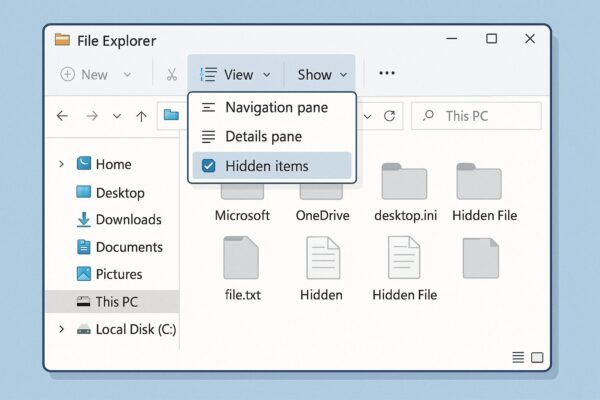
How to Show Hidden Files in Windows 11 (Quick Answer)
If you can’t find a folder like AppData, don’t worry — it is hidden by default.
Here is the quickest way to show hidden files:
- Press Windows + E to open File Explorer
- Click View at the top
- Click Show → Hidden items
That’s it. Hidden files will appear immediately.
What Are Hidden Files (And Why Can’t You See Them?)
Windows hides some files on purpose.
These files are important for your system, such as:
- System settings
- App data (like AppData folder)
- Temporary files
Microsoft hides them to protect your computer from accidental changes or deletion.
So if you can’t see them, that is normal and safe.
Method 1: The Easiest Way (Best for Beginners)
This is the method most people should use.
Steps:
- Open File Explorer
- Click View
- Select Show
- Turn on Hidden items
✔ Takes only a few seconds
✔ No technical knowledge needed
✔ Can be turned off anytime
This is the safest and recommended way
Method 2: Show All Hidden Files (Advanced Settings)
If you want more control, use this method.
Steps:
- Open File Explorer
- Click the three dots (… ) at the top
- Select Options
- Go to the View tab
- Choose “Show hidden files, folders, and drives”
- Click OK
This will show more hidden items across your system.
Method 3: Show Protected System Files (Advanced Users Only)
You can also show system-level files, but this is risky.
Steps:
- Open Folder Options
- Go to the View tab
- Uncheck:
“Hide protected operating system files (Recommended)”
⚠ Warning:
- These files are critical for Windows
- Deleting or editing them may break your system
Only do this if you really know what you are doing
What to Do If Hidden Files Are Still Not Showing
If the setting is on but you still don’t see files, try these fixes:
1. Restart File Explorer
Sometimes it just needs a refresh.
2. Restart Your PC
A simple restart can fix many issues.
3. Check Work or School Restrictions
Some computers (like office PCs) block these settings.
4. Check Security Software
Antivirus programs may hide certain files.
Common Questions (FAQ)
Q. Is it safe to show hidden files?
Yes, it is safe to view them.
But be careful not to delete or change them.
Q. Can I delete hidden files?
Not recommended.
Some files are required for Windows to work properly.
Q. Is this the same in Windows 10?
Yes. The steps are almost the same.
Pro Tip: Why People Usually Need Hidden Files
Most users look for hidden files when:
- They need to open AppData
- They want to fix a program issue
- They are following a troubleshooting guide
If that’s your case, you are on the right track.
When Should You Actually Use Hidden Files?
You might wonder:
“Why would I even need to see hidden files?”
Here are some common situations where this feature is useful:
1. Fixing App or Software Problems
Some apps store important data in hidden folders like AppData.
If a program is not working correctly, you may need to access these files.
2. Following Troubleshooting Guides
Many online guides (including Microsoft support) ask you to:
- Open a hidden folder
- Delete a temporary file
- Reset settings
In these cases, showing hidden files is necessary.
3. Cleaning Up Your PC
Advanced users sometimes remove:
- Temporary files
- Cache files
- Old configuration files
This can help free up space or fix issues.
4. Customizing Windows
Some hidden files allow deeper customization, such as:
- Changing system behavior
- Modifying app settings
- Tweaking advanced options
Important Safety Tips (Very Important for Beginners)
Before you start opening hidden files, keep this in mind:
✔ Looking is safe
✔ Changing or deleting is risky
Here are simple rules to stay safe:
- Do not delete files unless a guide tells you to
- Avoid system folders if you are unsure
- Always double-check before making changes
👉 A good rule:
If you don’t know what a file does, don’t touch it
Bonus: Quick Way to Open AppData (Most Common Use)
Many users search for hidden files because they need AppData.
Here is the fastest way to open it:
- Press Windows + R
- Type: %appdata%
- Press Enter
This will open the folder instantly — even if it is hidden.
This is often easier than manually enabling hidden files.
Summary
- Hidden files are hidden for safety
- You can show them in View → Hidden items
- Advanced settings allow deeper access
- Be careful with system files
If you are unsure, just enable viewing and do not modify anything
Related Articles You Might Like
▶︎Essential Windows Tips for Working Safely and Comfortably Outside
▶︎OneNote for Windows 10 Support Ending: What’s Happening and How to Prepare
▶︎WSUS Clients Not Updating? Common Causes and How to Fix Them
▶︎Create a System Restore Point in Windows 11 (Beginner-Friendly Guide)
▶︎How to Check Your IP Address in Windows 11 (Beginner Guide)