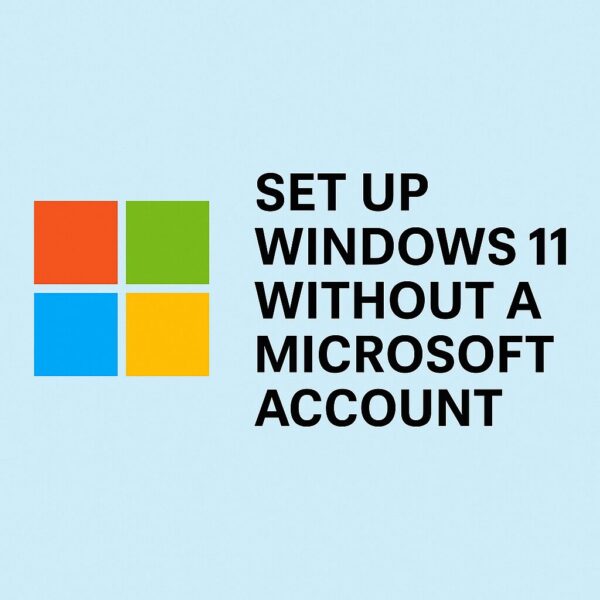
Many people want to use Windows 11 without signing in to a Microsoft account.
Some prefer a simple local account.
Others want more privacy, fewer cloud features, or an offline setup for a second PC, test machine, or family computer.
But in recent versions of Windows 11, Microsoft has made this harder — especially on Windows 11 Home.
Older tricks that worked in 2024 or 2025 no longer work reliably today.
This guide explains:
- What still works in 2026
- Which older methods are now blocked
- The safest official method
- What you lose when using a local account
- Beginner-friendly setup steps
This article is written for regular users — no advanced technical knowledge required.
- 1 First: Is It Still Possible?
- 2 The Most Reliable Method in 2026 (Recommended)
- 3 How to Switch to a Local Account After Setup
- 4 Can You Still Skip the Microsoft Account During Setup?
- 5 Older Method That No Longer Works Reliably
- 6 What Is a Local Account?
- 7 Why Microsoft Pushes Online Accounts
- 8 Important Warning About YouTube “Bypass Tricks”
- 9 What About Rufus?
- 10 Troubleshooting
- 11 FAQs
- 12 Final Thoughts
First: Is It Still Possible?
Yes — but it depends on your Windows version and setup screen.
Microsoft now strongly pushes Microsoft-account sign-in during setup (OOBE).
On many newer Windows 11 builds:
- Internet is required
- Microsoft account sign-in is encouraged
- Older bypass methods may fail
However, there are still a few working options.
The Most Reliable Method in 2026 (Recommended)
The safest and most future-proof method is:
Finish setup first → switch to a local account later
This is Microsoft’s official supported method.
It works on:
- Windows 11 Home
- Windows 11 Pro
- New laptops
- Clean installs
- Most future updates
How to Switch to a Local Account After Setup
Step 1: Finish Windows setup normally
During setup:
- Connect to Wi-Fi
- Sign in with a Microsoft account
- Finish installation
Once you reach the desktop, continue below.
Step 2: Open Settings
Click:
Start → Settings
Step 3: Go to Accounts
Select:
Accounts → Your info
Step 4: Choose “Sign in with a local account instead”
Windows will guide you through:
- Creating a username
- Setting a password
- Switching accounts
After restarting, your PC will use a local account instead of a Microsoft account.
This is currently the most stable and officially supported option.
Can You Still Skip the Microsoft Account During Setup?
Sometimes — yes.
But these methods are unofficial and may stop working after future updates.
Method That Sometimes Still Works
At the “Let’s connect you to a network” screen:
Press:
Shift + F10
This opens Command Prompt.
Then type:
start ms-cxh:localonlyIf the command still works on your build, Windows may open the local-account creation screen directly.
However:
- It does not work on all versions
- Microsoft may disable it later
- Some newer builds already block it
Because of this, the official method above is safer long-term.
Older Method That No Longer Works Reliably
You may still see guides online recommending:
OOBE\BYPASSNROThis older trick used to allow offline setup.
But Microsoft has removed or blocked it on many newer Windows 11 builds.
Today:
- It may work on older installation media
- It often fails on newer installers
- It is no longer considered reliable
If it fails, that is normal in 2026.
What Is a Local Account?
A local account is an account stored only on your PC.
It does not automatically connect to:
- OneDrive
- Microsoft Store sync
- Cloud backup
- Cross-device sync
You simply log in with:
- Username
- Password
like older versions of Windows.
Microsoft Account vs Local Account
| Feature | Microsoft Account | Local Account |
|---|---|---|
| Internet required during setup | Usually yes | Sometimes no |
| OneDrive sync | Yes | No |
| Settings sync | Yes | No |
| Microsoft Store convenience | Easier | Manual sign-in needed |
| Password recovery | Online | Local only |
| Privacy | More cloud-connected | Less cloud-connected |
| Best for | Everyday users | Simple/offline setups |
Why Microsoft Pushes Online Accounts
Microsoft accounts help enable:
- OneDrive backup
- Microsoft Store apps
- Device syncing
- Password recovery
- Windows settings backup
For many casual users, this is actually convenient.
But some users still prefer local accounts for:
- Privacy
- Offline use
- Test PCs
- Guest computers
- Lab environments
- Simplicity
Both choices are valid.
Important Warning About YouTube “Bypass Tricks”
Be careful with random videos claiming:
- “Permanent bypass”
- “Secret registry hack”
- “Never need Microsoft account again”
Some guides:
- Stop working after updates
- Use unsafe scripts
- Modify system files
- Cause setup problems later
If you are not experienced, avoid risky unofficial modifications.
What About Rufus?
Some users create Windows installation USB drives using Rufus.
Rufus sometimes offers setup customization options that can reduce Microsoft-account requirements during installation.
However:
- Features vary by Windows version
- Microsoft can change compatibility later
- Options may disappear in future builds
This is more suitable for advanced users.
Troubleshooting
Shift + F10 Does Nothing
Try:
- Fn + Shift + F10 on laptops
- External USB keyboard
- Restarting setup
Some laptops use special function-key behavior.
“start ms-cxh:localonly” Does Not Work
This usually means:
- Your Windows build blocks it
- You are on a newer installer
- The command was changed
In this case, use the official switch-after-setup method.
You Cannot Find “Local Account” Option
Make sure you are checking:
Settings → Accounts → Your info
Sometimes Windows hides the option slightly lower on the page.
FAQs
Is using a local account safe?
Yes.
A local account is fully supported by Windows.
You simply lose some cloud-connected features.
Can I switch back later?
Yes.
You can move between:
- Local account
- Microsoft account
at any time in Settings.
Will Windows Update still work?
Yes.
Windows Update works normally with a local account.
A Microsoft account is not required for standard updates.
Can I still use Microsoft Store apps?
Yes — but some apps may ask you to sign in separately.
Is Windows 11 Home stricter than Pro?
Usually yes.
Windows 11 Home pushes online setup more aggressively than Pro.
Final Thoughts
In 2026, Microsoft continues moving Windows 11 toward online account usage.
Older bypass tricks are becoming less reliable over time.
For most people, the best approach today is:
- Finish setup normally
- Switch to a local account afterward
It is simple, stable, and officially supported.
If you still want to try bypass methods during setup, understand that they may stop working after future updates.
Recommended Articles for You
▶︎Windows 11 Setup Without a Microsoft Account (2025 Guide + FAQs)
▶︎⚠️ How to Handle Suspicious Sign-In Activity on Your Microsoft Account
▶︎Is Office 2024 Worth It? Microsoft 365 vs. Perpetual License Explained
▶︎WSUS Clients Not Updating? Common Causes and How to Fix Them
▶︎How to Check Your IP Address in Windows 11 (Beginner Guide)