- 1 Start button not responding? Don’t worry.
- 2 Quick Fix (Try This First)
- 3 Why the Start Button Stops Working
- 4 Step-by-Step Fix (Easy to Follow)
- 5 Fix 5: Check Windows Update
- 6 Fix 6: Close background apps
- 7 Fix 7: Clean Boot (Advanced but Safe)
- 8 Fix 8: Repair system files
- 9 When You Should NOT Worry
- 10 What NOT to Do
- 11 If Nothing Works
- 12 Special Case: Start Button Works with Keyboard but Not Mouse
- 13 Alternative Ways to Open Start (Temporary Workaround)
- 14 Pro Tip: Reduce Startup Load
- 15 Final Tip
- 16 Conclusion
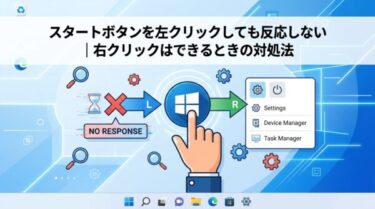
Start button not responding? Don’t worry.
You click the Start button…
But nothing happens.
It feels scary.
But in most cases:
This is easy to fix.
You don’t need to reset your PC.
Quick Fix (Try This First)
Before anything else, try this:
✔ Restart Windows Explorer
- Press Ctrl + Shift + Esc
- Find Windows Explorer
- Click Restart
This fixes many cases instantly.
Why the Start Button Stops Working
Simple reasons:
- Windows process is stuck
- Background apps are interfering
- Temporary system glitch
Most of the time, it’s NOT serious.
Step-by-Step Fix (Easy to Follow)
Fix 1: Press the Windows key
Try this:
Press the Windows key on your keyboard
If it works:
The button is not broken.
It’s just a temporary issue.
Fix 2: Restart Windows Explorer
(Important step)
- Press Ctrl + Shift + Esc
- Select Windows Explorer
- Click Restart
Your screen may flicker (this is normal).
Fix 3: Restart Start Menu process
- Open Task Manager
- Find StartMenuExperienceHost
- Click End task
It will restart automatically.
Fix 4: Restart your PC
Simple but powerful
Many issues fix after reboot.
Fix 5: Check Windows Update
- Open Settings
- Go to Windows Update
- Install updates
Restart after updating.
Fix 6: Close background apps
Some apps can break the Start menu:
- Screen recording apps
- Old antivirus software
- Overlay tools
Close them and test again.
Fix 7: Clean Boot (Advanced but Safe)
If the problem continues:
Start Windows with minimal apps.
Steps:
- Press Win + R
- Type
msconfig - Disable non-Microsoft services
- Restart
If it works → app conflict.
Fix 8: Repair system files
If Windows files are damaged:
Run this:
sfc /scannow
DISM /Online /Cleanup-Image /RestoreHealth
This repairs system issues.
When You Should NOT Worry
Important point
✔ If it happened suddenly
- It worked before
- No changes made
Likely temporary issue.
✔ If it fixes after restart
No serious problem.
✔ If others have same issue
Could be Windows update bug.
What NOT to Do
Avoid these mistakes:
- Don’t reset Windows immediately
- Don’t delete system files
- Don’t install random tools
Start with simple fixes first.
If Nothing Works
Try these:
✔ Create a new user account
→ Check if problem is profile-based.
✔ System Restore
→ Go back to a working state.
✔ Repair install
→ Fix Windows without losing data.
Special Case: Start Button Works with Keyboard but Not Mouse
Sometimes this happens:
- Keyboard (Windows key) works
- Mouse click does NOT work
This is a different type of problem.
Why this happens
Common causes:
- Mouse driver issue
- Touchpad or USB problem
- Click detection bug
How to fix it
Try these:
- Plug your mouse into another USB port
- Try another mouse (if possible)
- Restart your PC
- Update your mouse driver
If another mouse works:
Your original mouse may be the problem.
Alternative Ways to Open Start (Temporary Workaround)
Even if the Start button is broken, you can still use Windows.
✔ Use keyboard shortcuts
- Press Windows key
- Press Win + X → opens quick menu
✔ Use Search
- Press Win + S
- Type what you need
✔ Use Task Manager
- Press Ctrl + Shift + Esc
- Click File → Run new task
- Type:
explorer.exe
This can restore the taskbar.
Pro Tip: Reduce Startup Load
If this problem happens often:
Your PC may be overloaded at startup.
Fix it:
- Open Settings → Apps → Startup
- Turn OFF unnecessary apps
This improves:
- Start menu speed
- Overall performance
Final Tip
If the Start button is not working:
✓Don’t panic
✓It’s usually a small issue
Start with simple steps.
Fix it step by step.
Conclusion
Most Start button problems are:
・Temporary
・Easy to fix
Just follow:
Restart → Update → Check apps
You can fix it in minutes.