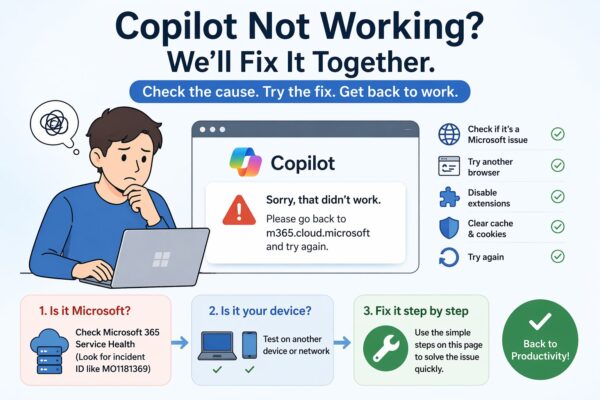
Copilot not working?
Seeing “Sorry, that didn’t work”?
Don’t worry. You are not alone.
This problem is happening to many users right now.
But in most cases, you can fix it in a few minutes.
In this guide, I will show you:
- Why Copilot is not working
- How to check if it’s your PC or Microsoft
- Simple fixes (step-by-step)
✔ Quick Answer
Most Copilot errors are caused by one of these:
- Temporary Microsoft service issue
- Browser problem (Edge / cache / extensions)
- Security blocking (SmartScreen or antivirus)
Try this first:
- Open Copilot in another browser (Chrome)
- Use Incognito mode
- Check Microsoft 365 Service Health
Why Copilot Is Not Working
There are 3 main reasons:
1. Microsoft service issue
Sometimes, the problem is not your PC.
Microsoft may have a temporary issue.
(Example: incident like MO1181369)
In this case:
You cannot fix it. Just wait.
2. Browser problem
Your browser may cause errors.
Common causes:
- Too many extensions
- Broken cache
- Old browser version
3. Security blocking
Sometimes, security blocks Copilot by mistake.
Example:
- SmartScreen warning in Edge
- Antivirus blocking Microsoft sites
This is often a false alarm.
Is It Your PC or Microsoft?
Use this simple check:
- Works in another browser → Your PC problem
- Works on another device → Your PC problem
- Not working anywhere → Microsoft problem
This step saves a lot of time.
How to Fix Copilot (Step-by-Step)
Fix 1: Use another browser
Try Chrome or Firefox.
This fixes many cases instantly.
Fix 2: Use Incognito mode
Open private window:
- Edge → Ctrl + Shift + N
- Chrome → Ctrl + Shift + N
Extensions are OFF here.11
Fix 3: Clear browser cache
Steps:
- Open settings
- Go to Privacy
- Clear browsing data
Select “Last 24 hours”.
Fix 4: Disable extensions
Extensions often break Copilot.
Turn OFF all → test → turn ON one by one.
Fix 5: Update your browser
Old versions can crash or fail.
Always use latest version.
Special Case: SmartScreen Warning
Sometimes Edge shows:
“This site is unsafe”
Even for Microsoft sites.
This is usually a false positive.
What to do:
- Do NOT panic
- Use another browser
- Try again later
When You Should NOT Fix It (Important)
Sometimes, trying to fix the problem can make things worse.
Before you change many settings, check this:
✔ If many people have the same problem
- You saw posts online (X, Reddit)
- Your colleague has the same issue
- It does not work on another device
Then it is probably a Microsoft issue.
✔ If the error suddenly appeared
- It was working yesterday
- No settings were changed
- No new apps installed
This is often a temporary service problem.
✔ If Copilot works sometimes, but not always
- It loads, then fails
- It works after refresh
This is usually server instability.
What You Should Do Instead
If you think it’s not your PC:
- Do NOT reset your browser immediately
- Do NOT reinstall Windows
- Do NOT change many settings
Instead:
- Use another browser (temporary fix)
- Wait a few hours
- Check again later
Many users make this mistake:
✓They try to “fix everything”.
✓Then create new problems.
But the truth is:
Some issues fix themselves.
FAQ
Q. Copilot works on phone but not PC
Your PC or browser is the problem
Q. Should I reinstall Edge?
No. Try simple fixes first
Q. Is this a virus?
No. Most cases are safe
Final Tip
If Copilot is not working:
- Don’t panic
- Check first
- Fix step-by-step
Most problems are easy to fix.
- Task Manager Won’t Close on Windows 11? Check for Hidden Taskmgr.exe
- Microsoft 365 Copilot Notebooks: How to Use Them for Focused Work
- Windows Start Button Not Responding: Simple Step-by-Step Fix
💡 Looking for more tips? Check out our full list of Windows Help Guides.