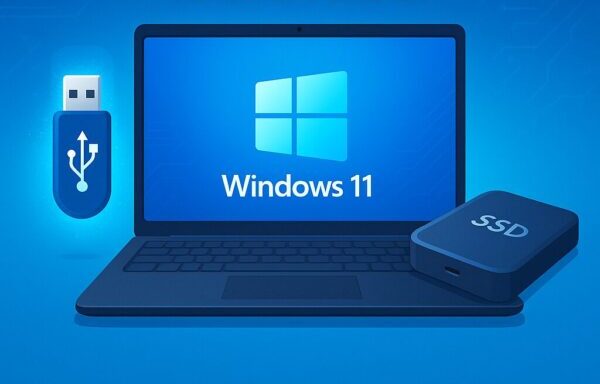
Need a Fresh Start for Your Windows 11 PC?
If your Windows 11 PC feels slow, keeps freezing, shows strange errors, or just does not work the way it should, you may be thinking about starting over.
A clean install removes Windows and installs a fresh copy from scratch.
It can solve deep system problems, remove unwanted software, and help your PC feel fast again.
But it can also feel scary if you have never done it before.
What if you lose your files?
What if Windows does not activate?
What if the USB installer does not work?
Don’t worry.
This beginner-friendly guide will walk you through the process step by step, from preparing your files to installing Windows and setting everything up again.
No confusing jargon. Just clear instructions.
What Is a Clean Install of Windows 11?
A clean install means removing your existing Windows installation and reinstalling the operating system alone.
This gives Windows a completely fresh start, without old settings, apps, or broken system files.
When Should You Perform a Clean Install?
| Situation | Explanation |
|---|---|
| Unstable system | Frequent crashes, freezes, or errors that don’t go away after rebooting |
| After malware infection | Performance remains slow even after virus removal |
| Storage nearly full | System files, cache, and old apps piling up beyond cleanup tools’ capabilities |
| Post-update issues | Major Windows 11 updates (e.g., 24H2) causing boot loops or recurring errors |
| Selling or giving away PC | Ensures all personal data is erased securely |
Some users experience persistent problems after major Windows 11 updates, and in those cases, a clean install can be one of the most effective solutions.
Preparation Before a Clean Install
Success depends on preparation. Skipping these steps can result in data loss or activation errors.
1. Back Up Your Data
Use an external SSD/HDD, USB drive, or cloud storage (OneDrive, Google Drive, Dropbox). Don’t forget:
- Desktop, Documents, Downloads folders
- Photos, videos, work files
- Outlook profiles, browser bookmarks
- Wi-Fi SSIDs and passwords
- Software license keys (Office, Adobe, etc.)
👉 Pro Tip: Export your browser bookmarks and password manager data separately to avoid headaches later.
2. Confirm Your Windows Product Key
- Windows 10/11 often activates automatically through digital licenses tied to your hardware.
- Still, it’s wise to note down the key:
Run Command Prompt (Admin) and type:
Most Windows 10 and 11 PCs use digital activation, so you may not need to enter a product key manually.
If nothing appears, don’t panic. OEM systems store the key in the BIOS, and activation usually works automatically.
3. Create Installation Media
You’ll need:
- A USB drive (8GB+)
- A working PC (if you need to create installation media)
- Microsoft’s official installation media tool
Steps:
- Visit Microsoft’s download page
- Download the Media Creation Tool
- Run it → Select “USB flash drive” → Create installation media
⚠️ Note: The USB contents will be erased, so double-check before using it.
💡 If you own an older PC, plug the USB into a USB 2.0 port for higher boot compatibility.
Step-by-Step: Performing the Clean Install
Step 1: Boot From the USB Installer
- Shut down your PC completely
- Power on and immediately press the BIOS/UEFI key (F2, F12, ESC, Delete, varies by manufacturer)
- Open the Boot menu and set USB drive as first priority
- Save and restart → Your PC should now boot from USB
Step 2: Windows Setup
- Click Install Now
- Enter your product key (or skip for now)
- Choose Custom: Install Windows only
- Select the target drive → Delete partitions → Create new → Next
- Installation begins (usually 30–60 minutes depending on hardware)
👉 Be careful when deleting partitions — erase only the system drive unless you’re sure about others.
Common Issues During Installation
| Problem | Solution |
|---|---|
| Drive not detected | Load storage drivers from a USB stick |
| Installation stuck | Recreate installation media, try another USB port |
| Product key error | Skip entry; activation often works later |
| No internet after install | Install LAN/Wi-Fi drivers manually |
| Missing drivers for devices | Download from your PC manufacturer’s website |
Initial Setup After Installation
After reboot, you’ll configure:
- Wi-Fi or Ethernet connection
- Microsoft account sign-in
- Apply Windows Update immediately (crucial for drivers and security)
- Reinstall apps from official sources
- Restore files from backup (scan with antivirus first)
Many post-install issues like “no sound” or “low resolution” are caused by missing drivers. Updates usually fix this automatically.
Extra Tips for a Smoother Installation
1. Try a Reset First
If you’re nervous about wiping everything, use Reset this PC (keep personal files option). It reinstalls Windows but preserves documents.
2. Secure Boot & TPM Tweaks
If your PC does not boot from the USB installer, check your boot settings in BIOS/UEFI. Some PCs may require changing boot order settings.
3. Prepare Microsoft Account Ahead
Ensure your Microsoft account login, recovery email, and phone number are updated to avoid sign-in delays.
4. Use USB 2.0 for Stability
Older motherboards sometimes struggle with USB 3.0 installers. Switching to USB 2.0 avoids random freezes.
5. Offline Driver Backup
If your PC uses special drivers (Wi-Fi, graphics, touchpad, etc.), downloading them from your manufacturer’s support page before reinstalling can save time later.
FAQ
Q: Can I recover data after a clean install?
A: Generally no. Backup is your lifeline.
Q: Can I clean install on OEM/manufacturer PCs?
A: Yes, but you’ll likely need to reinstall drivers manually.
Q: What if I don’t know my product key?
A: Most Windows 10/11 systems use digital licenses and activate automatically.
Q: Which key opens the boot menu or BIOS?
A: Varies: Dell (F12), HP (ESC), Lenovo (F1/F2), ASUS (F2/Del). Search for “BIOS key + brand.”
Q: What if performance doesn’t improve?
A: The issue may be hardware-related (failing SSD, bad RAM). Run diagnostics if problems persist.
Final Thoughts
A clean install may sound intimidating at first, but many Windows users successfully do it by following the steps carefully.
The most important part is preparation.
Back up your files, create your installation media, and take your time during setup.
If your Windows 11 PC feels slow, unstable, or full of problems that basic fixes cannot solve, a clean install can often help.
You do not need to rush.
Go step by step, and you will have a much better chance of a smooth reinstall.
Related Articles
・USB Not Recognized on Windows? Try These Fixes [2025 Update]
・External HDD Not Recognized on Windows 11: Causes and Fixes (2025 Edition)