TL;DR
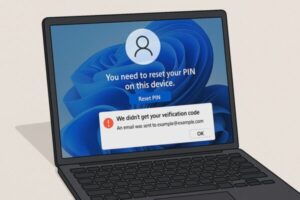
After a Windows 11 update, some users see “You need to reset your PIN on this device” and never receive the verification code. Start with email spam checks and account.microsoft.com sign‑in, then try a stable network or Safe Mode to sign in with password instead of PIN. If you’re blocked, use alternative verification (Microsoft Authenticator/recovery code), or unblock via Microsoft Support. Prevent lockouts by adding multiple security contacts and keeping recovery information up to date.
What’s going on (Nov 2025 snapshot)
- Windows 11 24H2/23H2 devices may prompt for a PIN reset after updates, especially when account or device trust needs to be re‑established.
- The code may not arrive due to email filtering, throttling, temporary Microsoft service issues, or outdated security info on your Microsoft account.
Good to know: The Windows Hello PIN is device‑specific. Resetting it doesn’t change your Microsoft account password, but you must pass identity verification to create a new PIN.
First things to try (quick wins)
1) Check mail on another device (Spam/Junk/Promotions)
- Open the mailbox tied to your Microsoft account on your phone or another PC.
- Check Spam/Junk/Promotions and add
microsoft.comto Safe senders. - If your provider lets you whitelist domains, do it before retrying the PIN flow.
2) Confirm your account works: account.microsoft.com
- From another device, sign in at account.microsoft.com.
- If you can’t sign in there, resolve the account issue first (unlock/reset via Microsoft).
3) Use a stable connection (prefer wired LAN)
- Switch from spotty Wi‑Fi/mobile hotspot to wired or reliable broadband.
- Retry the PIN reset after connectivity is solid.
4) Try Safe Mode and choose password instead of PIN
- On the lock screen, Shift + Restart → Troubleshoot → Advanced options → Startup Settings → Safe Mode.
- In Safe Mode the system may ask for your account password (not PIN).
- Once signed in, go to Settings → Accounts → Sign‑in options → PIN (Windows Hello) and set a new PIN.
5) Use Other sign‑in options at the login screen
- On the login screen, select Other sign‑in options and try password, security key, or another available factor.
- Many users forget the account password still works even if the PIN is blocked.
If the code still won’t arrive
A) Switch to an alternative verification method
- On the identity check step, look for “Show more verification methods” → choose Authenticator app or Recovery code if offered.
- If you’ve previously generated a 25‑character recovery code, you can use it to reset the PIN immediately.
B) Set up Microsoft Authenticator (before you need it)
- Add the app as a sign‑in/verification method on the Security tab of your Microsoft account.
- This often bypasses email delays and lets you approve prompts directly on your phone.
C) Update your Security info (backup emails/phone numbers)
- Remove outdated numbers and inactive emails.
- Add at least two working methods (secondary email and mobile) to increase fallback options.
D) Check Microsoft Service health
- If Microsoft’s sign‑in or mail delivery is degraded, the safest plan is to wait and retry later.
Tip: Don’t hammer retries every minute. If there’s backend delay, space attempts by 30–60 minutes.
Step‑by‑step recovery paths
Path 1 — You can sign in (password works)
- Sign in with Other sign‑in options → Password.
- Go to Settings → Accounts → Sign‑in options → PIN (Windows Hello) → I forgot my PIN.
- Choose a working verification method (Authenticator is best).
- Create a new PIN.
Path 2 — You can’t sign in at all
- Try Safe Mode and use the password path (above).
- If still stuck, from another device go to account.microsoft.com → Security → review/update Sign‑in methods and Security info.
- If necessary, start account recovery via Microsoft Support and submit requested verification.
Path 3 — Organization/IT‑managed devices
- Your organization may enforce Windows Hello for Business and centrally configured PIN reset policies. Contact IT to enable PIN reset service and confirm allowed verification methods.
Prevent future lockouts (do these now)
| Prevention | What to do |
|---|---|
| Add Authenticator | Set up the Microsoft Authenticator app as a verification method and enable notifications. |
| Multiple contacts | Register backup emails and a mobile number you actually control. |
| Keep info fresh | Remove old work/school addresses and numbers you no longer use. |
| Recovery code | Generate and store a single‑use recovery code in a safe place. |
FAQ
Does resetting the PIN change my Microsoft account password?
No. The PIN is local to the device. Your online account password doesn’t change.
I don’t see “Other sign‑in options.”
Make sure you’re fully updated; on some screens it appears as a key or password icon below the field.
Is Authenticator required?
Not required, but it’s the most reliable fallback when emails don’t arrive.
Admin/IT references
- End‑user PIN reset guidance (Settings → Accounts → Sign‑in options → I forgot my PIN).
- Windows Hello for Business PIN reset service overview for admins.
- Microsoft 365 Service health dashboard (for outage checks).
Summary
When Windows 11 suddenly asks you to “reset your PIN” and no verification code ever arrives, it’s usually a temporary authentication or account‑sync issue. The problem often follows a recent update (especially on 24H2 builds) and involves mismatches between your Microsoft account, network connection, or device‑specific PIN credentials.
Bottom line:
This issue doesn’t mean your PC is broken—just that Windows Hello needs to re‑verify your identity after a major update. A patient, step‑by‑step recovery (checking account access, switching networks, or using Safe Mode) usually restores login. Strengthening your Microsoft account security settings today will make future resets painless.
Related guides
▶︎June 2025 Windows 11 Update Errors – Complete Guide for Troubleshooting
▶︎Fixing Windows 11 Update KB5058411: Common Errors and Solutions
▶︎[With Pro Tips] 7 Ways to Speed Up Opening Large Files on Windows